Three Platforms, One Server Part 1: Planning, Testing, Building

Background
As I've said probably a thousand-billion times, I work in a very multi-platform environment. Our lab consists of Mac, Windows and Linux workstations, all of which rely, in some form or another, on a centralized home account server. Currently, the way this works is problematic in several ways: Each platform -- Mac, Windows, Linux -- authenticates to a different server, and then mounts the home account server via one of two methods, either NFS or SMB. The main problems arise when we want to create new users, or when a user wants to change his or her password. When creating a user, we must do so on each platform's respective server -- i.e. on the Mac server, the Windows server and the NIS server which hosts Linux accounts. The user's short name, UID, GID and password must match across all three servers. Then, if a user later wants to change his password, he must do so on each platform separately or the passwords will not match. There is also an inconsistency in the way the actual home account location appears and is accessed on the various platforms. On Mac and Linux, the home account directories are mounted at /home, but on Windows, the home account is mounted at a location that is separate from the users' roaming profile, adding another layer of confusion for any user who might use both Windows and any other platform.

These problems make user creation painful and error-prone, and discourage regular password changes for the community. Also, educating the community about this system of servers is next to impossible. It's a bad, old system that's long overdue for an overhaul. And that's just what I intend to do.

The Plan
The plan for this overhaul is to migrate all user accounts to one server which will store all user information -- UID, GID, password, name, everything -- and which will also share out the home account server in as consistent a manner as possible. I've chosen Mac OSX Server for this job because it integrates both LDAP for Mac and Linux and Active Directory for Windows into its Open Directory system, and because it's capable of re-sharing an NFS mount out to each platform in a relatively consistent manner appropriate to said platform. There are three major hurdles to overcome in doing this.

The first problem to overcome is building and setting up the new server to host Windows accounts in an acceptable manner. Windows is the real wildcard here. The problem child. Setting up Linux clients is as simple as flipping a switch. Set the Linux client to get authentication info from the Mac Server and you're done. Linux sees the LDAP data just like Mac does and can mount our NFS server directly in /home. No problem. Standard *NIX stuff. Same as it is on Mac. Windows, on the other hand, understands neither LDAP nor NFS natively. So we need to make special arrangements on our Mac Server to accommodate it.

The second hurdle is getting users migrated from all three platforms over to the Mac Server. Here, two complications arise. The first is that my existing Mac Server has never hosted Windows accounts, and therefore, is not capable of doing so using the existing database. So for all intents and purposes, the user database needs to be rebuilt from scratch, which brings us to the second complication: We need to reset everyone's password. What do we reset the passwords to?

The final major hurdle we face is that of redundancy. Since we're now moving all users to a single database, every system is now dependent upon a single server. A single point of failure. We suddenly find all our eggs in one basket, and this is potentially dangerous. If that server goes down, no user can login in and work, and we're dead in the water. So we need to figure out a method for keeping a live backup of our server that can take over if it goes down.

These are the major hurdles, and there are some minor ones along the way, which we'll talk about as we get to them. So let's start building that server. Our authentication server. The mother of all servers.

Building the Server
I started fresh with a Tiger server. Nice clean install. I set it up to host Mac accounts, as usual, using the standard LDAP stuff that's built-in, as I always do. Master server, and all of that. But this time I've also set the server up as a Primary Domain Controller (PDC) so that it can also host Windows accounts. Getting the server to host Windows was not particularly difficult, but getting it to host them on a re-shared NFS mount, and having the Windows roaming profiles live on that NFS share was a bit more tricky. To do this, I first mounted our NFS export on the Mac Server at /home. I then set /home/username to be the location for our Windows roaming profiles. This should theoretically work. But the Windows client wants to copy everything in the roaming profile directory to the local computer at login, and then copy it all back at logout. This is a problem for any user who might have more than a few megabytes of data in his home account as the time it takes to do the copy is painfully long. Also, Widows ran into permissions problems when it hit the Spotlight directories, and errored out. So I've created a special directory in the home accounts, called Windows, that only holds the roaming profile data, and set the server to have Windows clients look here for said data. This initially failed to work until I realized that roaming profile data must actually exist for Windows clients to understand what's going on. Once I copied some basic roaming profile data (skel data, essentially) to the user's Windows folder, the Windows clients were able to login using this folder for the roaming profile. I'm almost surprised that this worked as we're essentially re-sharing an NFS mount out as SMB from a Mac Server to Windows clients. But work it did, and so far, at least, I've encountered no problems here. Windows users will now use the same home account location as Mac and Linux users. This is extremely cool.

So, on the Mac server we've mounted our home account RAID at /home, and in the Windows section of the user account, we have a roaming profile path that looks something like this:
\\ServerName\home\UserName\Windows

And in that Windows directory we have some basic Windows skel data. And that's pretty much all we need to host our Windows accounts.

Migrating Users
Next we need a plan. How will users access this new system? We'll have to reset their passwords. To what? And how do we inform them of the change? And how do we actually migrate the users from the old system to the new?

To answer the last question first, I decided that I wanted to start fresh. No actual user migration would occur. I want to build the new user database from scratch, since we'll be needing to reset all passwords anyway, and just in case there are any inconsistencies with our old server's database. Which brings us to the how of this, and that will answer the question of password resets as well. What I decided to do was to create a record descriptor -- a text file that can be imported into the Open Directory database on the Mac Server -- using easily obtained and formatted data. All I really need to do this is a list of users, their long names, their short names, their UIDs and GIDs, and their passwords. Since we're resetting their passwords, we can actually use whatever we want for this value. But it makes the most sense to use, for the reset passwords, something that is already in the possession of the users. This way, disseminating passwords is far less of a chore. Each user is given an ID card by the school when they start . This ID card has a number on it which we can use for the new passwords. Building this record descriptor is a fairly simple matter of obtaining the aforementioned data and tweaking it a bit. This can be done using a combination of a basic text editor, like TextEdit, and something like Excel for properly formatting the data. I will leave the details of this process for another exercise. Suffice to say, we have a clean slate upon which to build our user database, and a good method for reassigning passwords. So this step is effectively done.

When it comes time to implement the new system, users will be informed of the password change via email, and signs posted throughout the facility. And if they want to change their passwords after that, it will be as simple as logging onto a Mac and changing the password in the Accounts System Preference pane.

Redundancy
Finally, we have the problem of redundancy, and this is fairly crucial. Having all user data on a single machine is far more convenient, but also has certain risks associated with it. First and foremost among these is the idea of a single point of failure. That is, if our user account server -- our Mac Server, which in our model is soon to be responsible for user authentication for every workstation in the lab -- fails, no user can log in, and therefore, no user can work. Classes cannot happen. We're screwed. Hard. Ideally, we'd have a second server -- a replica, if you will -- of our primary Mac Server. If our primary went down, the replica would automatically step in, and take over the task of authenticating users until the primary is running again. Well, such a thing is indeed quite possible, and is also built in to Mac OSX Server. It will be crucial for us to set this up and make sure it works before we implement our plan.

What's Next
So, this is where we are at this point. I've built a model Mac Server. I've begun compiling the user data into a record descriptor (actually, all students have been added, but I need faculty and staff data to complete the job). I've tested the behavior on test Linux and Windows machines. The next steps will be: more thorough testing of the above, setting up and testing the server replica behavior, and, finally, alerting users to and implementing the new system. These will be covered in upcoming articles. If you're interested in such things, do check back. I hope to have all this completed by the end of the Christmas break. But then, you never know what sort of problems will crop up in a move like this, so we'll see.

Either way, I'll be documenting my experiences here. More soon to come.
Spotlight Problems with Networked Homes

Well, I had a feeling this would be a problem. Spotlight is having trouble with our networked home accounts. Actually, that may not be entirely accurate. Spotlight is probably also having problems with the sheer number of users in our networked lab. Basically, the Spotlight indexes on user accounts, which reside on an NFS mount, are failing all over the place. We've got mds crash logs on all our systems as a result of these failures, and mds tends to freeze a lot and cause Finder beachballs. I think what's going on here is this:

User logs in. Spotlight begins to index user's account. User plugs in firewire drive. Spotlight begins indexing that. User then unmounts firewire drive, and logs out. Spotlight's all like, "What the fuck? Where'd everybody go. I'm crashing now." And that's when we see our mds crash log.

On my own personal networked home account, this whole state of affairs has rendered Spotlight completely useless. As in, I can't search for shit. As in, command-space, search-for-term yields nothing, anywhere, ever. Using Spotlight on a local account on the same machine works fine, though. So clearly my Spotlight databases are okay, at least the local ones. And clearly there is something about networked stuff Spotlight does not like.

My understanding was that Spotlight was supposed to never index networked volumes. So believe me, I was surprised to find it indexing our home accounts. Perhaps, since they're mounted via NFS, it was unaware that they were network volumes (which would be incredibly stupid). I don't know. But it sure is confused now.

Ironically, now that Spotlight has become completely useless in our lab, it's gone from being one of the most excitement-generating features of Tiger, to one of the most ignored here. Once again, it's lack of configurability, it's premature release, and Apple's continued ignorance of multi-user environments has given this product a head start on the road to obscurity. Remember how cool we all thought Sherlock would be when it started taking after Watson? But then Apple just ignored it, and now it's gone the way of the Dodo. (Does anyone ever use Sherlock anymore?) I don't think Apple will do the same kind of thing with Spotlight. It's got way too much potential, and way too much press to let languish. But if they do with Spotlight what they did with Sherlock, it will wither and die, as has Sherlock, and as I can already see Automator doing. (Is anyone using Automator these days that didn't already use AppleScript?)

What all these technologies have in common is that 1) they rely on third-party developers to develop for them before they really become useful, and 2) they are essentially there to make our lives easier, not harder. If either of these things doesn't come through, the product stagnates. Of all these technologies, Spotlight is the least relaint on third-party development to be really useful. So its incumbent on Apple to really see the product through. Apple needs to get to work on this, and fast. They really need to make Spotlight work better, and they really need to make it way more configurable. It needs to work better for the folks who don't want to configure it -- the folks who just go to Google and use the regular search field. And it needs to be more configurable for the power users, the lab admins, and the folks who use Google's advanced search.

As an admin, all it's done for me so far is create extra work. I'll be spending this week devising a method for turning off Spotlight on our networked home accounts. And that's not exactly what I'd call productivity enhancement.

Command-Line Smackdown: cp vs. ditto

There are a couple methods for copying files via the command-line in OSX. The standard UNIX cp command exists, as it does on all *NIX systems. Historically -- that is, through Mac OS X 10.3 -- it's had certain limitations with regards to the HFS+ filesystem, however. Specifically, the cp command was never able to handle resource forks common to that filesystem. Any files copied via cp would have their resource forks stripped, which in some cases would render the files useless. The solution was to use a Mac-specific command called ditto. When supplied with the proper arguments, ditto can copy files and retain their resource forks. It's a great tool, with a lot of other features, and I use it all the time.

In Mac OSX 10.4 (Tiger), cp -- and most other UNIX commands -- have been enhanced to remedy the HFS+ resource restrictions. Using cp to copy files in Tiger (or between two systems running Tiger) will handle resource forks quite seamlessly, and the command works just as it would on any *NIX system. So I've been trying to revert to using cp like a regular UNIX fellow, but I still find myself preferring ditto, for a few reasons.

The ditto command has a few idiosyncrasies that anyone who's coming from traditional UNIX and is used to cp might find distressing. Indeed, I initially found them to be confusing. The main difference lies in how each command specifies the copy behavior for files in directories. The cp command uses a trailing slash to indicate that the contents of the directory -- but not the directory itself -- are to be copied to the specified location. So a command like this:

cp -R /Users/systemsboy/ /Users/test

will copy the files inside the systemsboy directory to the test directory. Whereas:

cp -R /Users/systemsboy /Users/test

will copy the directory systemsboy and its contents to the test directory.

This is a nice way to do things. It's how most *NIX commands work, and to my mind makes a lot of sense. But it is not how ditto works. The ditto command doesn't care about trailing slashes at all. The ditto command always copies the contents of a directory. So, following the example above:

ditto -rsrc /Users/systemsboy/ /Users/test

will copy the contents of systemsboy to test. And so will:

ditto -rsrc /Users/systemsboy /Users/test

I repeat, ditto does not give a shit about the trailing slash, and always copies the contents only. The two above commands, therefore, function the same, trailing slash or no. So, if you want to copy the entire systemsboy directory to the test directory, you must say so thusly:

ditto -rsrc /Users/systemsboy /Users/test/systemboy

Here you are specifying a directory that does not exist. If you tried to do that with cp you'd get an error message stating that the directory didn't exist. One nice thing about ditto is that it will create the directory for you. There are other niceties as well.

The ditto command, by default, preserves mode, access time, permissions and all other file attributes. If you want these functionalities with cp, you'll need to specify them with the -p (preserve) flag. The ditto command also has other uses. For instance, ditto can be used to create a .zip file of a directory that is comparable to those created in the Finder.

So, despite the fact that the latest versions of standard UNIX commands included with 10.4 are resource-fork aware and can finally be used as they would on any *NIX system, I've become accustomed to using commands included by Apple to mitigate the previous lack of support of the standard UNIX ones. The ditto command still has a very useful and important place in my admin toolbox, and I continue to use it in favor of cp in many situations. It's tried, it's true, and I trust it. And it will work with previous versions of the Mac OS.

TASB Gets TUAW Link

I'm pleased as punch. Happy as a clam. A kid in a candy store. A pig in shit. Seems The Unofficial Apple Weblog (TUAW) noticed my latest post on launchd and Lingon and linked to it.

For those of you unfamiliar with TUAW, it's a great blog about general Apple goings-on. It has numerous writers, is updated frequently, the articles are short and often helpful, and the writing is fun and friendly. I read it every day, and often post comments there. I'm flattered that someone over there has taken any notice of my site, and jazzed about any traffic it might generate. Let's face it, I'm an attention whore.

Anyway, thanks, guys!

launchd and Lingon

Well, it's about time I wrote a post about launchd. launchd is the new catch-all services launcher in Tiger. It's the thing that makes everything you need in order to do anything on your computer launch, either at boot, or at the appropriate time. It's got some real problems and limitations right now, but hey, it's new. And there's plenty good to say about it, even in this early stage.

I won't go too much into how launchd works nor all of what it does. But if you want to get an idea of what services have been moved to launchd from other parts of the system, take a look at the files in:

/System/Library/LaunchDaemons

Here you'll find a list of preference files, or .plist files. These files are all named for services that used to be started and handled by init and other such UNIX daemons and config files. Among the most notable in this list are the periodic maintenance jobs once handled by cron. These, too, have now been taken over by launchd, though cron remains available for scheduling other jobs. For now.

Anyway, this should give you a good enough idea what launchd does. If you're really lost here, I suggest you do some homework. There is a great overview of launchd, complete with tutorial, over at AFP548. There's also a good launchd Developer document at Apple's Developer site. Between these two you should be able to get largely up to speed on launchd. And if all this services stuff is way over your head, well, just move along please.

One of the coolest features of launchd, though, is the fact that it is easily user-configurable, and user-specific. That is launchd items, or LaunchAgents and LaunchDaemons as they're called, can be placed in the user's home account and run on a per-user basis. The other remarkably cool feature of LaunchAgents and Daemons -- and the one I really want to talk about -- is that they can watch folders and/or files. These two features allow for a degree of conditional automation -- and by that I mean, If/when user does A, then System does B -- previously undreamt of on a Mac. Well, that may be an overstatement, but launchd will certainly make such customization a great deal easier. And it's not even that hard to use, once you get the hang of it.

If you check out the AFP548 demo, they have you create a LaunchDaemon that watches a folder for modification, and then, if the folder is modified, launchd automatically moves the items of this "watch folder" (and, yes, that is the technical term) to a new destination folder. Already you can see where this would be extremely useful for backups or versioning systems, or any kind of synchronization of files. The idea of the watch folder/file is remarkably powerful. You can have launchd run any shell script, AppleScript or command anytime any file or folder is changed. In our lab we were, at one point, using launchd to watch our list of automount user mounts, and automatically reload the automount daemon whenever a new user was added to the list. You could (and I may, at some point) make a launchd item that detects the mounting of external hard drives, and then runs a script to disable Spotlight on said drives. There are a million things you can do with this one feature alone. But to do any of it, you must know how to edit those pesky .plist files.

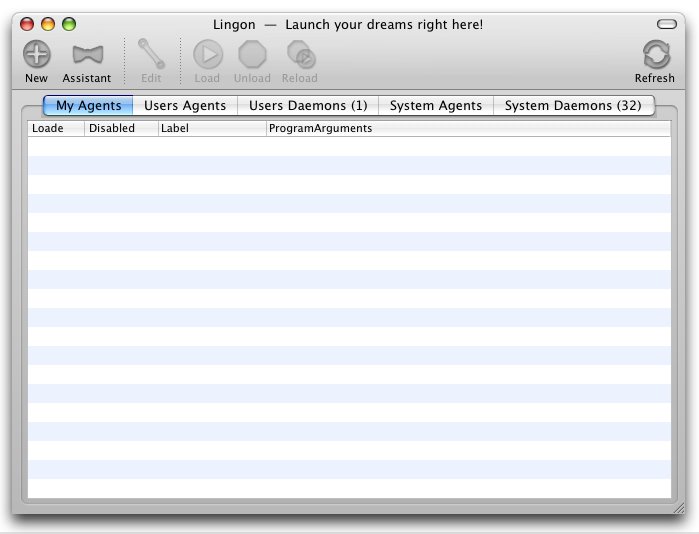
Being no stranger to editing XML .plist files, I started off the hard way, editing them by hand in a text editor. I then graduated to the Property List Editor included with the Developer Tools. But recently, I found an excellent and free utility called Lingon, which takes a lot of the grunt work out of creating LaunchDaemons and Agents. It even comes with an "Assistant" to help you get started creating your first LaunchDaemon. And it will blessedly load your items into launchd, so trips to the command-line and the arcane syntax of lines like this:

launchctl load -w /Volumes/Work/systemsboy/Library/LaunchAgents/com.systemsboy.LA01

become a thing of the past.


Lingon: Launch Your Dreams Right Here!
(click for larger view)

So, okay, sometimes a GUI is a great thing. No offense to the Lingon guys and/or gals, but I'd really love to see Apple include a front-end to launchd sometime in the future, so that it could be really accessible to mere mortals without all the fussing around. Until then, Lingon makes a great addition to any Admin's toolbox who might have need of the sort of auto-magic attainable with launchd.

I do want to note one more thing. It's possible to seriously lock up your system with LaunchDaemons and Agents. To wit, I somehow created a LaunchAgent that perpetually opened one of my hard drives. This, for all intents and purposes, prevented me from accessing any application but the Finder. In fact, I couldn't even navigate the Finder to remove the item as every time I tried to do anything at all, the window to the drive would open and take over the system. Nor could I easily access the offending LaunchAgent via single-user mode, as my home account is stored on a second partition that is not mounted in single-user mode. Fortunately I keep a secondary user account for just such emergencies. In the end, I was able to unload and delete the offending LaunchAgent via this secondary account. So just a word to the wise: Use launchd with care. And keep a secondary account handy, just in case.

And one last thing: Hats off to the Tiger devs. I bitch a lot about 10.4, but launchd is a keeper. One of the best hidden surprises to this new OS.