Publishing iCal Calendars via Mac OS X Server

So a lot of people are familiar with my articles on publishing iCal calendars to the 'net with box.net. But it turns out that I also have to provide iCal publishing for staff on our internal network, and I do this using a Mac OS X server. Recently, after rebuilding my server, I had some problems with it and had to set it all up again after not having done it in quite some time. It's pretty easy, but there's one snag I got hung up on. We'll get to that in a minute. But first let's run through the steps to set this up. First and foremost, setting up iCal publishing on Mac OS X Server requires the web server to be running. This can easily be done with the flick of a switch in the Server Admin application. But before we start the service, let's make all our settings. The first thing we need to do is set the root folder for our site. Now in my situation I'm not actually doing any web serving. All I'm doing is calendar serving, and only on our internal network, and that's all I'll describe here. The standard site root folder in Mac OS X Server is /Library/WebServer/Documents. To make things a bit cleaner and easier I'll put all my calendars in a subfolder of this called "calendar," and since that's all I'm serving I'll make that my site root: /Library/WebServer/Documents/calendar. I've given my site a name — systemsboy.com — and manually set the IP address. Otherwise I've left everything alone.
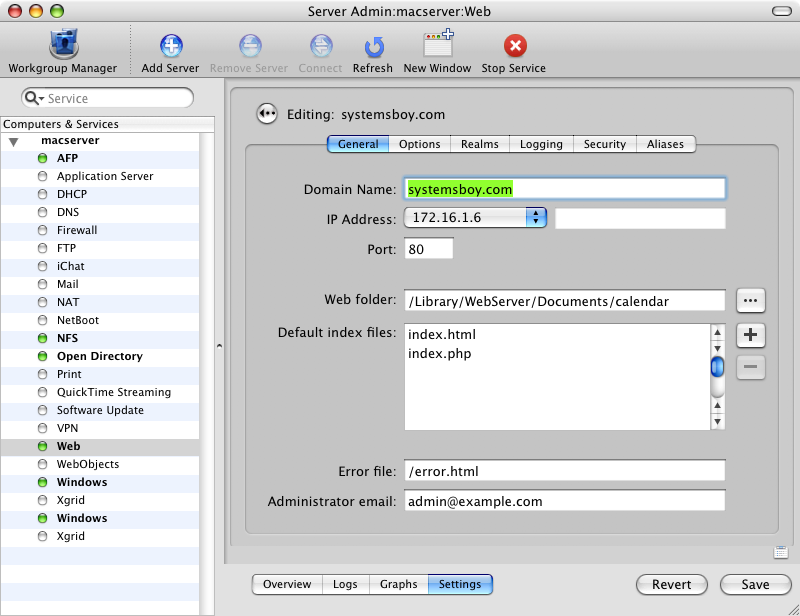
Server Admin: General Web Settings (click image for larger view)

Next up we want to set some options. WebDAV is, of course, key to all this. Without it the calendars can't be served in a form we like. So turn on WebDAV. I've also left Performance Caching on and turned everything else off. Again, this is just for serving calendars.

Server Admin: Web Options (click image for larger view)

Finally, we need to set up our "realm" which is a place where WebDAV/calendar users can share files. To do this, first add a realm to the first box on the left there by clicking the big plus sign beneath it. Give the realm a name, and give it the path to the calendar folder we set as our site root. I am just using "Basic" authentication as this is only going on our internal network and security isn't a big concern in this instance. Once your realm is set up, save the changes and then add some users or a group to the boxes to the right of the realm box. In my setup I added a group called "icalusers" which contains all the users who need to and are permitted to share calendars. I've set the group to be allowed to browse and author. This is necessary for users to read from and publish to the server respectively. You can do the same with individual users in the upper box. Once you've got that set up, save your changes and start the web service.
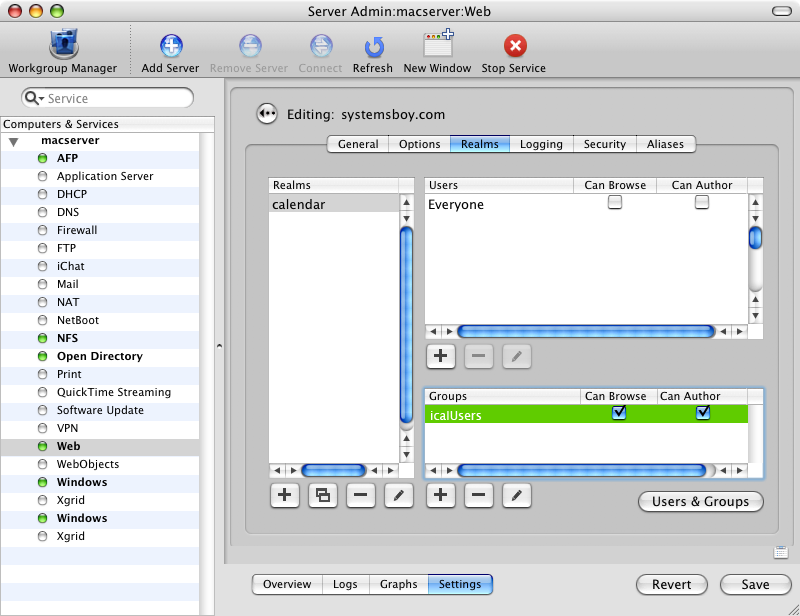
Server Admin: Realms (click image for larger view)

That's pretty much it, except for one crucial thing: permissions. I always seem to forget this, but permissions on the calendar folder must be properly set. Since WebDAV permissions are handled by the web server, the proper way to set this up is to give the user that runs the web server ownership and read/write access to the calendar folder. In most cases that user is called www. It's probably a good idea to give group ownership over to the www user as well. So before this will work you need to run:

sudo chown www:www /Library/WebServer/Documents/calendar

To set the ownership to www, and:

sudo chmod 770 /Library/WebServer/Documents/calendar

To give said user full access to the folder. [Updated to reflect user comments. See note at end of article for details. -systemsboy]

Once that's done, just start the web service in the Server Admin application by selecting the "Web" service in the far left-hand column and pressing the big green "Start Service" button in the app's toolbar. You should now be able to publish and subscribe to calendars on your Mac OS X Server from iCal. The publishing URL for my example would look something like this: http://systemsboy.com

And subscribing to the calendar, where "Birthdays" is the calendar name, would look like: http://systemsboy.com/Birthdays.ics

Simple, right? Yeah, I thought so too. Just watch those permissions! Bites me every time.

NOTE: I had originally reported that permissions for the calendar folder should be set to 777. A couple readers pointed out in the comments section that this is not the case. I have edited this article to reflect their suggestions which are a much better solution than my original one.

Thanks, guys, for pointing that out! Really good to know!

Journaled Filesystem Magic

I think I just saw the journaled filesystem in action. Like so much in life (or maybe not enough), it was one part freaky and one part amazing. Here's what happened.

First, some quick background info. My computer is kinda fucked. I know this, and I really need to get it repaired. It's under warranty; I'm just being lazy about it. But basically, the motherboard is hosed which has resulted in the failure of at least one firewire port and erratic behavior from certain USB ports. But worse is the fact that it's resulted in general instability on my system. This instability is at least farly predictable, and is well documented in my system logs, which frequently — particularly after wake from sleep — list I/O errors on the ATA bus. I.e. suddenly disk access is blocked to/from the hard drive. When this happens the only recourse is a hard reboot. And today, in true form, it happened.

Now for the weird part. Just prior to the crash, I had been processing some PNGs in Photoshop for my last article. I saved out the originals, saved out the modified PSD versions, then moved all these to a new folder called "Originals." Then I saved the modified PSDs back out to PNG for publishing on the blog. Shortly after doing all this, the crash happened. After I force rebooted, I logged into my account only to find that those last steps had been forgotten: The original PNGs were there, the PSDs were there, but the "Originals" folder and the new, modified PNGs were all gone. Freaky!

I can only assume that this was a result of journaling in action. My admittedly shallow understanding of how journaling works is that it keeps a running record of the state of the filesystem — particularly the last known good state of said filesystem — and when a crash occurs it reverts the filesystem to that last known state of working goodness. So it would seem that what happened in my case is that, even though I was still able to write to disk for a short while before my crash, the last known good instance of the filesystem existed before those last changes. So they were lost when the journal did its stuff.

Like I said: kinda cool; kinda freaky. Makes you feel a little delusional. You remember performing these actions, and yet somehow they've disappeared. On the other hand, I can only imagine the state my filesystem would be in at this point if it weren't for journaling. And this is the first time I've ever had data loss in two years of dealing with this issue. So journaling is definitely good and it really does work, if my experience is any indication, and if I've interpreted it correctly. If anyone out there has a better explanation of journaling, or of what might have really happened here, I'd love to hear it.

Either way, perhaps I should take this as an omen that it's time to head in to the shop.

UPDATE:
dmesg had this to say:
HFS: Removed 12 orphaned unlinked files

Hmm...

External Network Unification Part 4: The CMS Goes Live

NOTE: This is the latest article in the External Network Unification project series. It was actually penned, and was meant to be posted several weeks ago, but somehow got lost in the shuffle. In any case, it's still relavant, and rather than rewrite it accounting for the time lapse, I present it here in it's original form, with a follow-up at the end.
-systemsboy

Last Thursday, August 10th, 2006 marked a milestone in the External Network Unification project: We've migrated our CMS to Joomla and are using external authentication for the site. Though it was accomplished somewhat differently than I had anticipated, accomplished it was, nonetheless, and boy we're happy. Here's the scoop.

Last time I mentioned I'd built a test site — a copy of our CMS on a different machine — and had some success, and that the next step was to build a test site on the web server itself and test the LDAP Hack on the live server authenticating to a real live, non-Mac OSX LDAP server. Which is what I did.

Building the Joomla port on the web server was about as easy as it was on the test server. I just followed the same set of steps and was done in no time. Easy. And this time I didn't have to worry about recreating any of the MySQL databases since, on the web server, they were already in place as we want them and were working perfectly. So the live Joomla port was exceedingly simple.

LDAP, on the other hand, is not. I've been spoiled by Mac OS X's presentation of LDAP in its server software. Apple has done a fantastic job of simplifying what, I recently discovered, is a very complicated, and at times almost primitive, database system. Red Hat has also made ambitious forays into the LDAP server arena, and I look forward to trying out their offerings. This time out my LDAP server was built by another staff systems admin. He did a great job in a short space of time on what I can only imagine was, at times, a trying chore. The LDAP server he built, though, worked and was, by all standards, quite secure. Maybe too secure.

When trying to authenticate our Joomla CMS port with the LDAP hack, nothing I did worked. And I tried everything. Our LDAP server does everything over TLS for security, and requires all transactions to be encrypted, and I'm guessing that the LDAP Hack we were using for the CMS just couldn't handle that. In some configurations login information was actually printed directly to the browser window. Not cool!

Near the point of giving up, I thought I'd just try some other stuff while I had this port on hand. The LDAP Hack can authenticate via two other sources, actually: IMAP and POP. Got a mail server? The LDAP Hack can authenticate to it just like your mail client does. I figured it was worth a shot, so I tried it. And it worked! Perfectly! And this gave me ideas.

The more I thought about it, the more I realized that our LDAP solution is nowhere near ready for prime-time. I still believe LDAP will ultimately be the way to go for our user databases. But for now what we want to do with it is just too complicated. The mere act of user creation on the LDAP server, as it's built now anyway, will require some kind of scripting solution. I also now realize that we will most likely need a custom schema for the LDAP server, as it will be hosting authentication and user info for a variety of other servers. For instance, we have a Quicktime Streaming Server, and home accounts reside in a specific directory on that machine. But on our mail server, the home account location is different. This, if I am thinking about it correctly, will need to be handled by some sort of custom LDAP schema that can supply variable data with regards to home account locations based on the machine that is connecting to it. There are other problems too. Ones that are so abstract to me right now I can't even begin to think about writing about them. Suffice to say, with about two-and-a-half solid weeks before school starts, and a whole list of other projects that must get done in that time frame, I just know we won't have time to build and test specialized LDAP schemas. To do this right, we need more time.

By the same token, I'm still stuck — fixated, even — on the idea of reducing as many of the authentication servers and databases, and thus a good deal of the confusion, as I possibly can. Authenticating to our mail server may just be the ticket, if only temporarily.

The mail server, it turns out, already hosts authentication for a couple other servers. And it can — and is now — hosting authentication for our CMS. That leaves only two other systems independently hosting user data on the external network: the reservations system (running on it's own MySQL user database) and the Quicktime Streaming server, which hosts local Netinfo accounts. Reservations is a foregone conclusion for now. It's a custom system, and we won't have time to change it before the semester starts. (Though it occurs to me that it might be possible for Reservations to piggyback on the CMS and use the CMS's MySQL database for authentication — which of course now uses the mail server to build itself — rather than the separate MySQL database it currently uses. But this will take some effort.) But if I can get the Quicktime Streaming Server to authenticate to the mail server — and I'm pretty hopeful here — I can reduce the number of authentication systems by one more. This would effectively reduce by more than half the total number of authentication systems (both internal ones — which are now all hosted by a Mac OS X server — and external ones) currently in use.

Right now — as of Thursday, August 10th, 2006 — we've gone live with the new CMS, and that brings our total number from eight authentication systems down to four. That's half what we had. That awesome. If I can get it down to three, I'll be pleased as punch. If I can get it down to two, I'll feel like a super hero. So in the next couple weeks I'll be looking at authenticating our Quicktime server via NIS. I've never done it, but I think it's possible, either through the NIS plugin in Directory Access, or by using a cron-activated shell script. But if not, we're still in better shape than we were.

Presenting the new system to the users this year should be far simpler than it's ever been, and new user creation should be a comparative cakewalk to years past. And hopefully by next year we can make it even simpler.

FOLLOW-UP:
It's been several weeks since I wrote this article, and I'm happy to report that all is well with our Joomla port and the hack that allows us to use our mail server for authentication. It's been running fine, and has given us no problems whatsoever. With the start of the semester slamming us like a sumo wrestler on crack, I have not had a chance to test any other servers against alternative authentication methods. There's been way too much going on, from heat waves to air conditioning and power failures. It's been a madhouse around here, I tell ya. A madhouse! So for now, this project is on hold until we can get some free time. Hopefully we can pick up with it again when things settle, but that may not be until next summer. In any case, the system we have now is worlds better than what we had just a few short months ago. And presenting it to the users was clearer than it's ever been. I have to say, I'm pretty pleased with how it's turing out.

Meet the New Blog; Same as the Old Blog

Well, as per an earlier article, I'm transitioning to the new Blogger, which is currently in beta. But it seems to be working fairly well for me. So far. I have to say the folks at Google have done a terrific job making this transition downright seamless. All I had to do to switch over was to provide my Google account info, and then pretty much press a button. The site was down for maybe two minutes. And then it wasn't. And it looked completely the same (except for one minor piece of text — the bullets in the sidebar got kinda screwy but were very easy to fix).

The absolute coolest new feature for me is called "Labels". Labels are really what most people call "tags" or "categories" and Google has them baked right into the system now. Prior to the new system, I was managing categories using Byzantine work-arounds that utilized Google's Blog Search — which is now thoroughly hosed — and managing series using the venerable del.icio.us social bookmarking system. That all ends today.

Okay, well not exactly right this moment. I still have to update all my posts to use the Label system, and this requires going into each post by hand, removing the old categories, and replacing them with Labels. Fortunately, while tedious, this process isn't too bad, and adding labels is another place where the new Blogger shines. Once New Blogger is aware of your Labels, it can auto-fill after you type the first few characters of any given Label. This is a real time-saver considering I've got 160 posts to update. In the end, though, I don't think it will take too long, and it offers me a single, unified system for both series and categories all in one fell swoop, so the initial investment in time will ultimately save me quite a bit of future time and effort. In the end, I'll have a much more efficient and well organized blog.

Oh, and did I mention? New Blogger is fast! Much faster than the old Blogger in every respect, but particularly with regards to publishing, which is instantaneous.

I've been pretty down on Google in the last two posts (don't know why I'm all over them lately). But I have to say, the new Blogger Beta, thus far anyway, kicks some serious ass. Way to go guys!

Okay... Back to work...

UPDATE:
It's done. The whole blog now uses Google Beta's Labels for both categories and series. So, if you're looking for all articles that deal with Mac OS X, just hit "Mac OS X" under the "Categories" pulldown on the right. And if you're looking for all articles in the "External Network Unification" series, select it from the "Series" pulldown. Just like before. The difference is that now, instead of being routed to del.icio.us or Google Blog Search, respectively, you get taken to the category or series section built right into this blog. Which is really how it should've worked all along. Sweet!

Google Needs Better Design

The latest crop of Google gadgets, gizmos and services are really pretty damn cool. I've just been playing around with my customized home page, and there are a whole bunch of things I can load there. Things that I might otherwise choose to view via widgets — like the weather, for instance — or things I might turn to a desktop application for — like RSS feeds or email — can be consolidated into one page, or a series of tabs on that page — that page being my Google home page — right inside of a very familiar and ever-handy interface — that of the browser.

Ultimately, one might suppose, the browser via my Google home page, would become my one-stop shopping spot for everything information-centric. I just open my browser, go to my Google home page, and everything I need to know on a daily basis is right there. My mail, my calendar, the sites I regularly check, are all represented and visible at-a-glance on one page. I can chuck iCal. I can chuck Mail. I can chuck NetNewsWire, and WeatherDock, and all these little apps I have that tell me all the tiny little things I need to know on a daily or hourly basis. Yes, with all this power one might suppose that Google would become my home page. But one would be wrong.

You see, despite the fact that I can — today, right now — leverage all this information right from my Google home page, I simply never do. In fact, I don't know anyone who does. And I have some theories as to why. First and foremost, I think the main reason I don't currently do this is because of design. Google's design is notoriusly butt-ugly in general. And in the case of their home page, it's also just not very usable. In fact, I'd say it's a really good example of poor design hindering usability. Here you have all this information, all in one spot. It's a veritable cacophony of information. And this cacophony begs for good usability design. Google has given us the ability to move modules around, and add tabs for additional organization and module storage, but... That's about it. There's no way to customize colors, or font sizes, or borders, or anything that would make that abomination of a page usable. Is it potentially useful? Yes. Is it usable? Not for me or anyone I know.

Personally, when I look at my Google home page I get a headache, and I immediately begin craving individual, specialized applications, particularly well-designed ones that organize information in ways that make parsing that information pleasant rather than a chore. I'm no design expert, and I'd be hard-pressed to come up with serious suggestions as to how to better design an application towards usability. But I know bad design when I see it — or when I try to use it — because, ultimately, I don't use it. I can always tell a badly designed app, because I just don't want to use it, no matter how useful it may be.

Back when Google was "just a search engine" the minimal attention to design was fine. But now, in these days of "Web 2.0" apps, design becomes essential to how we collect, organize and process those vast amounts of information that Google has so brilliantly given us such seamless access to. The presentation of data is as crucial to understanding that data as collecting it. Google needs to really start thinking about this if they want people to start using their apps to the extent that I think they do. For the Google home page to become truly usable, design will need to play an essential role.