On Backups

Let me just say up front, historically I've been terrible about backing up my data. But I'm working on it.

As far as backups go, I've tried a lot of things. I am responsible for backups of staff data at work, and here is where the bulk of my trials have occurred. For my personal data I've always just archived things to CD or DVD as my drive got full, or as certain projects wrapped up, but I've never had any sort of emergency backup in case of something like a drive failure or other catastrophe. Both at home and at work, though, the main problem I've faced has been the ever-expanding amount of data I need to backup. Combined staff data typically takes up a few hundred gigabytes of disk space. And at home my Work partition (I store all user data on a partition separate from the System) currently uses 111 GB. This does not even take into account the multiple firewire drives attached to my system at any given time. All tolled, we're talking several hundred gigabytes of data on my home system alone. I don't know what "the best" way is to back all this up, but I think I have a pretty good solution both at home and at work.

The Olden Days
Back in the day, staff backups were performed with Retrospect to a SCSI DAT drive. This was in the OS9 days. The tapes each held about 60GBs, if memory serves, and this worked fine for a while. But with the high price of tapes, a limited tape budget, and ever-increasing storage needs, the Retrospect-to-tape route quickly became outmoded for me. It became a very common occurrence for me to come in on any given morning only to find that Retrospect had not completed a backup and was requesting additional tapes. Tapes which I did not have, nor could I afford to buy. Retrieving data from these tapes was also not always easy, and certainly never fast. And each year these problems grew worse as drive capacities increased, staff data grew and tape capacities for our $3000 tape drive remained the same. The tape solution just didn't scale.

Enter Mac OS X
When Mac OS X arrived on the scene, I immediately recognized the opportunity — and the need — to revise our staff backup system. First off, Retrospect support was incredibly weak for OS X in those early days. Second, even when it did get better, there continued to be many software and kernel extension problems. Third, SCSI — which most tape drives continue to use to this day — was on the way out, annoying as hell, and barely supported in OS X. Fourth, the tape capacity issue remained. On the other hand, from what I was reading, Mac OS X's UNIX underpinnings would provide what sounded like a free alternative, at least on the software side: rsync. My two-pronged revision of our backup system consisted of replacing Retrospect with rsync and replacing tape drives with ever-cheaper, ever-larger hard drives.

RsyncX
The only problem with the UNIX rsync was that it famously failed to handle HFS+ resource forks (as did, incidentally, Retrospect at the outset). This situation was quickly remedied by the open source community with the wonderful RsyncX. RsyncX is a GUI wrapper around a version of rsync that is identical in most respects to the original UNIX version except that it is capable of handling resource forks. Once I discovered RsyncX, I was off to the races, and I haven't found anything to date — incuding the Tiger version of rsync — that does what I want better.

My Process
These days I do regular, weekly staff backups using RsyncX over SSH to a firewire drive. For my personal data, I RsyncX locally to a spare drive. This is the most economical and reliable data backup solution I've found, and it's far more scalable than tape or optical media. It's also been effective. I've been able to recover data on numerous occasions for various staff members.

My system is not perfect, but here's what I do: Every day I use RsyncX to perform an incremental backup to an external hard drive. Incremental backups only copy the changes from source to target (so they're very fast), but any data that has been deleted from the source since the last backup remains on the target. So each day, all new files are appended to the backup, and any changes to files are propagated to said backup, but any files I've deleted will remain backed up. Just in case. Eventually, as I'm sure you've guessed, the data on my backup drive will start to get very large. So, at the end of each month (or as needed) I perform a mirror backup, which deletes on the target any file not found on the source, essentially creating an exact duplicate of the source. This is all run via shell scripts and automated with cron. Finally, every few months or so (okay, more like every year), I backup data that I want as part of my permanent archive — completed projects, email and what not — to optical media. I catalog this permanent archive using the excellent CDFinder.

Almost Perfect
There are some obvious holes in this system, though: What if I need to revert to a previous version of a file? What if I need a deleted file and I've just performed the mirror backup? Yes. I've thought about all of this. Ideally this would be addressed by having a third hard drive and staggering backups between the two backup drives. A scenario like this would allow me to always have a few weeks worth of previous versions of my data, while still allowing me to keep current backups as well. Alas, while I have the plan, I don't have the drives. Maybe someday. But for now this setup works fine for most of my needs and protects me and the staff against the most catastrophic of situations.

Consider Your Needs
Still, when devising a backup scheme, it's important to understand exactly what you need backups to do. Each situation presents a unique problem and has a unique set of requirements. Do you need a permanent, historical archive that's always available? Or do you simply need short-term emergency backup? Do you need versioning? What data needs to be backed up and what doesn't? For my needs previous versions are less important; emergency backups are critical. Also you need to consider how much data you have and what medium is most appropriate for storage with an eye towards the future. In my case I have a lot of data, and I always will. Hard drives are the most economical way for me to store my large backups — as data needs grow, so too do drive capacities — but they are also the most future-proof. In a few years we may not be using DVDs anymore, or tapes. But drives will be around in some form or another for the foreseeable future, and they'll continue to get bigger and bigger. And since I'm not so much worried about having a permanent archive of my backup data (except in the case of data archived to optical media), I can continually and easily upgrade my storage by either purchasing new drives every so often, or by adding additional drives as needed. And transferring the data to new media — to these new drives — will be faster than it will with any other media (tape and optical media are slow). This system scales. And while it may be less reliable over the long term than optical or tape, it's plenty reliable for our needs and easily upgradeable in the future.

Lately everyone seems to talking about backup solutions. Mark Pilgrim recently wrote an intriguing post asking how to archive vast amounts of data over the next 50 years. I don't think there's an easy answer there, and my solution would not help him one bit. But it did inspire me to share my thoughts on the matter of backups, and my own personal system. It's certainly not the be-all-end-all of backup systems, and if others have thoughts on this complex and important topic, feel free to post them in the comments. I'd be curious to hear.

The Adventures of Systems Boy! Turns One

So I realized recently that the one year anniversary of this blog was coming, and as of today, May 29, 2006, TASB is one year old. It was exactly one year ago that I posted my first blog entry. Frankly I'm kind of surprised I'm still here.

I posted my first entry — and started the blog in general — out of frustration. Frustration with Tiger, partly, but also frustration with a lack of information on the web about the kinds of things I deal with in my professional and personal life with regards to computer systems. I think we're doing some interesting, and often quite challenging, things in our lab, and I needed a way to document them. A log of my thoughts and activities. TASB seemed like a good way to accomplish this in a way that was centrally located and accessible from all corners, with the added benefit of perhaps helping — or getting help from — other folks in a similar boat. I've tried (and been fairly successful, I think) to keep this blog focused on systems issues. This is a blog about systems from the perspective of a lab administrator. It's by and large, but not necessarily, Mac-centric as that is my platform of choice. It's opinionated and often long winded, and that's how I like it.

And I really do like it. I'm a bit shocked that I'm still writing, but it turns out that writing this blog has been extremely therapeutic for me. It's also been quite practical. It's a great way to keep a record of, think out loud about, and sometimes even get feedback on things I'm working on. There's something quite useful about putting things down on paper (or in pixels, as it were). It forces me to concretely articulate things that can often be quite abstract when simply left inside my brain. And that's useful. But more than anything, it turns out I just like writing. And particularly about systems. It's fun.

Another thing I realized just prior to this anniversary is that I have no backup for the blog. After a good deal of research I decided to stick with Blogger for the site. It does what I need it to do and keeps me from having to deal with the problems of self-publication so I can concentrate on what I'm here to do, which is to write. It does have limitations though, and the biggest for me, as I move forward, is the fact that the Blogger system has no method for archiving my content. If I did ever decide to host the blog myself, I imagine porting the content would be a big headache. But then, I guess probably anyone who changes blog engines at some point deals with this issue on some level or another. Fortunately, I was able to download every article on the site using a nice little donationware app called WebGrabber. And since doing so I've discovered the wonders of wget, which I'm now using to make periodic site archives.

Blogger also features something called BlogSend, which I'd never used until now. BlogSend is an easy way to archive (and, if necessary, repost) articles on your site. BlogSend will email any new article you publish to your address of choice, so everything is archived in your email account. And, should anything ever happen to screw up your blogger site itself, you can use BlogSend to repost your articles. Simply email them to the provided BlogSend address and they will be reposted. This is a great way to do automated, emergency backups, but it, obviously, doesn't preserve comments. Also, BlogSend only emails the first posting of an article, so if you decide to add or change an entry, you will not get emailed the changes. So I guess the occasional full-site download will still be necessary. Anyway, once again, Blogger (with some help from BlogSend, wget and cron) has proven perfectly adequate for my needs, so kudos to them.

In other blog news, in case you hadn't noticed, TASB has a new banner. It more or less coincides with the TASB one year anniversary, so think of it as a birthday makeover, though it came about a month early. I like it. It's simple, funny and to-the-point. And I think it's fairly unique.

Anyway, I hope someone out there occasionally finds this site as useful as I do, and that if anyone is reading they continue to do so.

And, if I may, Happy Birthday to The Adventures of Systems Boy!

Online Advertisers: Time and Again, You're Losing Me

Warning: Many of the links on this page are annoying as shit. Please click with care. Or at least with a sane, popup-blocking browser.

Every time I click on your ad in my browser, and a popup window with some dumbass Flash presentation starts loading, and I'm sitting there waiting for you to give me some information about your product, and getting bored, and I know if wait for it I'll be under-whelmed and under-informed and probably even more annoyed, you lose me. I close the window before that stupid Flash animation ever gets a chance to finish loading. Fuck you. Why do I have to wait for you to sell me something? My time is precious.

Or another scenario: I load up a bunch of tabs with pages I'm interested in. Some of these pages might be movie sites, some trailers, or even just Apple's site, which, since they started auto-playing their ads at every visit, I've axed from my dailies. (They've mercifully stopped doing this with the introduction of the MacBook, but it was really annoying for a while.) One of these pages has more Flash animation, with that annoying, generic background sound that everyone just hates and that adds absolutely nothing to the experience. Some of the trailers start playing automatically. Great. Now I've got sound spewing from several different tabs at once, and I have to go stop each movie trailer one by one. Worse, when I finally locate the page with the Flash sound I find that it can't be turned off. There's no mute button.

Look, assholes, I'm trying my best to learn about your products. This is stuff I'm already really interested in, or I wouldn't have clicked it in the first place. Your mindless, thoughtless use of Flash and audio say to me that you don't give a shit about my browsing experience, nor do you comprehend how people that use tab-capable browsers (i.e., any of us not using I.E.) actually surf the web. I'm sorry, but rather than engendering sympathy or even interest for your cause or product, all you're really doing is pissing me off and losing my business in the process. More often than not, I just close your window and forget about it. I don't need more stuff, or more to read, all that badly. And I certainly don't need more Flash.

Why do we surf? Most of us surf for information. Why do we click on ads? Again, for information. Not for some Flash designer's idea of adver-tainment.

I repeat: You're losing my business. Cut it out.

Three Platforms, One Server Part 8: A Minor Snafu

So far we've hit only one very minor snag in our migration to a single, unified authentication server for Mac, Windows and Linux. Since Mac and Linux behave so similarly with regards to authentication — in fact, I'd say they're practically identical — and since Windows is so utterly, infuriatingly different, you can expect most of our problems to happen on the Windows side. At this point it should go without saying. This latest snag is no exception.

Today we discovered that applications to be used by network users on Windows machines must be installed by a network user, and this network user must be a domain admin. Put another way, if a Windows application is installed by a local administrator, it will not be fully accessible by users who authenticate via the domain hosted by the Authentication Server. Typical.

The solution is fairly easy, albeit kind of a pain. On each client workstation, you must give the network admin user (i.e., a user whose account exists only on the authentication server) full access to the "C" drive. You heard me: On each computer. Giving full access to a user on Windows requires logging in as a local admin and granting the network user full access rights. Windows then changes the access permissions on every file on the machine, which takes a long-ass time. You heard me: long-ass.

If we had to do this on every machine by hand, I'd be grumpy about it (but I'd do it anyway). Fortunately, we'll be building our Windows boxes from clones, which means we only have to do this once on a master build. the change should propagate via the clones after that. So I'm a pretty happy camper. And we're back on track.

Still, Windows, what the fuck?

And just to be clear on this, I honestly don't know enough about Windows or Active Directory to understand why this is happening. All I know is what we've observed, which is that Windows apps fail to run properly for network users when installed by local users. We tried matching the users and groups we'd had on the old Windows Server, but that did no good. Setting full access locally for a networked user was the only thing we could find that worked. It's very possible, however, that there's a better solution than the one we're using. If anyone can enlighten me, I'm all ears.

Oh, and yes, our network user has full access privileges for the directory domain. Confused? Me too.

More to come...

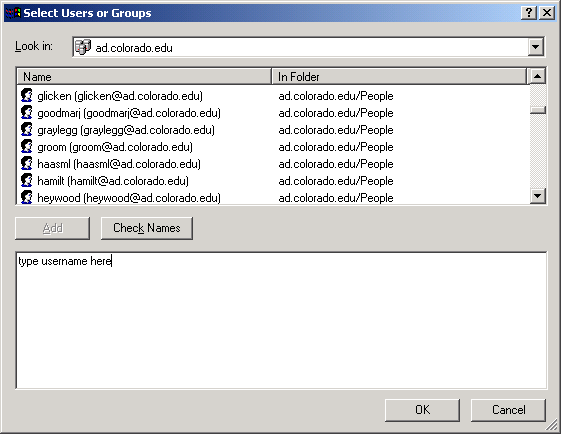
UPDATE: I found a better solution. A network user can be added to the "Administrators" group via the Users and Groups control panel. Doing so is not particularly intuitive, but it works and saves us the trouble of having to modify permissions on the entire "C" drive.

Windows "Advanced" Users and Groups: By "Advanced" I Think They Mean "Annoying"
(click image for larger view)

It essentially requires logging in as a local Administrator, navigating to the "Advanced" window in Users and Groups, and then adding the user to the "Administrator" group.


Group Properties: Do We Really Need This Window?
(click image for larger view)

Windows doesn't see a network user unless she's logged in, so you have to know how to enter a network user. It should look something like this: DOMAIN\user, where "DOMAIN" is your Active Directory Domain, and "user" is the user name.


Add the User Here: Who'd a Thunk It?
(click image for larger view)

You can find more complete instructions here, which is where I got these images.

Fun stuff.

Three Platforms, One Server Part 7: Testing...

So, our primary authentication server, which will be used to enable network home accounts for our entire internal network — Mac, Windows and Linux — is up and running. I've installed it in our server room, put it on the KVM, and switched over all the workstations. So far, so good. (My fingers are so crossed they hurt.)

For the Windows quota requirements we went with the first solution mentioned in this article, and outlined in detail here: Windows roaming profiles are on a separate, quota-enabled volume on the authentication server. This — and the Windows implementation in general — is my biggest concern, and will require a great deal of testing. Summer Session has begun, and this will give us the opportunity to test on live subjects as a limited pool of students begins using the systems for work again.

There are a couple of immediate benefits of this new system. For one, users can now change their password lab-wide from any Mac in the lab. Now, users don't tend to do this much, but they can if they want to, and it's easy as pie. But as an admin, the most exciting benefit to all this is the ease with which new users can now be created. In the past, creating a new user was a multi-step, multi-computer process that involved coordination between multiple sysadmins: Admin 1 gets the user info, creates the Linux and Windows accounts and hands it off to admin 2, who then creates the Mac account and uploads the Mac skel. This process was lengthy and extremely error-prone. Using the new system, user creation is a breeze. One single, easy-to-use script on the authentication server pretty much does it all. Any sysadmin — or even a trained assistant — can do it. Just log in to the authentication server, run the script, and you're basically done. It's fast, easy and accurate. Which is really the whole reason we're doing all this. I'm pretty happy about it.

There are a few minor details I need to work out. The main one is file sharing. In addition to being an authentication server, our original Mac server is also a file server. On it there are numerous shares for various purposes — one for staff, one for students, etc.. At this point I'm thinking of keeping the file server and the authentication server separate. This will reduce the load on both, and mitigate the need to migrate any data. The catch is that user authentication data on the file server will need to match that of the new authentication server. This should be a simple matter of changing the old server's role to "Connected to a Directory System" and pointing it at the new authentication server. I've never done this though, and it's complicated by the fact that the old server is running Panther whereas the new one is running Tiger. Probably the best thing to do will be to wipe the old server (yes, I have a backup) and put Tiger on it, then redo the shares. But I'll probably test with Panther first, just to see what happens. I'll let you know.

In any case, this is, again, a minor problem that shouldn't affect the overall plan much and should be relatively easy to figure out and implement. It's just one of those little things you forget about when you're drawing up your master plan for world conquest. "Oh yeah... What about the file server?..."

Otherwise, the conversion is on and seems to be going smoothly so far. Once we get into serious testing I'll post the results. Hopefully this will all be done in the next few weeks and the conversion will finally be complete.