Strange Taste

del.icio.us has suddenly, and for no apparent reason, begun sorting my bookmarks in reverse order. Of course the sort order always seemed completely arbitrary and impossible to configure anyway, but still I got very used to clicking things in that certain, screwy order. And now it's backwards.

Um... What The Fuck?... I'm irked.

Anyone know a way to sort del.icio.us bookmarks in some logical order, once and for all? Please. I'm begging.

Using SSH to Send Variables in Scripts

In July I posted an article about sending commands remotely via ssh. This has been immensely useful, but one thing I really wanted to use it for did not work. Sending an ssh command that contained a variable, via a script for instance, would always fail for me, because, of course, the remote machine didn't know what the variable was.

Let me give an example. I have a script that creates user accounts. At the beginning of the script it asks me to supply a username, among other things, and assigns this to a variable in the script called $username. Kinda like this:

echo "Please enter the username for the new user:"read username

Later in the script that variable gets called to set the new user's username, and a whole bunch of other parameters. Still later in the script, I need to send a command to a remote machine via ssh, and the command I'm sending contains the $username variable:

ssh root@home.account.server 'edquota -p systemsboy $username'

This command would set the quota of the new user $username on the remote machine to that of the user systemsboy. But every time I've tried to include this command in the script, it fails, which, if you think about it, makes a whole lot of sense. See, 'cause the remote machine doesn't know squat about my script, and when that command gets to the remote machine, the remote machine has no idea who in the hell $username is. The remote machine reads $username literally, and the command fails.

The solution to this is probably obvious to hard-core scripters, but it took me a bit of thinkin' to figure it out. The solution is to create a new variable that is comprised of the ssh command calling the $username variable, and then call the new variable (the entire command) in the script. Which looks a little something like this:

quota=`ssh -t root@home.account.server "edquota -p systemsboy $username"`echo "$quota"

So we've created a variable, called $quota, which is the entire ssh command, and then we've simply called that variable in the script. That $quota variable will have the $username variable already filled in, and the command will now succeed on the remote machine. One thing that's important to note here: generally the command being sent over ssh is enclosed in single-quotes. In this instance, however, it must be enclosed in double-quotes for the command to work. I also used the -t option in this example (which tells ssh that the session is interactive, and to wait until it's told to return to the local machine) but I don't actually think it's necessary in this case. Still, it shouldn't hurt to have it there, just in case something goes funky.

But so far nothing has gone funky. This seems to work great.

Directory Access Via the Command Line

I recently finally had occasion to learn some incredibly handy new command-line tricks I've been wanting to figure out for some time. Namely, controlling Directory Access parameters. I've long hoped for and wondered if there was a way to do this, and some of my more ingenious readers finally confirmed that there was, in the comments to a recent article. And now, with initiative and time, I've figured it all out and want to post it here for both your and my benefit, and for the ages (or at least until Apple decides to change it).

The occasion for learning all this was a wee little problem I had with my Mac OS X clients. For some reason, which I've yet to determine, a batch of them became hopelessly unbound from the Open Directory master on our network.
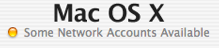
Weird Client Problem: "Some" Accounts Available? Huh?

(click image for larger view)

The solution for this was to trash their DirectoryService preferences folder, and then to rebind them to the server. This was always something I'd done exclusively from the GUI, so doing it on numerous clients has always been a pain: log into the client machine, trash the prefs, navigate to and open the Directory Access application, authenticate to the DA app, enter the OD server name, authenticate for directory binding, and finally log back out. Lather, rinse, repeat per client. Blech! The command-line approach offers numerous advantages, the most obvious being that this can all be scripted and sent to multiple machines via Apple Remote Desktop. No login required, no GUI needed, and you can do every machine at once.

The command-line tools for doing all this are not exactly the most straightforward set of commands I've ever seen. But they exist, and they work, and they're quite flexible once you parse them out. The first basic thing you need to understand is that there are two tools for accomplishing the above: dscl and dsconfigldap. The dsconfigldap command is used to add an LDAP server configuration to Directory Access. The dscl command adds that server to the Authentication and Contacts lists in Directory Access, and is used to configure the options for service access.

So typically, your first step in binding a client to an OD master in Directory Access is to add it to the list of LDAPv3 servers. This can be done via the command-line with dsconfigldap, like so:

sudo dsconfigldap -s -a systemsboy.com -n "systemsboy"

We like to use directory binding in our configuration, and this can be accomplished too:

sudo dsconfigldap -u diradmin -i -s -f -a systemsboy.com -c systemsboy -n "systemsboy"

The above command requires a directory administrator username and interactively requests a password for said user. But if you want to use ARD for all of this, you'll need to supply the password in the command itself:

sudo dsconfigldap -u diradmin -p 'DirectoryAdmin_Password' -s -f -a systemsboy.com -c systemsboy -n "systemsboy"

Directory Access: Adding an OD Server Configuration

(click image for larger view)

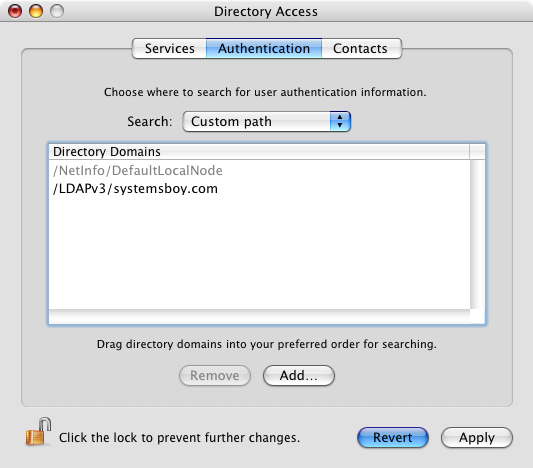
So, there you have it. You've now added your OD master to your list of LDAPv3 servers. You can see this reflected immediately in the Directory Access application. But, unlike in DA, the command does not automatically populate the Authentication and Contacts fields. Your client will not authenticate to the OD master until you have added the OD server as an authentication source. To do this you use dscl. You'll need a custom Search Path for this to work. You may already have one, but if you don't you can add one first:

dscl -q localhost -create /Search SearchPolicy dsAttrTypeStandard:CSPSearchPath

And now add the OD master to the Authentication search path you just created:

sudo dscl -q localhost -merge /Search CSPSearchPath /LDAPv3/systemsboy.com

Directory Access: Adding an OD Authentication Source

(click image for larger view)

If you want your OD server as a Contacts source as well, run:

sudo dscl -q localhost -merge /Contact CSPSearchPath /LDAPv3/systemsboy.com

Again, this change will be reflected immediately in the DA application. You may now want to restart Directory Services to make sure the changes get picked up, like so:

sudo killall DirectoryService

And that's really all there is to it. You should now be able to log on as a network user. To test, simply id a know network-only user:

id spaz

/>If you get this error:

id: spaz: no such user

Something's wrong. Try again.

If all is well, though, you'll get the user information for that user:

uid=503(spaz) gid=503(spaz) groups=503(spaz)

You should be good to go.

And, if you want to view all this via the command-line as well, here are some commands to get you started.

To list the servers in the configuration:

dscl localhost -list /LDAPv3

To list Authentication sources:

dscl -q localhost -read /Search

To list Contacts sources:

dscl -q localhost -read /Contact

A few things before I wind up. First, some notes on the syntax of these commands. For a full list of options, you should most definitely turn to the man pages for any of these commands. But I wanted to briefly talk about the basic syntax, because to my eye it's a bit confusing. Let's pick apart this command, which adds the OD master to the configuration with directory binding and a supplied directory admin username and password:

sudo dsconfigldap -u diradmin -p 'DirectoryAdmin_Password' -s -f -a systemsboy.com -c systemsboy -n "systemsboy"

The command is being run as root (sudo) and is called dsconfigldap. The -u option tells the command that we'll be supplying the name of the directory admin to be used for binding to the OD master (required for such binding). Next we supply that name, in this case diradmin. The -p option allows you to specify the password for that user, which you do next in single quotes. The -s option will set up secure authentication between server and client, which is the default in DA. The -f option turns on ("forces") directory binding. The -a option specifies that you are adding the server (as opposed to removing it). The next entry is the name of the OD server (you can use the Fully Qualified Domain Name or the IP address here, but I prefer FQDN). The -c option specifies the computer ID or name to be used for directory binding to the server, and this will add the computer to the server's Computers list. And finally, the -n option allows you to specify the configuration name in the list of servers in DA.

Now let's look at this particular use of dscl:

sudo dscl -q localhost -merge /Search CSPSearchPath /LDAPv3/systemsboy.com

Again, dscl is the command and it's being run as root. The -q option runs the command in quiet mode, with no interactive prompt. (The dscl command can also be run interactively.) The localhost field specifies the client machine to run the command on, in this case, the machine I'm on right now. The -merge flag tells dscl that we want to add this data without affecting any of the other entries in the path. The /Search string specifies the path to the Directory Service datasource to operate on, in this case the "Search" path, and the CSPSearchPath is our custom search path key to which we want to add our OD server, which is named in the last string in the command.

Whew! It's a lot, I know. But the beauty is that dscl and dsconfigldap are extremely flexible and powerful tools that allow you to manipulate every parameter in the Directory Access application. Wonderful!

Next, to be thorough, I thought I'd provide the commands to reverse all this — to remove the OD master from DA entirely. So, working backwards, to remove the server from the list of Authentication sources, run:

sudo dscl -q localhost -delete /Search CSPSearchPath /LDAPv3/systemsboy.com

To remove it from the from the Contacts source list:

sudo dscl -q localhost -delete /Contact CSPSearchPath /LDAPv3/systemsboy.com

And to remove a directory-bound configuration non-interactively (i.e. supplying the directory admin name and password):

sudo dsconfigldap -u diradmin -p 'DirectoryAdmin_Password' -s -f -r systemsboy.com -c systemsboy -n "systemsboy"

If that's your only server, you should be back to spec. Just to be safe, restart DirectoryService again:

sudo killall DirectoryService

If you have a bunch of servers in your Directory Access list, you could script a method for removing them all with the above commands, but it's probably easier to just trash the DirectoryService prefs (in /Library/Preferences) and restart DirectoryService.

Lastly, I'd like to end this article with thanks. Learning all this was kind of tricky for me, and I had a lot of help from a few sources. Faithful readers MatX and Nigel (of mind the expla

natory gap fame) both pointed out the availability of all this command-line goodness. And nigel got me started down the road to understanding it all. Most of the information in this article was also directly gleaned from another site hosted in my home state of Ohio, on a page written by a Jeff McCune. With the exception of a minor tweak here and there (particularly when adding Contacts sources), Jeff's instructions were my key to truly understanding all this, and I must thank him profusely. He made the learning curve on all this tolerable.

So thanks guys! It's help like this that makes having this site so damn useful sometimes, and it's much appreciated.

And now I'm off to go bind some clients command-line style!

UPDATE:

Got to test all this out real-world style today. Our server got hung up again, and we had the same problem I described at the head of this article. No one could log in. So I started trying to use the command-line to reset the machines. I had one major snag that caused it all to fail until I figured out what was going on. Seems I could not bind my machines to the server using the -s flag (secure binding). I had thought that this was the default, and that I was using it before, but now I'm not so sure. In any case, if you're having trouble binding or unbinding clients to a server, try the dsconfigldap command without the -s flag if you can, like so:

sudo dsconfigldap -u diradmin -p 'DirectoryAdmin_Password' -f -a systemsboy.com -c systemsboy -n "systemsboy"

That's what worked for me. I'm a little concerned that this is indicative of a problem on my server, but now's not really the time to go screwing with stuff, so I'll leave it alone for the time being.

This update brought to you by the little letter -s.

Apple Mouse Not So Mighty

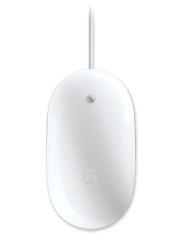
Not long ago I happened to get a deal on an Apple Mighty Mouse from a friend who was unloading one. Figured it would be worth a try. I'd been curious to see how the thing performed, and the only real way to test how well you and something like a mouse get along is to actually use one for an extended period of time. So that's what I did. I didn't mind the Mighty Mouse, actually. If I'd been coming from anything other than my beloved $13 dollar Logitech optical — perhaps the greatest mouse ever invented, quite possibly mouse perfection — I probably would've liked the Mighty Mouse. It feels just like the old one-button Apple optical, but has the additional convenience of three-button, scroll-wheel goodness. And the omnidirectional scrolling is quite ingenious. Unfortunately, I can't say I was totally sold. While I didn't hate the mouse as much as a lot of folks, I did find the small, nipple-like scroll-wheel, and the overall lack of physical feedback unsatisfying and at times difficult to use.


Apple Mighty Mouse: Pretty but Dumb
(click image for larger view)

But this isn't just a review of the Mighty Mouse. That's been done to death at this point. What I really wanted to talk about was design over function. And, of course, how all this relates to The lab.

Not long after my first foray into Mighty Mouse usage, we purchased a bunch of Quad G5s for the lab. These machines shipped with the Mighty Mouse. In years past we replaced our Apple mice with three-button mice (yes, those very same Logitechs I mentioned above) because many users — particularly those using Maya — really require three-button functionality. I was actually pretty excited that, with the Mighty Mouse included, this would be the first year in some time I didn't have to go buy new mice for our Macs. There was some initial confusion among users, as the Mighty Mouse is configured in one-button mode by default. So educating the students about configuring the mouse for three-button functionality was necessary. That turned out to be quite easy, and before long those folks who wanted to be were up and running. But after a month or two I got a request generated by the student body in one of the Student Representative meetings for — yup, you guessed it — new mice. The consensus was that people really hated the Mighty Mouse, preferring, like I do, the cheap but wonderful Logitech alternative.


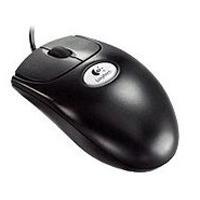
The Logitech El-Cheapo Premium Optical Mouse: Best. Mouse. Ever.
(click image for larger view)

Let's look at this Logitech mouse for a minute. The Logitech Premium Optical Mouse lists on MacMall for $12.99 as of this writing (it no longer appears at Logitech's online store, and is becoming hard to find, sadly). That's less than 1/4 the price of the Mighty Mouse. But, while the design of the Apple mouse is beautiful, the Logitech's design is brilliantly functional (and not terribly hideous, actually). The Logitech features big buttons and a big scroll-wheel. The buttons make a both an audible and a physical click when pressed, and the scroll wheel also makes physical clicks when you move it. This feedback, and the size of the controls let you know that you're actually using the mouse in the way you intend. I'd bet the resistance of the buttons and wheel even reduce the likelihood of repetitive strain injuries, though if not they're certainly far more psychologically satisfying to me than the practically invisible Mighty Mouse controls. Do they look as nice? No. But they feel great. And how much time do you spend looking at your mouse versus holding it? The other thing I appreciate about the Logitech is that it has a great ergonomic shape. This is something I'm really picky about, and it was the initial thing that sold me on the Logitech. This basic, early-nineties mouse shape — the one with a little hump on the back where your palm rests — is ideal for me. I find it very comfortable. Feedback and comfort: two important things that the Mighty Mouse simply lacks. (Sorry, but a speaker-generated "click" sound just doesn't cut it for me.)

I think it's great that Apple finally decided to start making three-button mice. And I think they did so in some truly innovative ways. I can't even say I really hate the Mighty Mouse. It's just that there are far better alternatives for a lot less money. And I expect more from Apple. The look of Apple's mice has long been stunning, if not always very functional. Unfortunately, design over functionality just doesn't fly for those of us who use computers all day long. A mouse needs to feel good more than it needs to look good. It is, after all, a device for the hand. And while it may just be my opinion that the Mighty Mouse is bested by the cheapest Logitech mouse on the market, a whole department of staff, faculty and students agrees with me. Not at all scientific, but that's pretty damning evidence, if you ask me.

Apple is king when it comes to combining function and aesthetics. You see it in the iPod. You see it in their computers. You see it in their software. Their monitors are heaven to look at. Their products usually work the best and look the best, in my experience. But they always seem to blow it when it comes to mice, and unfortunately, the Mighty Mouse is no exception. While Apple made the right move supplying its users with a true three-button mouse solution, I'm afraid they blew it on the implementation. Here's hoping they keep at it, though. I'd love for Apple to produce a mouse I can love.

Software Licensing and Registration Hell

Is it just me, or has software licensing and registration in some quarters become a total nightmare? Case in point: Today I'm trying to install Autodesk's Combustion 4, a fine compositing and effects program, somewhat akin to Adobe's AfterEffects. From a SysAdmin's standpoint, however, the two are night and day. To activate AfterEffects, one simply need install it and enter the serial number provided with the software bundle. That's it. It's done. Ready to use. Moreover, this one serial number is valid for the number of machines specified by our license agreement with the company. Adobe trusts me to install the software only on the number of machines agreed upon by our license contract, or to otherwise monitor licenses on our network. The software does not perform network license checks to see if we've exceeded our licenses. Adobe leaves that to me. That's my job, after all, and I get in big trouble if I fail to do that job. In this scenario, the onus of license enforcement falls to me. Adobe trusts me to do my job, and in return, installing software is fairly straightforward. It's a good deal.


Autodesk Combustion Splash Screen
(click image for larger view)

Other software manufacturers, however, are not so trusting and approach software license management via far more convoluted and Byzantine methods. Autodesk is among these companies. To install Combustion, not only do I have to provide a serial number, I also need to provide an authorization number. This authorization number can be obtained by registering each and every copy of Combustion I intend to use. The process of installing just one copy of Combustion goes something like this:

1. Install the software from disk.
2. Launch the application and type in the serial number for this copy.
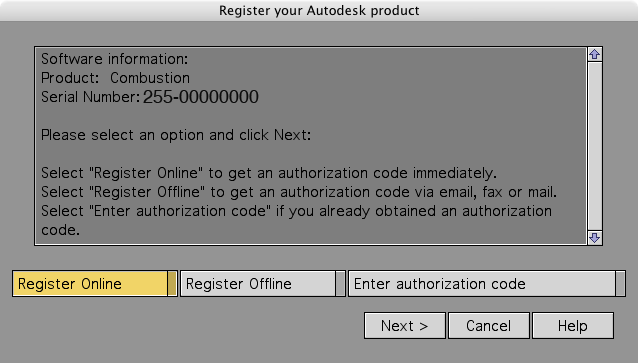
3. Activate the "Licensing Wizard."


Autodesk Registration Splash Screen: Here We Go...
(click image for larger view)

4. Upon magical transportation to the Autodesk registration page, register the software by entering every personal or professional detail they can think to ask you about, including the serial number of said copy of said software.
5. Check your email, where you should shortly receive the authorization number for your copy of Combustion.
6. Enter this Authorization Code into the special box.
7. You should finally be able to use Combustion.
8. Lather, rinse, repeat for every copy you bought.


Autodesk Registration Panel: Are We Having Fun Yet?
(click image for larger view)

Whew!

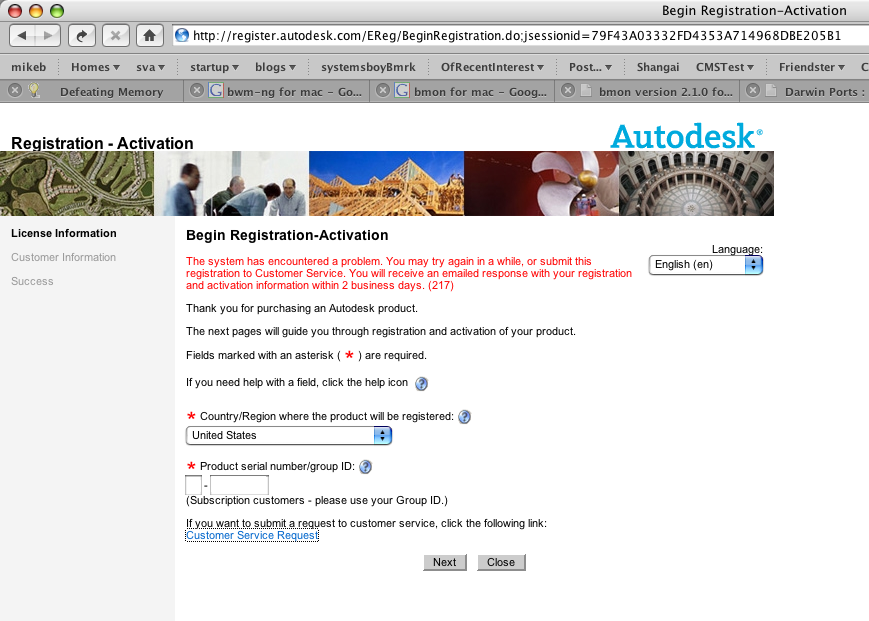
Okay, there are a couple of big problems with this scenario. First off, if there's any problem along this insane route, you can get quite stuck. In my case, the registration site did not work. The error page directed me to file a Customer Service Request, but the link to said request was also broken. This means that I will have to register my software either by fax, mail or possibly telephone. It also means I will have to do this myself for each and every copy of Combustion I've purchased. I have five copies. Thank god I don't have more, because it's going to take me a while to install this software. And this is the other problem with this sort of arcane licensing scheme: It doesn't scale. Imagine if I had a hundred machines I wanted to install Combustion on. It's practically infeasible at worst, unbelievably annoying at best. And I have to say, all it makes me want to do is buy any product other than Combustion, just to avoid the install hassles.


Autodesk Online Registration: Broken!
(click image for larger view)

There are a number of software companies besides Autodesk that use these sorts of tactics: Cycling '74 and Digidesign spring immediately to mind as some of the most heinous offenders, but there are others. They seem to think that the best way to protect their intellectual property is to make their products difficult to install and maintain. The companies that do it right are ones like Apple, Adobe and, shockingly, Microsoft. These companies have volume license schemes and educational versions of their products that are relatively easy for institutions to install and maintain. They recognize the value of getting their software in the hands and minds of young users, and they make it as easy to do so as possible. And I think they recognize the value of happy SysAdmins, too. They know we're the ones who make the recommendations for future purchases, and that maybe — just maybe — it might be a good idea to not make our lives a total living hell.

So, to Autodesk and others like you, here's a little secret: Systems Administrators hate you. We hate your fucking guts. Because, for us, installing your software is ten kinds of torture. There's no reason for you to do this except for a clear contempt on your part towards the SysAdmin community, and most likely your users in general. Or just general stupidity. You're not stopping anyone from stealing your software, and frankly you're keeping those of us who plan to use it legitimately from even wanting to do so. In fact, I'd argue that stealing your software is far easier than installing it legitimately. So all you're really doing is punishing your legitimate users. It's so stupid, and I'm so sick of it, and I'm sure I'm not alone. But more than that, it's just bad business. The next time someone asks me to recommend a piece of compositing software, I'll think of all the hassle I had to go through to install Combustion.

And then I'll recommend AfterEffects.

UPDATE:
In the comments some astute readers have provided a link to a whole site that deals with application installers and requirements that present problems from the standpoint of educational lab administration. The site is more concerned with apps that require user-level authorization files or user-level access to parts of the filesystem that should be protected, while my article deals more with plain-old annoying installers and licensing schemes. Still, it's a great site, and a good compliment to this post, and I wanted to link to it directly:
Poorly-Made Applications

Amazingly, some of these practices are holdovers from the OS 9 days, when security and multiple users weren't really issues to Apple or developers (or Lab Admins). It's shocking to me that after all this time a lot of software developers still can't figure out how to properly, securely, or even conveniently install apps in Mac OS X.

Thanks to those who sent in the link.