The New Hotness and The Old Lameness

I have two points to make and then I'm out.

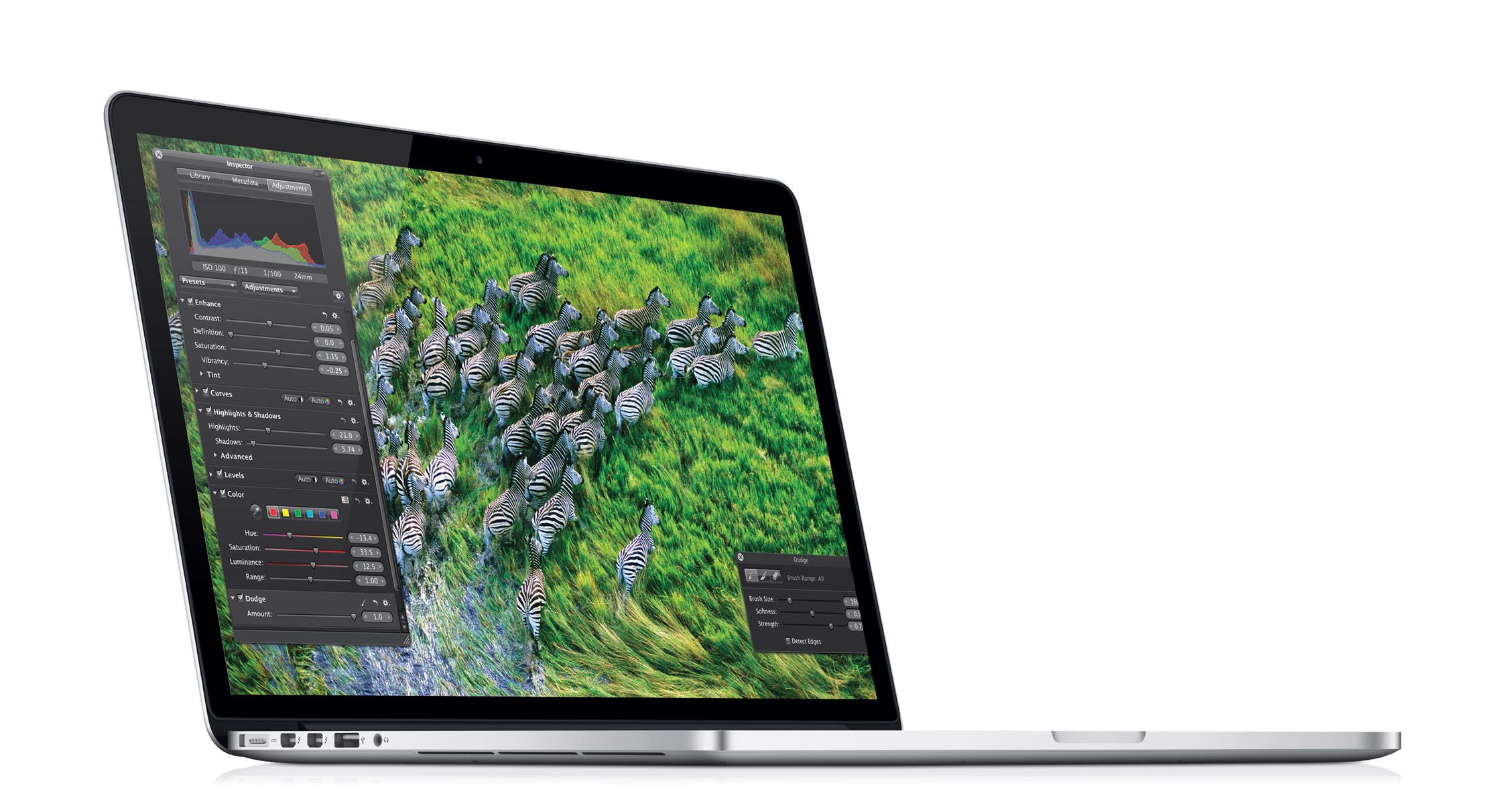
First: I have a deep and unbridled lust for the new MacBook Pro with Retina Display. I reserve final judgement for after I've actually held one in the flesh, but I think they look pretty great and I might end up getting one to replace my beloved but aging 17" behemoth.

The real shocker to me, though, is if you configure the standard, non-retina display MacBook Pro with a fast 512GB SSD drive it comes out to be $300 more than than its comparably equipped Retina Display toting sibling. Max the RAM out on the Retina Display MacBook Pro and it's still $100 cheaper! It's a no brainer: the Retina Display MacBook Pro is the one to get if you can afford to get something with fast, decent-sized storage.

Point the second: The paltry, pathetic, pointless Mac Pro update is your queue to exit the building if you're a real pro user whose needs entail high-end hardware. I'm sorry, but does anyone really expect anyone to buy this latest round of Mac Pros? Especially now, with Apple claiming they're going to announce some vague new hardware product aimed at professionals? (I can pretty much guarantee this will not be an actual Mac Pro, but something much more disappointing.) In 2013?

Frankly, this sounds exactly like the Final Cut Pro fiasco from last year: over-promise some hot new product for pros, then deliver something they not only dislike but really just can't use. Three years is too long to wait for a proper hardware upgrade, and with professional Apple products dropping like flies, it's clearer than ever: despite their claims, Apple truly no longer cares about the existing professional market. They may be interested in creating a new sort of professional market — one that appeals to new users and up-and-coming pro and prosumer types — but Apple couldn't give two shits about legacy pros.

Pros, I really believe it's time for you to abandon the Apple ship, because Apple has made it abundantly clear through their actions (though not through their words, I must say) that they have abandoned you. (For the record, I don't really consider myself a Pro user anymore. Though I am a sysadmin, my computing hardware needs are quite modest these days.)

That's it. That's all I've really got to say.

iPad

My thoughts on and history with the iPad are complicated. That I would buy one was, I'd always thought, somewhat inevitable. But, after twice having the good fortune to test drive iPads — once when setting up one for my boss, and once when setting one up for my stepfather — I had difficulty seeing what use I could ever have for the device. Perhaps the most important thing impressed upon me during my time with iPads was how terrific they are for viewing imagery. So, my thinking went, if I were to ever get one, imagery would be my window into the world of the iPad.

Drawing

For some time I stopped thinking about iPads. And then one day, while I was making the thumbnails for a comic strip I work on, it struck me that the iPad would be a perfect compliment to my workflow.

See, when I make a strip I typically draw a quick thumbnail of each panel for layout and basic composition. This takes up precious and valuable paper in my sketchbook with drawings that are for reference only and which I often have no need for once the strip is complete. It's a big waste of paper that will then take up much-prized shelf space in my small Manhattan apartment.

Text

Also, when working on strips, I keep a text file with the strip's words in it. This lives on my computer. So I am constantly running back and forth between computer and drawing table to check the text. Or sometimes I put my computer on my table, but this is often just as inconvenient, taking up way too much space and hindering drawing. The fact is, there's really been no convenient way to reconcile this problem. Until now.

iPad

I've said before, when the iPad becomes a tool that's creatively useful to me, that is the moment I will buy one. Clearly that moment has come. The iPad is a perfect compliment to my comic strip workflow, and an extremely useful tool for me. When I want to mock up a strip I simply whip out my iPad and mock it up. No paper waste, no pencil sharpening, and no pages unnecessarily filled with unwanted drawings. Just get out the iPad and go, anywhere, anytime, right from the sofa if I want.

Then, when it's time to make the strip and I'm working at my drawing table, I can keep the iPad right there with me. I can toggle between the text and the drawing — which I do using the excellent multi-touch gestures — right there on the same device taking up minimal space on my table. It's terrific!

Doodling

As you can probably tell, I'm a bit fussy over what goes in my sketchbooks. I know they're for sketching, but they're also a record of my thoughts and projects at a particular point in time. And I like to keep them nice. I want them to come out good. I don't want them to be full of crap. A sketchbook, when done right, can be a thing of beauty in and of itself.

But I still want a place to doodle. Doodling is important too. Free drawing in which the finished product isn't important, drawing with no end or purpose, is essential to the creative process. And I've been missing out. My anal retentive perspective on sketchbooks has largely prevented me from doing much doodling. The result has been that when I'm doing finished work it takes me a while to warm up and get comfortable. Drawing is like a sport. If you don't do it every day you get out of shape. And I've been out of shape.

Since getting the iPad, though, I find myself drawing constantly in my spare time. It's easy because I can do it anywhere or anytime now. So now, while I'm watching TV, I'm doodling the whole time. This has resulted in a much higher level of comfort and confidence when doing actual physical drawing. Because my brain and hands are so in the habit now of thinking about drawing, now when I go to do actual pen and ink work, it's much, much easier. This is an unexpected but wonderful surprise. The iPad has made me a better artist.

Currently, the apps I'm using for drawing are: the minimal Zen Brush, my favorite for doodles; the full-featured ArtRage, as seen in the iPad commercial, great for more painterly works; SketchBookX; and Paper. But most of the time I use Zen Brush, mainly because it's so simple and the brush is the most like a real ink brush. Zen Brush lets me work extremely quickly and with a minimum of friction.

Viewing

Not only is it fun to draw on the iPad, but images look great on it, especially with the Retina display. So now I bring my drawings and comics everywhere with me and I've got a great way to show them off. Showing someone a drawing on your iPhone just doesn't compare.

Light editing is also possible with iPhoto for iOS, which, despite some interface oddities, is a terrific piece of software that I'm enjoying quite a bit.

More

I also took my iPad to work, just to see what that would be like. It was another one of those,"will it be useful?" moments. And I was surprised again to find that it has been. Immensely so, in fact, at least under certain circumstances.

It's true that, when I'm at my workstation I don't actually use the iPad much. But I'm not always at my workstation. In the past I've relied on my iPhone to get mail and the like while away from my desk. But I just happened to be working on a project where I needed frequent access to mail but I wasn't near my computer. iPad to the rescue. I was able to keep the iPad by my side and check email much more comfortably than on my phone.

I also used to use my phone to look at diagrams and schematics when working on projects away from my workstation. This is much nicer, of course, on the iPad.

In short, the iPad has become a regular fixture and an incredibly useful tool at work as well.

Falling Down

There are still some things I'd like to do on my iPad that I can't. Facebook for instance. The Facebook application for iPad is nice for reading, but there are a bunch of things you can't do in it. You can't share other people's posts, for one thing. Also, posting your own content — particularly links to drawings, which I do all the time — does not work as well or in the same way as it does in the browser.

Mail, too, is still a bit limited. I really do need a way to mark spam. And it'd be nice if the Archive feature worked for Exchange servers like it does for Gmail. I also wish there were a way to not always have to look at an open email. I realize this probably doesn't bother many people, but I usually much prefer to look at the iPhone-style (or Gmail-style, or even Mail.app-style, if you set it up that way) view of messages only, rather than the last read message. iPad's Mail app is the only one that doesn't allow this sort of view, and it always throws me.

Typing is also kind of a drag. I've gotten pretty proficient at it as long as I can set the iPad down and mimic touch typing, but the iPad is by far my least favorite device to type on. Fortunately, dictation works well, and this mitigates the typing issues to some extent, at least when I've got an Internet connection and no one is watching.

Oh, here's a nit too, though one that permeates all of iOS: Why does sleep take the iPad to the lock screen? That'd be like if my computer logged me out every time it went to sleep. On iOS it just seems like and extra and unnecessary step. If I'm on the home screen when the device goes to sleep, it seems logical that I should be able to press the home button and be at the home screen, not the lock screen (unless, of course, I've set up a passkey). Right?

Finally, I do plan on getting a stylus for my iPad. While I do enjoy doodling with my fingers, it's often a bit too limiting, and I feel I'd have more control with an input device. Also, I wish there were better simulations of pressure sensitivity. Paper and Zen Brush have done the best at this, but I really wish it could be better. I'll probably start with Wacom's basic Bamboo stylus, but I'm hopeful that a pressure sensitive stylus will make it to market. I know there's at least one in the works. Fingers crossed!

iPad Love

I'm really very happy with my iPad. In fact, even more so than I'd anticipated. I use it all the time, to the point where my computer is really getting used a whole lot less. For reading and drawing the iPad is a great tool and a lot of fun. Do I need one? No. Am I glad I got one. Hell yes.

More Thoughts On Feedback

It occurs to me, as I think more about the problem of interface feedback, and as I ponder the things in computing that drive me bonkers, that the problem of feedback — when to let a user know that something has happened or that something is happening — seems to be one that's getting worse. I complained about it a lot in my criticisms of The Mac App Store, but it bothers me throughout a whole host of applications.

The browser, for instance: I often find myself clicking a link to a slow website — or maybe there's some other network hiccup — and nothing happens. Or at least that's how it seems. There actually is a subtle indication that I've successfully clicked, and it comes in the form of a pinwheel or a progress dial in the loading tab — what we used to call the Throbber back in the Netscape days — that tells me that, yes, I clicked and now the page is loading. But these subtle indicators are often lost on new users, or less tech-savvy ones. And, to be quite honest, they're often lost on me as well.

Links are small, and with the inaccuracies that tend to accompany touchpad use, I miss them a lot. This is especially true on pages like Facebook which often load new content just before you click said link, causing your link to shift position, thus causing you to miss it through no fault of your own and in a way that you might be completely unaware of. So it's important to know simply that you clicked. That you nailed it.

Clicking in one spot and then having to look in a completely different spot to see if I successfully clicked is not only inefficient, it's really annoying. It totally breaks my flow and it also doesn't make much sense except within the historical context of the Netscape-style Throbber. Why not make the progress indicator closer to the link you just clicked? Or cover the page with some sort of translucent graphic? Or use some sort of Heads Up Display?

The Finder is guilty too. The throbber for searches performed in a Finder window is a small radial line throbber in the status bar in the lower right corner of the window. By default, in Lion, the status bar is hidden, thus the throbber, too, is hidden by default. But even when visible, it's nowhere near the search bubble, nor is it anywhere near where the search results begin to appear. Unless you know that the throbber is there — and I certainly missed it for a long time — you'll likely be oblivious to its existence.

But, you say, search results appear so instantaneously, there's no need for a throbber. Well, sure, except when they don't. Say you're searching a network volume, for instance. This type of search is much slower since it doesn't rely on the local Spotlight database to perform the search, so results can take some time to appear. Also, without a throbber, how do you know when Spotlight has finished searching, particularly on a large volume with lots of results? Feedback, my friends. Feedback.

This should be the rule — and maybe it already is somewhere, but if it isn't it should be. If I click on something I should get immediate feedback that tells me simply that I successfully clicked, that I hit my target, and it should be obvioulsy apparent. Details beyond this, like what's happening now that I've interacted with my computer, should also be evident. But it seems like lately we're really falling down on the, "Hey, you clicked something," front. And it's been bugging me. A lot. Because in computerland, clicking on something and receiving no feedback whatsoever has always meant one thing and one thing only: it's broken.

Browser developers, OS programmers, you want to rethink an interface? You want to make a better mousetrap? Start there. Start with feedback. It's quite basic, but feedback is so very important to the computing experience. And while I wouldn't say it's completely broken, it, like everything in life, can always get better.

Long live the Throbber!

UPDATE: One reader has decided to begin recording every instance of radial throbbers he can find. Check 'em out at Samuel Henry's Space!

Automation and Feedback

One of my overarching problems with Lion, I'm slowly realizing, is that it's trying to do too much for me. Don't get me wrong, I think this is, in many ways, a good direction. I've long wondered why I had to save every document revision by hand. Isn't this a job a computer would be way better at than a human?

Indeed.

But the problem with the computer doing too much for me is really an implementation problem, and in the end it boils down to one main issue: communication. I don't mind the computer doing things for me, but I need to know about it.

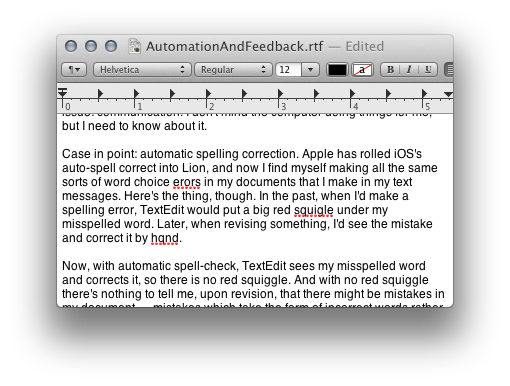
Case in point: automatic spelling correction. Apple has rolled iOS's auto-spell correct into Lion, and now I find myself making all the same sorts of word choice errors in my documents that I make in my text messages. Here's the thing, though. In the past, when I'd make a spelling error, TextEdit would put a big red squiggle under my misspelled word. Later, when revising something, I'd easily spot the mistake and correct it by hand.

Now, with automatic spell-correct, TextEdit sees my misspelled word and corrects it, so there is no red squiggle. And with no red squiggle there's nothing to tell me, upon revision, that there might be mistakes in my document — mistakes which take the form of incorrect words rather than misspellings, but mistakes nonetheless — mistakes made by the computer.

While I generally like auto spell-correct, I think it would be much improved with some sort of notification system. Perhaps a subtle highlight, or a blue squiggle, under every word that was corrected by the system. That way, when you go to revise your document, you can see where the computer has intervened and perhaps made an unfortunate word choice.

Extend that idea to Versions and I think I'd have a lot less to complain about with the versioning system as well.

Overall, I think there are some good ideas here in Lion. But there's definitely room for improvement.

Securely Erasing a Mac SSD

I've recently made the switch to an SSD for my boot drive. And, yes, it is good. Everything feels all buttery smooth now; I don't feel like I'm waiting for my system to catch up to me as much. It was a bit of a hassle, but totally worth it. But that's not what I'm here to talk about.

The Problem

If you ever want to, say, sell your now SSD-equipped computer, you're probably going to want to erase its contents as securely as possible. Back in the HD days, this was very well-understood and relatively easy to do. You simply overwrote every bit of data on your Hard Drive numerous times with zeroes or random data or what have you. There are command-line tools that allow you to do this, as well as Disk Utility's Secure Erase Options, which allow very secure and thorough erasure of a drive. But because of the way that SSDs work, all this goes out the window.

I'm not a Hard Drive or SSD expert, but, in a nutshell, in order to maintain performance and increase longevity, SSDs add another level of abstraction between the device and the filesystem that makes it impossible for the OS to accurately know the location of a given file on the actual device. This means that it's virtually impossible to securely erase individual files. So the question becomes: How do I securely erase the entire drive?

We Want... Information (-ation, -ation)

The tools and procedures for securely erasing SSDs are not self-evident. I poured over a pretty hefty amount of literature before arriving at a method that I think will work fairly effectively. Since there's no way to accurately erase individual files, this method erases the entire SSD. And since the best way to do this, while still balancing usability and effectiveness, is to use encryption, we'll be enabling FileVault 2 in Lion, as well as, of all things, Find My Mac in iCloud. I'll go over all of this in a bit, but let me first talk a bit about my thinking.

My Thinking

The most secure way to delete an SSD is to find a way to scrub the drive, to go through every cell on the SSD and overwrite the data, similar to how you would securely delete a typical hard drive, but at the hardware level. Out of the box the Mac has no way to do this. There are a variety of Linux and Windows utilities — some of which come directly from the drive vendors — that allow you to do this, but they require a huge number of hoops to jump through, not the least of which is creating a Linux LiveCD or Windows machine to boot from, as well as a significant time investment. Using this method, while perhaps a more secure deletion of the data, will be time consuming, difficult and error-prone.

As I mentioned, there's a ton of literature on the topic of securely erasing SSDs, but the vast majority of it is theoretical. There are very few articles that actually tell you, practically, how to go about securely erasing your SSD. What got me thinking in the right direction was an article from Ars Technica that very broadly discussed the various difficulties with and methods for secure SSD erasure. In it, they talk about drive scrubbing approaches, but then they also mention using an encryption-based approach:

"The most popular option for protecting data, absent of robust secure erasing tools that scrub right down into the over-provisioned cracks, is to encrypt the SSD's contents. This way, if someone's coming after your data, the only thing you need to make sure is off the drive is the security key (128- or 256-bit AES is recommended) and your bits will be safe, unless whoever wants your data is up to cracking that code."

This caught my attention, because it sounds very much to me like the secure erase procedure that newer iPhones use. If you've ever securely erased an iPhone 3GS or later, you may have noticed that it goes extremely fast. Older phones take a long time because they're actually scrubbing the SSD clean of data, but newer ones are really fast because all they're actually doing is deleting the encryption key, making the data virtually impossible to access.

Finding a similar procedure for an SSD-equipped Mac was no easy feat, but I think I've dug one up that may work for most typical users who just want to pass on their SSD-equipped Macs without worrying about someone accessing their private data. The thing that's tricky about doing this is that Apple has provided no similar utility for erasing SSDs as they have for the iPhone. On an iPhone you simply go to your Settings and choose:

General->Reset->Erase All Content and Settings.

There is no such utility on a Mac.

Or is there?

Enter: FileVault 2

Mac OS X10.7, Lion, has a new feature called full disk encryption, now popularly known as FileVault 2. What FileVault 2 does is take all the data on your boot drive — which in my case is my SSD — and encrypts it. The encryption key is stored on the disk and is only accessible with your home account password (or any other user's password that you allow). In and of itself, in fact, assuming you have a reasonably secure password, simply enabling FileVault 2 on your boot drive provides a pretty decent degree of security: No one can access the contents of your disk without your password.

Encryption key deletion, a la the iPhone, provides the final layer of security, but how do you go about doing such a thing? The Apple literature on FileVault 2 makes reference to something called "Instant Wipe:"

"With FileVault 2, instant wipe removes the encryption key from your Mac instantaneously, making the data completely inaccessible."

Enter: iCloud & Find My Mac

I have yet to find a way to access this "Instant Wipe" from my Mac, nor is there any reference to it in the Help files. But with the addition of the Find My Mac feature, now freely available via iCloud, a Mac can securely erase a drive in a fashion quite similar to that of the iPhone. Find My Mac allows Mac users to remotely locate and lock, send messages and alert sounds to, and — most important for our purposes — wipe a lost Mac. Of course, this functionality works perfectly well with Macs that aren't lost as well.

Sending the "Wipe" command to your Mac from Find My Mac (either via a browser logged in to iCloud or from Find My iPhone on your iPhone) will do the same thing to your Mac that Secure Erase does on your iPhone. It will erase the encryption key that protects the data on your SSD.

"The Remote Wipe command is, of course, a last resort, as it instantly destroys the boot drive's contents by erasing the encrypted volume's key, rendering the drive's contents unusable."

This means that, once the encryption key is deleted, even you will no longer be able to access your data with your password. Once this happens, the only way to access the data is to decrypt it, and without the key, this is a monumental task far beyond the capabilities of most users. The XTS-AES 128 bit encryption that Lion uses is extremely difficult and time consuming to crack. In fact, though there are more secure options out there, I believe this one has yet to be cracked at this point.

Also, once the encryption key is wiped, the wipe command apparently goes through and deletes all the data as well:

"Instant wipe removes the encryption key from your Mac — making the data completely inaccessible — then proceeds with a thorough wipe of all data from the disk."

It's unclear exactly how this wipe is performed. Does it happen at the hardware level clearing data from each and every cell of the SSD? Are the files overwritten multiple times with random data or are they just marked offline? It's hard to tell from the scant online literature I've seen; even the developer docs seem to be out of date. But whatever the case, this is pretty durned good security for the average joe.

So, how to get all this working? There are only two things you need to set up: FileVault 2 and iCloud with Find My Mac

This article is already long enough, so I won't go into FileVault 2 or iCloud setup here. They're easy to do and there's already plenty of information about the procedures. Here are some great links to get you started:

Set Up Filevault 2

Set Up iCloud's Find My Mac

Suffice to say, once these services are configured, erasing your SSD, when the time comes, should be as simple as logging in to iCloud, locating the Mac in question using Find My Mac, and issuing the Wipe command. After a very short amount of time, the encryption key will be deleted, and some time later (how long depends on a number of variables, some of which we don't actually know), your disk will, in theory, be wiped clean of data.

One caveat: I have yet to actually try the Wipe command. Oh, believe me, I intend to. But we're talking about a day out of my life, and that's a day I just don't have to spare. And you know what they say about good intentions. Yeah.

If I do manage to get around to this, I'll certainly post my findings here. I encourage others to do likewise in the comments section of this article.

MORE:

http://arstechnica.com/apple/reviews/2011/07/mac-os-x-10-7.ars/13

http://en.wikipedia.org/wiki/Whole_Disk_Encryption