Speech Recognition in Tiger

Let's get one thing straight: Tiger is buggy. If you have any doubts about this you might just try playing around with Speech Recognition.

Speech Recognition is by no means new. It's been around since the Classic days, and it hasn't changed much since. I first played with it in grad school, in Mac OS 9. Though it may not be new, and it may not be perfect, it is pretty nifty in concept. Basically, you can control just about anything you want using a microphone and your voice. There are a whole bunch of ready-to-use "Speech Commands" that come built right into the OS. All you do is turn it on (in the "Speech" System Preferences), a little microphone do-hicky pops up, and you can begin commanding your computer to do whatever your heart desires. (Well, almost.*)

Speech Recognition is always a bit frustrating: The computer is slow to recognize commands; it misinterprets all the time; and you have to speak way to slow for it to understand you. Heaven help you if you're eating a burrito while you want to use Speech Control. Star Trek it just ain't. (And, yes, I firmly believe Captain Picard was a big burrito freak.)

Using Speech Recognition in Tiger, though, was plagued with problems far beyond the usual Speech Recognition frustrations. Problems that seemed to be in the OS. Turning Speech Recognition on in the Speech System Preferences pane seemed to work fine. The microphone commander widget popped up, I got a sound level, but upon opening the "Speech Commands" window, I discovered I had no speech commands. Thinking I'd missed something in my OS install, I hunted around for awhile, looking for the speech command files. I eventually determined that I had them, and they were right where they should be, but Speech Recognition just wasn't seeing them. Finally, I went to the Speech pref pane, and looked under the "Commands" tab. Here there is a listing of default speech commands, groups of which which you can check or uncheck per category. Mine were all checked. On a lark, I decided to quit Speech Recognition, uncheck and then recheck all these items. Voila! that did the trick. After restarting Speech Recognition, I finally had speech commands.

Using Speech Recognition for awhile, I was amazed at how much you could do. One cool addition since I first played around with it, is that Speech Recognition can now be used to navigate menus in any application, which means you can control, really, just about anything. Menu control is amazing, but could use some refinement. For instance, there is no obvious way to navigate back through a menu -- to back up through a menu hierarchy. It turns out, the way to do this is to issue the command for the top-level menu item (like "File" or "Edit"). If you're in a nested menu structure, that's how you back out. Not terribly intuitive. But not awful, either, once you figure it out.

At some point, however, Speech Recognition just stopped taking commands. It didn't freeze. It still showed mic input. It just wouldn't listen. I expect this from a five-year-old, but coming from my PowerMac G5, it just pisses me off. The solution was to turn off Speech Recognition, and then turn it back on. But guess what I found after doing this: Yup, no speech commands. I had to go back and repeat the entire process of enabling speech commands, just to get the app working properly again. These are OS bugs if you ask me. I don't think Speech Recognition's changed one bit since Panther, nor have a lot of apps that have had problems, yet Tiger still seems, somehow, to make a mess of them. Add Speech Recognition to the list.

*One last thing: My initial reason for wanting to use Speech Recognition was to control my iSight camera. It should be noted that one thing you can't do with Speech Recognition is control the device that's being used to input commands, i.e., the microphone, or in my case, the iSight. I know... Duh...

Anyway, you might want to give Speech Recognition a try sometime. It's pretty cool, and if nothing else, a fun time-waster. Just be aware, like so many things, it's buggy in Tiger.
Series or: The Plural of Series is Series

It's been nice to finally have some free time this weekend to work on The Blog. There have been a lot of posts in the works that I've been neglecting, and some things I've wanted to fiddle with and maybe implement. Today I got to do just that.

A lot of my posts are part of a multi-post series. I've needed a way, beyond del.icio.us categories, to see all the articles in a given series. I can't find a way to cross reference anything on del.icio.us. So I've added a "-Series-" pulldown. It basically searches this blog based on keywords common to certain serial posts. It uses Google Blog Serach as it's search engine. As Google Blog Search takes some time to index stuff, the most recent posts in a given series won't be found immediately. Other than that, it works pretty well and will be quite useful to me. Hopefully to others as well.

UPDATE 1:
The good news about Google Blog Search: It apparently indexes very frequently, like at least daily. My last two posts, which were posted only yesterday, are already in the database today. Nice.

Scripts Part 1: Maintenance

I see a lot of shareware applications out there, and some of them are great, but then some of them make me think how easy it would be to write a simple shell script to do the same thing they do. The primary advantages here are twofold:
1) The script, as opposed to the application, is free.
2) The script can be run from the command-line, and, therefore, remotely.

If either of these advantages are more a concern to you than a pretty wrapper around what is essentially a series of shell commands, then this series will be for you. I have been writing a lot of what I think are pretty useful little scripts. These scripts are stupid simple, and I really make them so I don't have to type out a bunch of commands to do certain things, and so that I don't have to scour man pages for syntax when I invariably forget the proper way to write out a command.

I am by no means an advanced scripter, and I'm sure folks can find lots wrong with my scripts, and lots of ways to do things better. And that's great. I really want to learn more -- and better -- scripting methods. So feel free to leave suggestions on the site in the comments section.

Here is the first of many featured scripts. It's a really simple idea inspired by one of the bajillon shareware dealies out there that does what they call "maintenance:" It runs daily, weekly, and periodic maintenance, it will update your system's prebinding, and it will repair permissions. This script does exactly what many of those apps (essentially, GUI wrappers) do, but instead of giving you buttons and checkboxes, you get to enter text in the shell, which, I promise, will make you feel a hundred times cooler. Well, in the geek sense of the word, anyway.

So here it is, for your pleasure. Look for more scripts on an irregular basis in the near future.

Multi-Maintenance Script
See the code

"Too Bad:" The Finder Gets Cheeky

Well, except for my Tiger home account traumas, and forays into the wacky world of Windows and Linux, and the giant staff upheavals at my workplace, it's been a pretty slow news week for me. Which is really to say, I've been way too busy-as-Hell for any sort of recreational writing, and pretty much everything's been going into my Lab Migration posts.

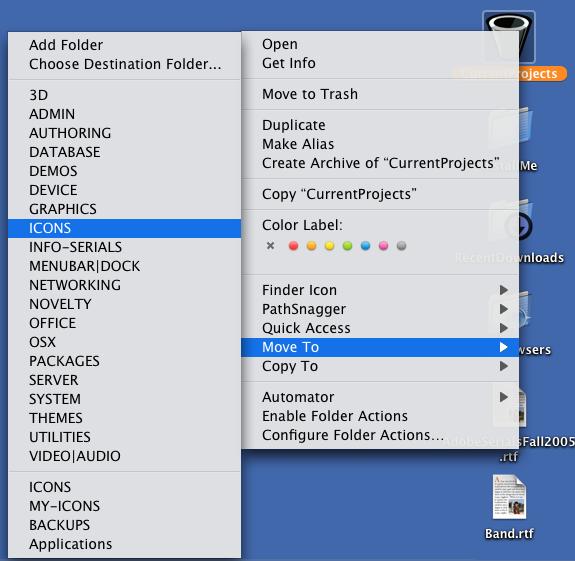
I did, however, discover another funny little error message, this time in the Finder. I use a great free utility called QuickAccessCM, from Abracode, which allows you to copy or move files to commonly used, user-defined folders in a contextual menu popup. I use it for organizing all the downloads that get dropped onto my Desktop, for instance. Just right-click any recent files and send them off to the appropriate download folder, without ever having to drill down to said folder. It's nice and handy, for me anyway.

QuickAccessCM
(click for larger view)

So what happened was, I was copying something from the Applications folder, only I accidentally told Quick Access to copy that item to the Applications folder, which, of course, you can't really do, and I subsequently got this alert:

Slightly Cheeky Finder Alert
(click for larger view)

I don't know; made me giggle. I'm a bit punchy. Long week.

Windows and Linux Dual Boot Part 4: Dell Laptop Fun

So I spent much of this past weekend installing both Windows and Linux on my Dell, who I shall hereby refer to by his rightful, and possibly permanent name, satan. Many mistakes, and much learning in the process. Hooray for learning.

My goal was to have one partition with the original Dell Windows system install, a second partition with Linux, and a third shared data partition. Initially, I screwed up during the partitioning. Setting up my partition scheme (10 GB, 10 GB, 15 GB), I did an NTFS format on the first 10 GB partition, and then a "quick format" on the second partition. Well, I didn't know this, but doing a "quick format" causes the Dell restore disc from which I was booted, to begin the system installation process directly after the "quick format," and onto the quickly formatted partition. So I ended up with Windows on my "D" drive. Oops!

Thinking this might be okay, I tried installing Linux, then, on the first partition, but it wouldn't work. It'd complain during the Fedora partitioning process. I don't really understand why. Perhaps someone here can enlighten me.

So, it was back to the drawing board.

Booted off the Windows CD again, repartitioned -- this time I did 5 GB for Windows, and 5 GB for Linux, leaving about 25 GB for shared data. This seems to have worked, and I now have a functional Windows/Linux dual boot-machine. I realized during the Linux install, though, that I'd really like a bigger partition for my Linux install. After cutting out a lot of cruft (and even some non-cruft I would've liked to have had) with the custom install, I was able to get it down to a size that will fit on the 3 GB of space I have left over after the 2 GB swap partition has been designated. But that only leaves me with 737 MB of free space, which really isn't enough to do much of anything, and it might be nice to, someday, you know, install some software.

So it will be back to the drawing board. Again. Soon.

But before I reinstall everything, I have some NFS tests I need to do -- which is why I started all of this when I did in the first place -- because of a problem I'm having with NFS home accounts and my Tiger workstations. When I do finally reinstall the whole kit and kaboodle, that will have made three times I've created my dual-boot system on satan. And hey, isn't the third time supposed to be a charm?

So what have we learned today kids?
1) Doing a "quick format" immediately installs the Windows OS on the "quick formatted" partition.
2) When setting up partitions, don't forget to account for Linux's swap space.
3) I didn't mention this earlier in the article, but I also learned that all the Dell drivers specific to my machine are included on a second CD, and each of those drivers must be installed individually, from long, idiotic Windows installers ("wizards" -- please!), so it's best to get this whole partitioning scheme thing nailed down before really getting Windows back up to snuff.

That said, can anyone out there recommend a good Windows-Linux-Data partition scheme? I'm thinking, at this point, 6 GB (WIndows XP), 10 GB (Linux FC3) and the remainder (approximately 20 GB) for shared data between Linux and Windows. Any suggestions? Recommendation? Admonitions?

This is no-man's land for me, so any thoughts are sincerely and deeply appreciated.

On a final note, I really like Linux, especially as compared to Windows. Linux is instantly navigable to me. It makes sense. I can find things. I can do things. Nothing (so far) is buried and the UI is clean and unobtrusive. And not one single damn popup. It just goes to show, there are right ways to do things, and there are wrong ways. In my opinion, where Linux (and, of course, Mac) generally get things right, Windows most often fails miserably. Anyway, thanks be to Linux for renewing my interest in my $1400 former doorstop, my good pal satan.

Alright, gonna go Google the phrase "my good pal satan" now. More info as the situation develops.

UPDATE 1:
Tried updating Linux with the up2date software. Yup. Ran out of disk space. Looks like I'll be doing this all again. S'Okay. Practice makes perfect.

UPDATE 2:
Our resident Windows/Linux guru informs me that both OSs need a fair amount of space, and recommends splitting the hard drive into two 17 GB partitions, one for Windows and one for Linux, and foregoing the shared data drive. So that's probably what I'll do. 'Cause she's a smartie.