A Tale of Bad Media

I needed to pull a bunch of video projects from my DVD archives this weekend. These are regular old DV-NTSC Quicktime movies, made from Final Cut Pro. But attempting to copy them from the Finder in Mac OSX 10.4.2, I noticed the estimated copy time seemed inordinately long: 45 minutes for 3.5 GB? I can burn a disc faster than that. Then, about halfway through, the copy operation choked, and I got an error message that said that the copy operation couldn't finish because some of the data couldn't be read.
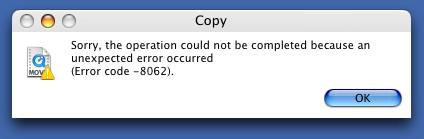

Copy Error
(click for larger view)

Then I started scrolling through the files on the DVD, and as I touched them the files started disappearing before my eyes! Folder names also disappeared, but the folders were still there, but no longer navigable. Doing an ls in the Terminal showed everything intact. Copying the files using cp or ditto yielded complete and usable files.
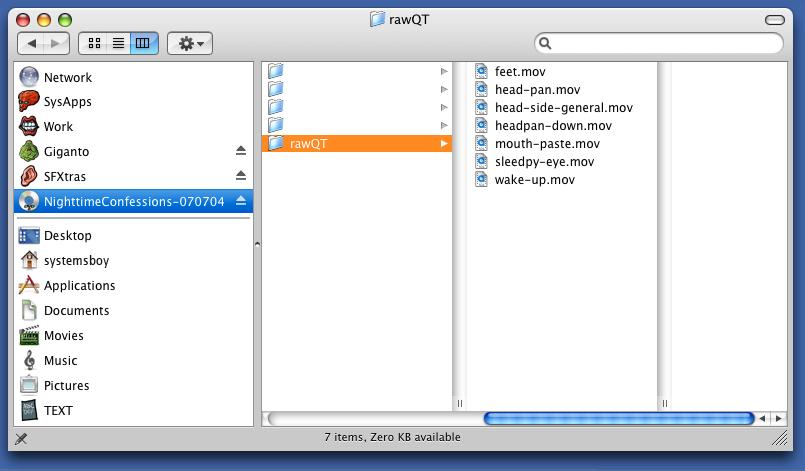

Disappearing Folders
(click for larger view)

After grabbing my data using the Terminal -- which not only worked, but worked quickly -- I decided to relaunch the Finder, and try copying one of the problematic folders. The folder appeared to copy, but the contents of the folder were incomplete. Only two of the thirteen original movies made it over in the copy. But this time, I received no error message. Then I tried copying individual files from the problem folder on the DVD. Some appeared to copy super-fast, and then just disappeared, while some copied fine, and at apparently normal speed. But the time estimation for some took a while, and for others, barber-poled indefinitely. In fact, the only way to stop the Indefinite-Barber-Pole-of-Death was to relaunch the Finder.


Indefinite Barber-Pole
(click for larger view)

Fucked up.

More tests: I tried another DVD. Copying that data worked perfectly: fast and error-free. I also put the problem DVD in my PowerBook running Panther and tried copying the data. And guess what? Same problem. Better error message though. And no disappearing files and folders.


Panther Copy Error
(click for larger view)

So clearly, something is wrong with my DVD. But it seems really strange to me that, while a simple issue of cp or ditto works fine, if the Finder encounters the slightest disc error, it just gives up. This raises some questions: If the command-line can handle it, and the Finder can't, what is the Finder doing wrong? Moreover, why doesn't the Finder use cp or ditto? Or something that can handle these sorts of errors? Or, at the very least, why doesn't the error message offer some sort of useful information about what went wrong and how, via Terminal, one might go about extracting the data?

Finally, and I took a look at the DVD surface itself, and I have no idea how this happened, but it was scratched to shit. Looked like a Blockbuster rental. Awful. Anyway, the moral of the story? I don't know, actually. I guess one moral would be, "Take good care of your optical media; it is by no means indestructible." Moral two? If the Finder can't copy it, the command-line, perhaps, can.

It pays to learn some UNIX kids. Without it, I'd be hard screwed.
Kill Brushed Metal, Kill Brushed Metal

Some people really like the Brushed Metal UI of recent Mac OS X incarnations. I have to say, I am not one of those people. I also have to say, what is wrong with you people? Are you insane?

Okay, don't have to, but really wanted to.

Anyway, back in the Panther days I hated metal so much, I actually began to delve into the arcane world of theming. All I ever really wanted, though, was to remove the "Brushed" part of Brushed Metal, and perhaps lighten the color a bit. This was fairly easy, and I did it with great success and to my great pleasure.

Theming is a drag, though, and by the time Tiger had come out, I'd had my fill. But the Brushed Metal theme persisted throughout the OS. And themes that hack the resources of the OS have largely fallen by the wayside in favor of solutions that take advantage of ShapeShifter. I prefer the latter method: ShapeShifter slows down my machines and costs money, and my needs are so simple. I just want Brushed Metal gone. So resource replacement, for me, is the way to go.

Fortunately, there are now a couple of packages out there that can do just that. One is called UNO, and it seeks to apply the Unified Interface look of apps like Mail (referred to in this excellent breakdown of OSX interface styles as "Smooth Metal") to the entire OS, and also flattens the Finder toolbar. If you like Unified, you'll probably like UNO. The other is called Iridium. Iridium does essentially what I talked about earlier: It takes the texture out of Brushed Metal, and lightens the remaining gray. It has less of a gradient in toolbars than UNO, and slightly less contrast, but is otherwise quite similar. Included with Iridium is a variant called Iridium Hydroxide, which is exactly like Iridium, except that it retains the original, glossy Finder toolbar. I like all of these themes. The differences between them are subtle, but the nice thing is that, with any of them, the UI sort of goes away after a bit -- disappears like a UI should. And yet, they actually look rather pretty. And certainly prettier than Brushed Metal.

UNO 1.1: Minor Interface Glitches
(click for larger view)

Some caveats:
1) These theme installers do mess with essential system resources. And, while they do back up your original resource files, it's conceivable that something could go wrong and leave your system in an unusable state. Read the instructions carefully, and use with caution. Backup your OS if you want to be really safe. That said, I've never had a problem with apps like these.
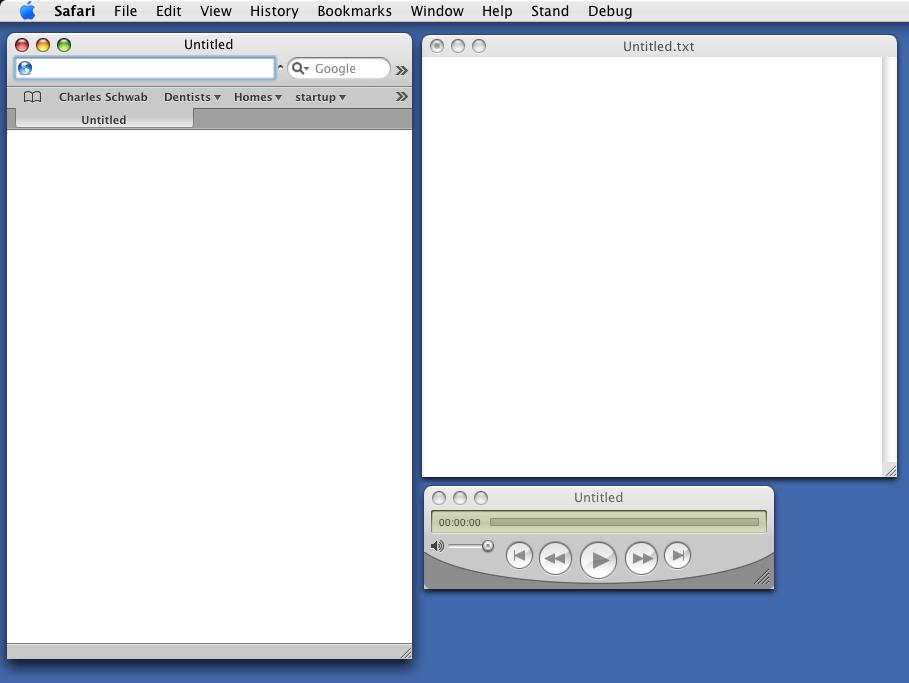
2) There are a few little appearance glitches you might notice: A small white highlight in Safari tabs can be seem, and the rounded corners of Quicktime movies are replaced by pointy white ones. Also, the small, dark divider line between the title bar and the document, in windows without a toolbar (like plain text TextEdit windows), is absent. Otherwise, the themes look pretty good and remain consistent with the original OS. And any of these glitches is far less offensive to my eye than the visual affront that is Brushed Metal.

I started off using Iridium Hydroxide, now I'm using UNO. I'll probably switch back and forth for awhile, as I like them both. But I'll keep using these until Apple figures out how horrid Brushed Metal is, and gives us something better. Which may be any day now, if the latest versions of apps like iTunes and Mail are any indication.

Here's hoping.

Here Comes the Spam

I just got a comment from someone named "TS." The comment was emailed to me via Blogger. I can't seem to find this comment in any of my recent posts, and I'm not about to go looking for it in the archives. This "TS" writes to tell me about how great my blog is, and how I can use it to make "extra cash." He talks about how he made $800, presumably on his blog, which he doesn't link to. And he gives me a link to follow that goes here:

FOLLOW LINK AT YOUR OWN RISK
http://www.makemoneyfast.us/survey1.html

Okay. This is a scam, right?

I'm still a bit green when it comes to blogging. Can I now expect to get hit with all sorts of spam in my comments from here on out? Or is this an isolated incident? Will it get worse over time? How do people deal with this sort of thing on Blogger? I'd really like to keep anonymous comments on, but I'll disable it if I have to.

Anyone know a better way?

UPDATE 1:
Ah! Just found the answers I need in Blogger's Help Section. For now I think I'll just wait and see how things go. If things get bad, though, I'll probably start using "Word Verification." Seems like an innocuous solution to the problem. Just a heads up.

iChat AV UI Annoyances

iChat AV is fantastic in a lot of ways. But there are a few basic but important things that really annoy me about its interface. The first thing I hate about iChat is that it can't remember window positions across restarts for any windows other than the buddy lists (and you know how I am about my window positions). This, combined with the fact that iChat AV employs numerous windows (Video Preview, Connection Doctor, and Text Chat are all windows I routinely have open in any given session), and the fact that the default placement of said numerous windows is entirely unusable (i.e. every window opens opens smack dab in the middle of the screen, except Text Chat, which opens in the upper right-hand corner, I believe), means that every time I open iChat, the first few minutes are spent positioning windows in some sort of functional arrangement. It's a freakin' pain.

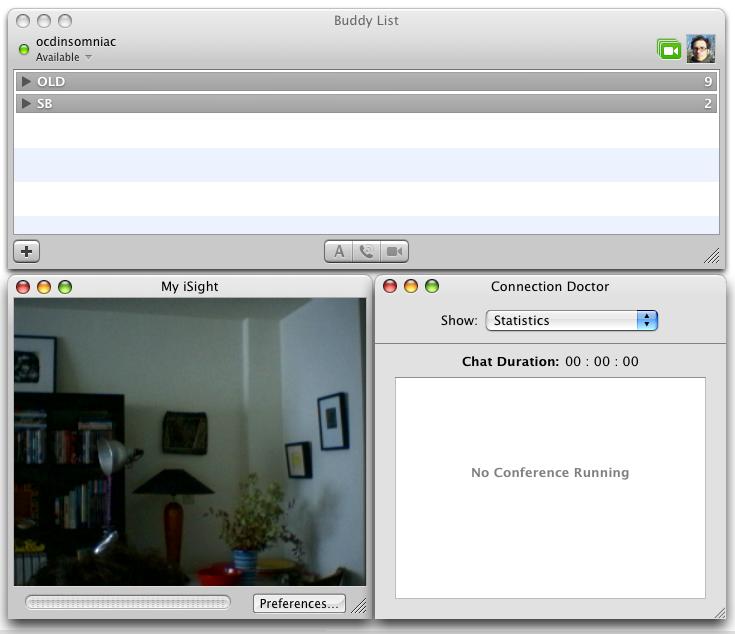
The other major interface screw up is how iChat deals with active windows. If you use video, for instance, you'll sometimes be presented with what looks like two active windows. In the picture below, note that the close/minimize buttons are active for both the Video Preview window and the Connection Doctor window. This is very, very, very bad and happens in iChat AV with a variety of important windows open. And why is this so bad? Pretend the Video Connection window is the Video Chat window, and you're chatting with a friend. If you want to close the Connection Doctor window in this case, you might just be fooled into thinking it's the active window. You'd hit command-w to close it. But guess what: It's the VIdeo Chat window that's active, and is the one you just closed. Ooops!


iChat AV: Can you tell which window is active? Neither can I.
(click for larger view)

Which brings me to my third major gripe about iChat AV: Closing the Video Chat window ends the session. Immediately. No discussion. No popup. No confirmation dialog. There are so many other places in Mac OS where confirmation dialogs exist. Sometimes to the point of absurdity. But when it comes to something as important as interpersonal communication, Apple has decided it's not such a big deal to make sure we want to disconnect with a simple, "Are you sure you want to disconnect?..." confirmation dialog.

So, let's look at what we've got here:
1) An application that forces you to touch most of your windows at every launch.
2) Active window confusion in which two windows appear to be active.
3) The ability to completely end a session by closing one of said apparently active windows.

This is a usability mess. Yes, Apple has done a great job simplifying the often confusing process of video conferencing. But these are few really serious UI flaws -- the types of flaws that you rarely see in Apple application -- and they should be addressed. Like, now, please... Hello?...

Shit... I think I just got disconnected...

A Tiger Bonus: Keyboard Input During Wake From Sleep

I've discovered something I can really appreciate in Tiger. Finally. It's subtle, but wonderful.

In Panther and earlier, if your computer was asleep, after waking it up you'd have to wait maybe 5-10 seconds before the computer would accept any input from the keyboard. Typically this manifested itself like this: Wake computer; watch the login window until the mouse cursor pops up; finally, after the seemingly endless 5-10 second wait, enter login info and go. Was this ever a big complaint for me? No. Was it something that ever even bothered me? No. It's really not a big deal at all.

But in Tiger it's better.

Somehow, magically, Tiger will capture and retain keyboard input entered during that 5-10 second period in which the computer wakes from sleep. I was so used to waiting to enter keyboard input, I didn't even notice it at first, but the other day I was feeling very impatient, and began typing my username and password immediately after waking my machine. Nothing appeared to happen, but once the computer was fully awake, all fields were filled in with the information I'd just typed, and I was immediately logged in. How this works, I've no idea. But it works, and it's cool. If you put your computer to sleep like I do, this is a nice little time-saver. Just wake it up and start typing.