Hudzee

Or is it Hudzee?

A friend of mine is trying his hand at product creation. Based on his 15+ years of systems experience in the world of commercial video production he's determined a burgeoning need for storage storage: a case for your hard drives.

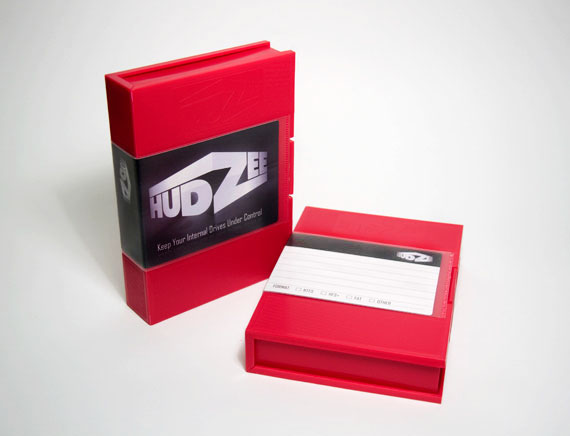
Hudzee: Pretty and Smart

See, hard drives have become so cheap that they're actually the best per-gigabyte bang for your buck when it comes to data storage. So more and more clients are simply archiving everything to standard, internal ATA hard drives. Once a project's done, pull the drive from the machine or (firewire case) and stick it on a shelf. Many of my friend's clients have stacks of these drives, wrapped in anti-static bags, piled one on top of another on a shelf in some closet somewhere. It's an ugly way to treat your drives, and, moreover, it's not necessarily the safest way either.

Enter Hudzee. (Or is it Hudzee?)

Hudzee is a tape case for your hard drive. Remember tape? Back in the day it's what we stored all our video on. It's also what we used to archive data. It's slow and expensive, but it's very good for archiving. And it's slowly going the way of the dodo. But the thing about tapes is that every tape you bought — whether for data storage or video — came with something no hard drive does: A case. A nice, big, cushioned, stackable, hard, plastic case. Hudzee is just such a beast only sized precisely for your hard drive.

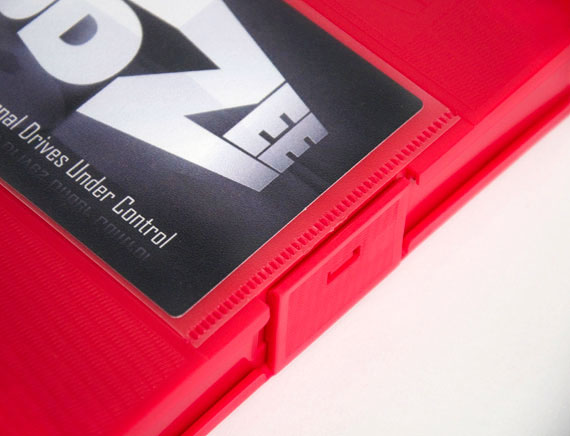
Hudzee: Latchable Goodness

Now I will say, Hudzee's creator is a friend of mine. And I'm obviously motivated by my desire to see him succeed. But I also have to say, I think that Hudzee is a great idea. I've just received my first production unit. The build quality is nice. The materials are solid, and plenty strong to safely hold a standard, 3.5" hard drive, and there is plenty of cushioning inside. A solid, but easy-to-open, latch keeps the case securely shut. My drive feels safe in here. Safer than it's ever felt before.

The other great thing about the Hudzee is that, like tape cases of yore, it features a label card. Finally, you can know what's on that drive without putting it back in the machine. Or, worse, labeling it with tape or some such sticky nastiness. Now a simple glance at the case is all you need.

So if you've got — or will have — a stack of hard drives sitting on a shelf in some back room somewhere, you might consider getting some Hudzee. (Or is it Hudzees?) They're $8 bucks a pop, or $65 bucks for a box of 10. Cheap compared to the price of a hard drive. Absolute chump change compared to the pricelessness of your data.

Order some online today. You know you want to.

Twitter: No, I Fully Admit, I Don't Get It

The buzz around Twitter is, frankly, reaching a pitched and utterly annoying frenzy. Some of the latest stuff I've read, though, has inspired me to add my voice to the throngs. Yes, that would be you people.

Now let me start by saying I don't use Twitter. I don't even have an account. And this leads me to my first beef about Twitter: the barrier to entry. "Come on!" you say, "All you need is an email address and a password." Yes, This is true. But in a world where a user such as myself already has about 80 trillion user accounts, and about 20 trillion of those are in now-defunct, out-of-style, unused social networks, one starts to think a bit more carefully about signing up for anything at all anymore. I mean, Jesus, I still get email from Friendster. Fucking Friendster! And don't even get me started on the whole online dating thing. Suffice to say, I've been doing this for a while now, and I've gotten gun-shy.

Twitter

But the other, bigger, more hidden barrier to entry — the one no one talks about much when they talk about Twitter — is the fact that to Twitter "properly" takes a certain kind of work. It's not like starting a blog; you can't just start Tweeting in a vacuum and hope to get anywhere. No, Twitter requires effort and strategy. Effort in the following of other Twitter users and, eventually, strategy in being followed by other Twitterers. It's not that I mind work — I certainly do my fair share of it — but the goal of Twitter work seems to be following and/or being followed. And I've never been much of a pack animal.

A friend of mine, who has also been reading about, but so far refrained from joining, Twitter, recently remarked (in a Facebook status update, no less):

"I've been reading about this for the past couple days and it seems to me what Twitter does is take educated and mobile people who would form a kind of elite regardless of the technology of the day, and offers them another way to seperate [sic] themselves from the masses while at the same time allowing them to assert that they are in fact very well-connected."

This describes a feeling I've had for some time about Twitter, but have been unable to put into words. Twitter has an air of exclusivity that I find off-putting. Defensive article titles like, "Twitter Quitters Just Don't Get It" don't do much to ameliorate that feeling. And so, something that at it's heart is perfectly benign, and potentially even useful or entertaining — an extremely micro micro-blogging platform with a small per-post character limit — has become something that fosters a certain sense of resentment from those of us who choose not to partake of its offerings. If there's been a Twitter backlash, it's probably largely due to the defensive posture of its users. And I believe it's partly this posture that my friend is talking about.

Facebook

It seems to me that the other part of my friend's argument — and the other part of my hesitance at signing up — is context. Like I said, I'm kinda burnt out on the whole social networking thing. But I recently joined Facebook just the same, and I've stuck around. And the reason I can stomach Facebook is context. When you sign up for Facebook you immediately have a context, and that context is your friends. What better context could there be? Everyone wants to stay connected with friends, and Facebook handles this better than any social network I've used so far. I think Twitter's lack of context, while certainly being part of its charm, is another barrier to entry for many. For the technologically savvy (which I consider myself to be), and for those inclined to experiment with social networks in general (which I no longer consider myself to be so much), the lack of context is far less vexing. And those seem to be just the sorts of people using Twitter — the elite my friend is referring to. They seem to have figured out a way to make Twitter genuinely useful. For them. But by outward appearances, Twitter's context seems to be less about staying connected and more about appearing clever amongst a group of peers.

Tweetie: A Twitter Client

To those elite Twitter lovers though, I say bully for you. You get on that Twitter client-of-the-day (I must admit, some of the client apps look beautiful enough to make me want to join purely from an interest in interface design) and you tweet your little hearts out. I bear no grudge against this. I just personally have no desire to be any more connected than I already am. I don't see how Twitter will be useful or enjoyable for me. I don't get Twitter, and I'm pretty sure I just don't really want to.

And bully for me too. 'Cause guess what? I don't get Flickr either. Or MySpace. Or feed readers. In fact, there's a whole lot of stuff I don't get.

And all the snide little articles in the world aren't going to change my mind.

Mom-Friendly PhotoBooth Post

Hello, and happy Mother's Day!

My mom recently switched over to the Mac platform, and she wanted to take a photo for me. I told her she could use the built-in iSight camera and PhotoBooth on her MacBook Pro to take the shot, but she couldn't figure out how to do it.

No problem, Mom. Let me see if I can help you out.

My guess is that you're still a little unfamiliar with where to find applications on the Mac. This is pretty typical of switchers. All your applications are in a folder aptly named "Applications" at the top level of your hard drive. That's the silvery-gray thing on your Desktop. It's probably called "Macintosh HD."

Your Hard Drive: Double-Click to Open

Open it up by double-clicking it.

A window should open with a folder inside it called "Applications." Open that as well with a double-click.

Hard Drive Items

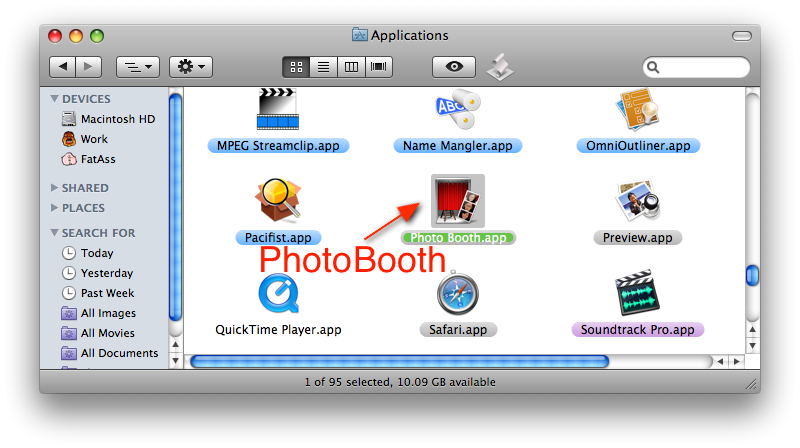
Now you should see a fairly lengthy list of items. These are all your applications. Some items in this list are the actual, executable applications themselves. Some are folders that contain the applications. Sometimes it's hard to tell the difference. Fortunatly, PhotoBooth is easy: Scroll down until you see the item named "PhotoBooth," and — yup, you got it — double-click it to open it.

Applications

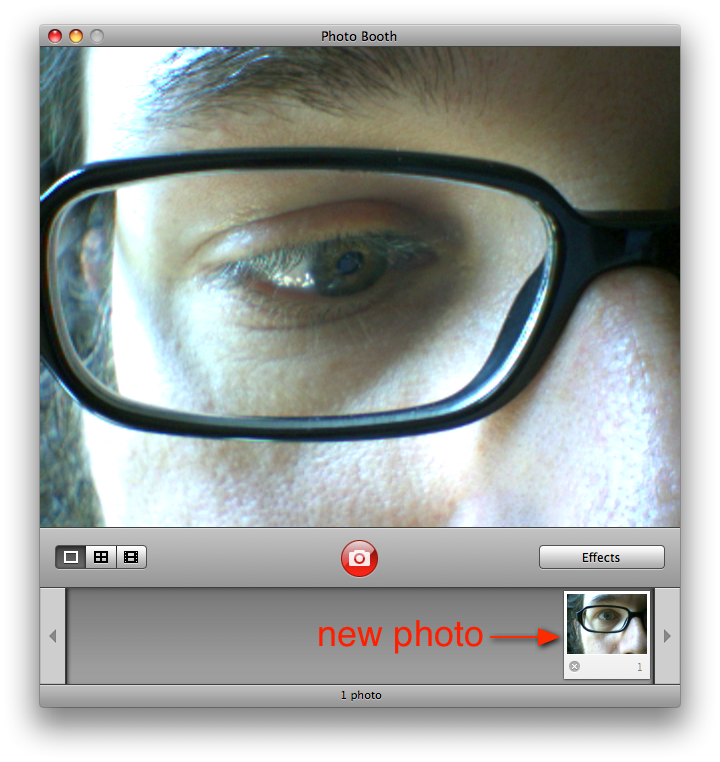
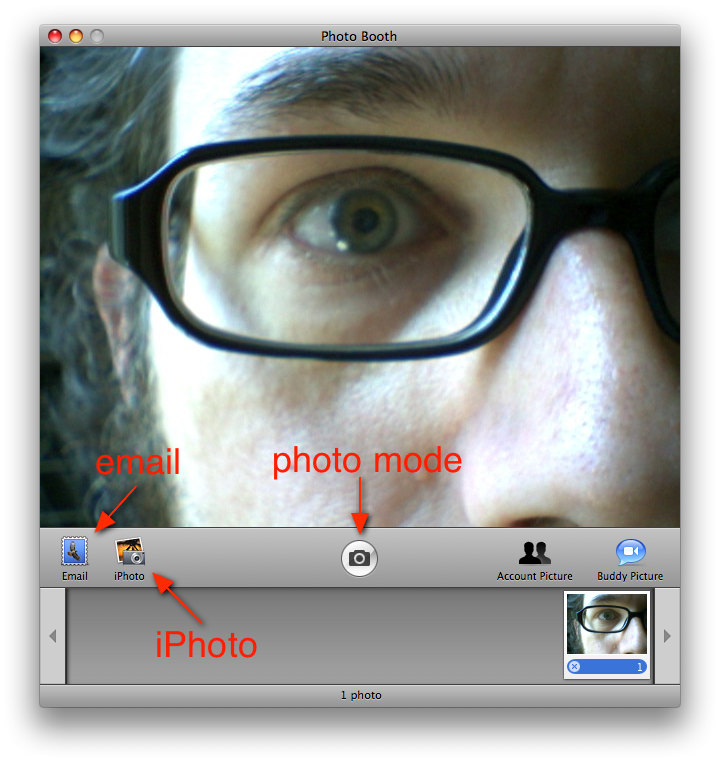
You should now be staring at an interface, at the center of which should appear your very own face. This is because the camera is now active and PhotoBooth is showing you what it sees. Since the camera is located at the top center edge of the computer display screen, it sees you.

PhotBooth: Photo Mode

To take a picture, simply press the red button. A short countdown will occur, a flash and then, voila! A picture will appear at the bottom of the  PhotoBooth interface. To look at the picture, simply click it once and it will appear in the main frame of the application window.

PhotBooth: View Mode

From this viewing mode you can email the picture by pressing the "Email" button on the left hand side of the tool bar towards the bottom of the application window.

PhotoBooth: View Mode

To switch back to photo mode, press the round camera button in the center of the tool bar and continue taking photos to your heart's content. Photos can also be dragged directly from the strip of shots at the bottom of the window to anywhere you'd want to put them: the Desktop, an email, wherever. You can also arrange them in iPhoto if you want, by pressing the iPhoto button. But I'll leave it for you to explore beyond that.

Hopefully this will help you out, Mom. If not we can go over it next time we see each other.

Enjoy your Mac!

Allow Me to (Re)Introduce Myself

My name is Systems Boy. Hi there.

We have a new look today. It's based on a WordPress theme called Blue by Sean McPherson of Brambling Design. I've taken some liberties with Blue, enlarging some of the fonts, changing some colors and widening the post area. But the basic look remains the same: clean, simple, but still kinda fun. I really like it.

I've foregone the traditional Systems Boy logo this time out. I love it, but it can be a pain to deal with and many themes don't easily allow for banner images. Plus, I like the idea of preserving the simplicity of the Blue theme and sticking to designing mainly with text.

systemsboy

As so often seems to happen (by which I mean twice), today's new look coincides loosely with the anniversary of the blog, which is May 29th. This year TASB turns four. Wow. Four years. I never thought I'd be doing this for so long. And still liking it no less.

Today's makeover was also at least partly inspired by fellow systems blogger Jay Young, with whom I share very similar tastes in themes. Seems every time I go to use one he's already grabbed it, forcing me to go my own way.

Anyway, thanks to everyone who stops by. Your visits are always appreciated.

Enjoy the new look.

Finder Burn Folders, Data Loss and Recovery

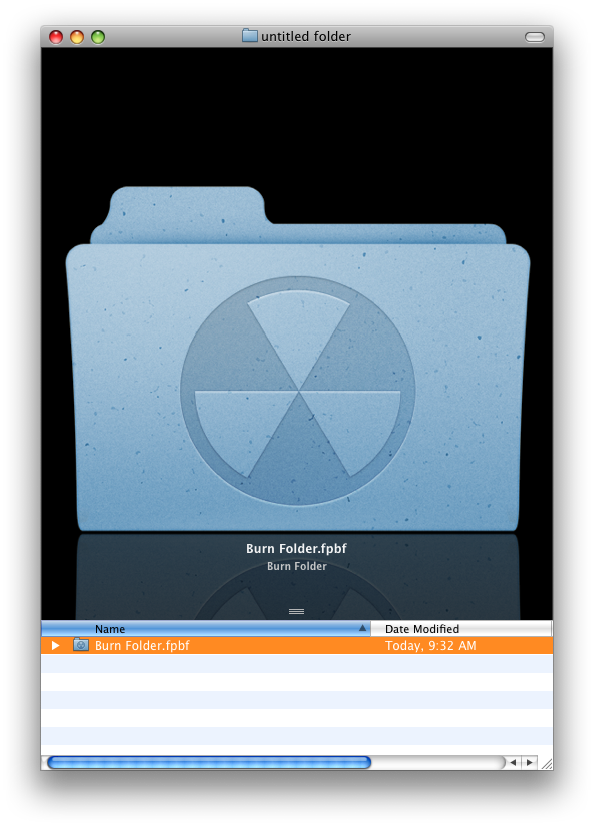
Burn Folders are special folders you can create in the Mac OS X Finder for burning data to optical media — CDs and DVDs. But the way they're implemented can be confusing, and that confusion can lead to data loss. Fortunately, there are ways to recover.
Burn Folder

Creating a Burn Folder is easy; simply choose "New Burn Folder" from the Finder's File menu. This will create "Burn Folder.fpbf" on the Desktop, from which you can burn data to an optical disc. Dragging items to this folder will create aliases to those items rather than actually copying the data. This saves time and prevents the unnecessary duplication of data. Unfortunately, unless you know that Burn Folders are populated with aliases, and you know exactly how those aliases work, it can also lead to some confusion, and this confusion can get you in to trouble.
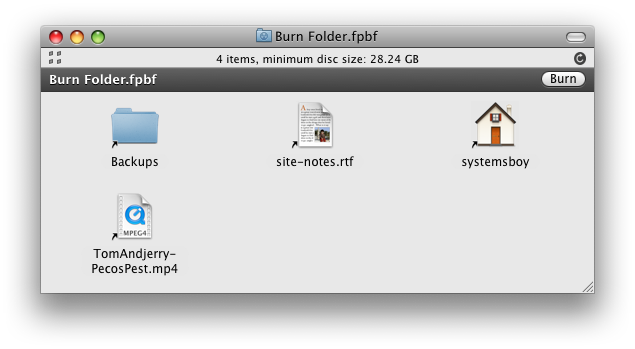
Inside a Burn Folder: Aliases

To wit: Let's say I create my Burn Folder. I start dragging files to it. Some folders too. Finally I finish and go to burn my disc, but I'm told that I have too much data in my Burn Folder, and that I need to remove some in order to make it fit on my media. Great. So I open up my Burn Folder. Inside are some smallish files, and a folder called "Backups" that holds the bulk of my intended burn data. So I open up Backups and start trashing files. Eventually the Burn Folder becomes small enough to fit on my optical disc. I burn the disc and then empty the Trash.
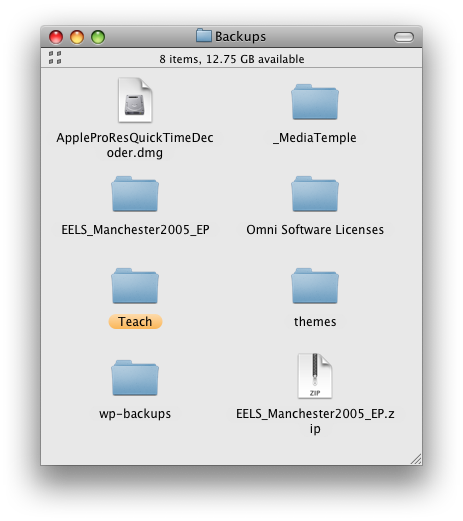
Subtle Signs: The Missing Gray Banner and Alias Arrows

Later I return to my Backups folder to find that when I emptied the Trash it deleted the actual data from Backups. Wait, what? How did that happen?

Well, if you recall, everything in my Burn Folder is an alias. Actually, that's not quite accurate. Everything at the top level of my Burn Folder is an alias. This means that when I opened the alias to the Backups folder it opened the actual Backups folder. And so, once in this folder, when I began deleting files I was deleting the actual data.

Dude. That is so not cool.

See, the way I see it there are a few problems with how all this works. First and foremost, the Finder is for people who aren't particularly concerned with how the Finder works, and Burn Folders should be geared towards the same folks. These folks may or may not know exactly how an alias works either, or even why it exists. But this lack of knowledge should never, ever lead to data loss under ordinary use-cases, particularly those in which the user is actually trying to make a fucking backup. Ever. Period.

Second, this method violates two preexisting paradigms, one of which belongs to Apple themselves, and the other of which has been around since the beginning of burning optical media. This first method to which I refer is Apple's Panther Finder. In Panther (and yes, this is just one more reason to loathe Tiger) the Finder would copy the data to the Burn Folder. Yes, this would take more time and create redundant data. But it also protected that data from deletion and was a much closer analog of what was actually going on: I put data in a Burn Folder, and now that data — not pointers to the data — is there in that Burn Folder. What we have now is confusing — some items in the folder are aliases, and some aren't — and, once again, can lead to data loss. And, as we all know by now, that's, uh, what's the word? Right. Bad.

The other method I refer to comes from a little application called Toast. For forever and a day, Toast has simply pointed to the referenced data on disc, but has lacked any ability to actually affect that data. And why would it? Toast is not a file manager, it's a disc burning utility, and you can't delete data from your disc burning utility. One of the problems with the current method is that it puts data burning and file management in the same application when they probably should be separated. This is why burning data from the Finder has always seemed aberrant to me. It's just the wrong application for the job.
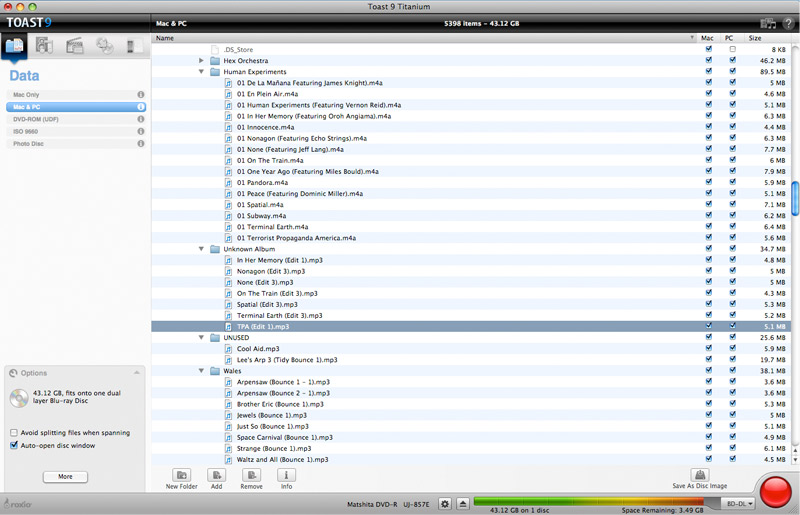
Toast: It Won't Delete Your Data

The knowledge of these preexisting methods can further confuse even the tech-savviest. In fact, when the aforementioned scenario actually happened to someone I know, it took a great deal of time for me just to suss out what had occurred. It just shouldn't be possible.

The upside to all of this is that in the wake of this calamity I've had the tremendous (mis)fortune of testing the latest crop of data recovery programs. Some time ago a client of mine had deleted some data, and back then there was only one contender for retrieving deleted files. The field seems to have matured, however, and now there are several. Disk Doctors Mac Data Recovery gets some good press, though I only kicked its tires myself. VirtualLab's Data Recovery also seemed to fare well in some cursory tests. There are even a handful of others out there of unknown quality and distinction. But for our calamity we turned to the oldest app I can recall in the field, the one I'd looked at for my client lo those many years ago: Data Rescue II, by ProSoft Engineering.
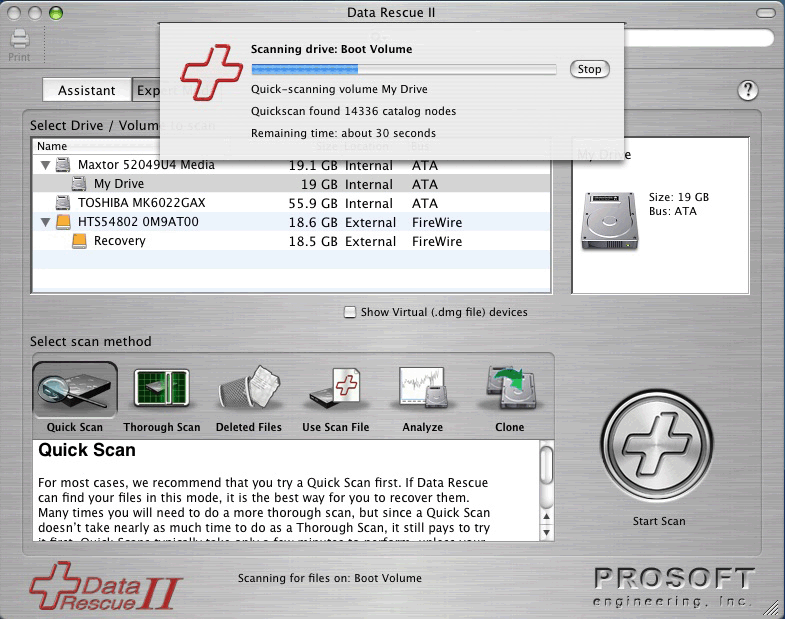
Data Rescue II: My Hero!

Should you ever have to undertake such a project, there are a few things you should know. First and foremost: the less you use the disk from which you want to recover data, the better your chances at recovery. See, erasing a file doesn't actually delete anything, it only marks the file as free for writing to. Writing to the drive increases the probability that deleted data will be overwritten. Once that happens you won't be able to recover the data. So your first step should always be to take the drive out of service, i.e. turn that shit off. And don't turn it back on until you're ready to recover the lost data.

In our case, the disk we were recovering from was a 1TB firewire hard drive. It being an external drive made our chances at recovery better, but its size meant we'd have to wait a while to even see if the data would be recoverable. Fortunately, Data Rescue II allows you to scan your drive in demo mode without purchasing the software. If it finds your files, you can then pay for the software (it costs $99 bucks) and recover the data.

Our scan took about 16 hours. We let it run overnight, and by early the next afternoon Data Rescue had found deleted files. In this process the file names get munged, so there was no way to tell for sure if these were in fact our deleted files, but the number and size seemed about right. We coughed up the dough, recovered the files (to a separate hard drive), and were happy to discover a near 100% recovery. There were a few files that were only partially recovered. These tended to be the oldest of the bunch which, yes, we have backups of. So we're saved! Oh happy day!

I can't help thinking that Apple's Burn Folder approach is fatally flawed. It's just not Mom-friendly. Perhaps it would work better if they made every file in the Burn Folder an alias. But it seems dubious at best to put burn functionality in the Finder without certain safeguards, and these safeguards are already present when the burning mechanism is separate from the file manager. The good news is that if you do happen to lose data by way of emptying the trash there are a number of options these days for recovering that data. And if you're quick and careful about it, your chances of success are pretty good.

Addendum:

For reference, or should the above-mentioned products fail to satisfy, here are some others I heard about but did not try:

Subrosa Software's File Salvage

Stellar Data Recovery's Macintosh Data Recovery

Boomerang Data Recovery Software (which looks suspiciously like the VirtualLab product)