More Data vs Design

Continuing the data vs. design meme, I'd like to point to two recent articles. The first cites studies that qualitatively demonstrate that "more attractive" design is more usable. I generally tend to agree with this sentiment, so I don't find the findings terribly surprising. It is heartening to have some hard evidence though. And the idea that emotion is important is a simple yet powerful one.

I also pretty strongly agree with the idea that attractiveness is not universal — that it's subjective. So what may be more usable for one person may be less so for another. This is not really addressed in the article, which is too bad. I think it's an important point, and one Modernism is known to actively avoid or completely disavow.

The second article speculates on the true nature of the typical Google employee and what makes him incapable of even perceiving the differences between good and bad design. It's a pretty snarky take, and I can't say I take it too terribly seriously. But it's a fun read, and probably holds some grain of truth as to why Google's design looks the way it does.

So, if anyone's still interested in this topic, go check out the articles. Very interesting stuff.
Scripts Part 8: Toggle Hidden Files

Yes, you read that right. It's time for another entry in the Script Sharing category. It's been a damn long time since I've posted anything here, but I've actually been doing a lot of scripting, and I just realized that I had some potentially useful stuff lying around. So hopefully I'll be able to post some new stuff to this section once and a while.

Also, in reviving the Script Sharing series, I realized that all the old scripts were missing. Seems when I switched ISPs a while back, I forgot to move over the archive. Well, never fear, they're all back now.

Today's script is actually an Automator workflow for the Finder. (What sort of workflow designer would I be if I didn't create the odd Automator workflow every now and again?) This workflow will turn hidden files on and off in the Finder. To enable it, simply unzip the below-linked download and place the resultant file in your Workflows folder (~/Library/Workflows/Applications/Finder).

toggle-hidden-workflow

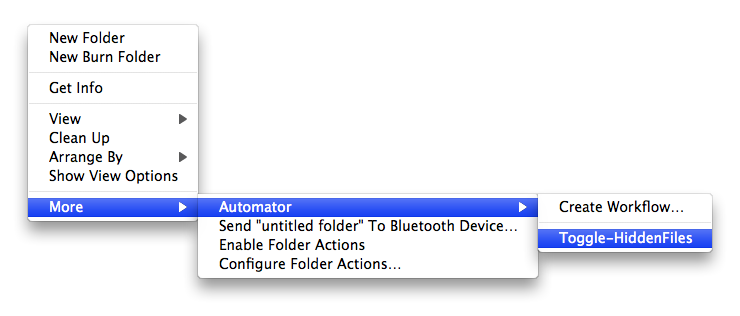
To access it, right-click (or control-click) anywhere in the Finder and navigate to More->Automator in the contextual menu. Select "Toggle-HiddenFiles" and your Finder will restart. When it comes back up, you'll notice that hidden files are no longer hidden. To reverse the effect, simply repeat the process. Rerunning the script will re-hide invisible files.

So, here's the script:

Toggle Hidden Files Workflow

Enjoy!

Subscribers

Lately I've been getting a lot of users registering to the site, but fewer and fewer comments. So I've become suspicious of these new user registrations as the only advantage to registering is that commenting becomes ever so slightly easier. That and the fact that a lot of the names just sound so spammy. So I've turned off the ability to register as a user of this site. Having the feature enabled has just been generating a lot of unwanted and unnecessary email for me, and is really not advantageous to anyone else, including spammers. In addition, I've pretty much disabled comment moderation, thus bringing the advantages to registering as a Subscriber down to a firm zero. My spam filter seems to be handling the spam plenty well, and the three or four people who ever leave comments here are very well behaved, so I don't anticipate any problems.

If, for some reason, I'm missing something about the user registration feature, and people are registering — or would like to register — for legitimate reasons, please let me know and I'll re-enable the feature.

Exposé and the Tab Key

I don't know if this is general knowledge or not, and I'm not a big Exposé user, so I could easily be ignorant of such a thing, but I just discovered that you can cycle through Exposé-activated applications using the tab or tilde keys. Here's what you do:

  • Hit the Exposé key (which is F3 on my nifty metal keyboard).
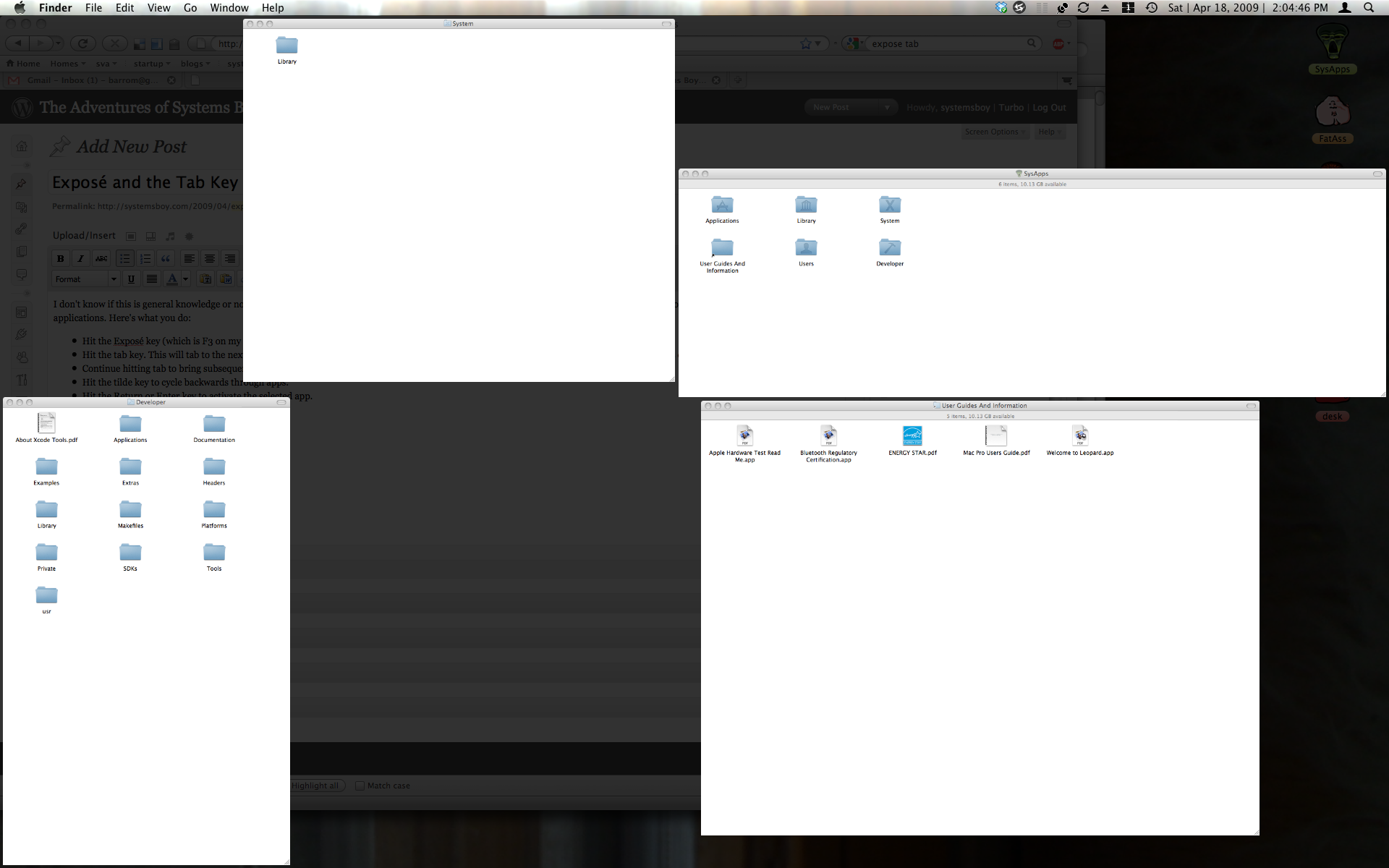
  • Hit the tab key. This will tab to the next application and display it as though it were in Exposé's application window mode, showing all the app's open windows.

    Exposé Tab Selection

  • Continue hitting tab to bring subsequent apps to the front.
  • Hit the tilde key to cycle backwards through apps.
  • Hit the Return or Enter key to activate the selected app.

This is pretty cool. Who knows, maybe it'll even encourage me to start using Exposé.

Maybe.

Coda Follow-Up

So I wanted to mention quickly that I went ahead and finally bought Coda. I have not been disappointed. It's pretty fabulous.

A couple minor things that bother me:

  • When I'm working on a page that contains session values, and then I save that page, Coda auto-refreshes the page in the Preview window. But it loses the session data, forcing me to go back to the previous page and resubmit a form. This often makes previewing in another app — specifically, a browser — more convenient than staying in Coda.
  • The Books section is nice, but sometimes the web is better. The web gives me examples that the books often lack, and Coda's book search is pretty lacking compared to Google; it does not appear to allow complex searches of the books.

Both these points lead to one inevitable conclusion: Guys, build a browser into Coda! Am I right?

Text Wrangler Text Selection

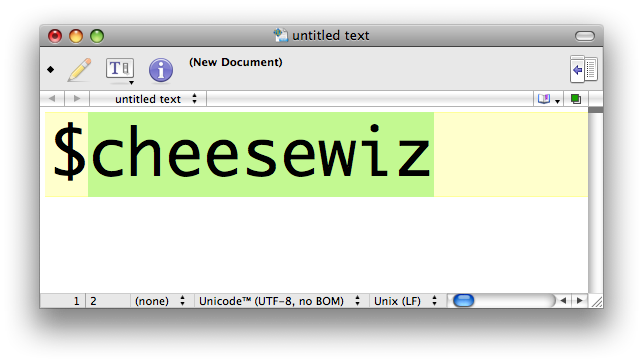
On the plus side, I have made one joyous discovery: In Text Wrangler, my previous web-text editor, when you double-click a PHP variable only the letters get selected, not the variable symbol. Let me give an example. Let's say I have a variable called $cheesewiz. That variable is preceded by a dollar sign, which is a common way to denote variables. If I double-click that variable in TextWrangler, it does not select the dollar sign. This is fine, and has been the preferred behavior nearly every time I copy-paste. The Text Wrangler way (which seems to be the way most text editors handle such a thing) makes it just as easy to replace by hand everything in my document that says "cheesewiz" as it would be to replace all instances of "$cheesewiz", whereas if the behavior were reversed this would not be true.

Coda PHP Variable Selection

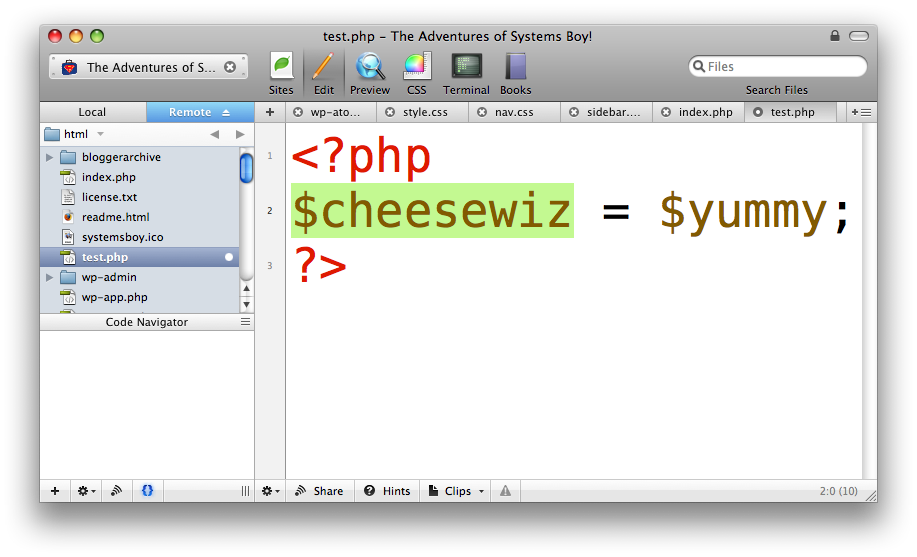
In Coda, the default is to select the dollar sign when editing PHP code ("Double-clicking a PHP variable now includes the $ prefix once again"), which is fine too, and I understand the logic, it's just almost never what I want to happen. But I've recently discovered that in Coda — and this is really cool — if you double-click $cheesewiz and then, in one gesture-like fell swoop, move the mouse slightly to the right before letting go of the button, Coda will deselect the dollar-sign. So Coda actually gives you two ways to select variables: double-click to select the whole deal; double-click-jiggle to select only the variable text.

And that, my friends, is remarkably slick.