I just discovered 1Password. I know. I'm an idiot.
I don't know what took me so long. I guess I just didn't get it. All this time I've been trying to manage all my passwords across multiple computers using Keychain. Insanity!
Wherefore Password Management?
As a SysAdmin, I have more passwords than I could ever possibly remember. Many of my accounts reuse passwords quelled from a fairly large pool that I've collected over the years. So I'm pretty good about remembering most of them. But every now and then a site has password requirements that none of my stock passwords fulfill. And then I end up with a hard-to-remember password.
Also, my current job requires me to constantly access accounts and password that I didn't come up with myself, and there is an ever-growing number of these. They're really hard to keep track of.
While there are certainly ways to manage all your passwords using the Keychain app included with Mac OS X, they tend to be unwieldy, or, in the case of MobleMe, costly. Plus, I often need to keep passwords handy when I'm away from my from my computer, which means I need a solution that works with my iPhone, which Keychain does not.
Enter 1Password
I've been hearing raves about 1Password for a long time, so I took this opportunity to actually give it a try. And I think this is the key (ha! Get it?). 1Password definitely falls into that category of apps you just have to try to truly grok. Fortunately you can install and test it for free for thirty days.
And thirty days is none too many. To really use 1Password some assembly is required. Which is just to say that I found it best to start from scratch with all my passwords. Some can be imported from Safari, but really you're going to want to start with a clean slate. Trust me.
For my purposes, there are two things 1Password really excels at: 1) password management and synchronization across multiple devices; and 2) automatic login to websites.
Password Management & Sync
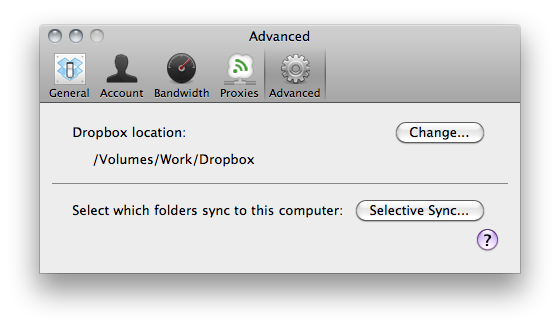
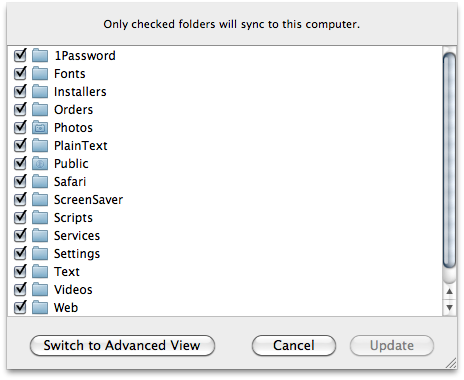
The main reason I wanted to try 1Password was so that I had my passwords with me everywhere I go. 1Password uses Dropbox (or other similar services) to accomplish this goal. So far, password management with 1Password has been as seamless as Dropbox itself. It's fantastic! Once it's set up, 1Password just syncs your passwords between any computers you tell it to. It's like Dropbox for your passwords. I suppose you could accomplish this with Keychain and Dropbox, but with 1Password you can also sync to other devices, like your iPhone or iPad. So your passwords are always with you, everywhere, all the time.
Automatic Login
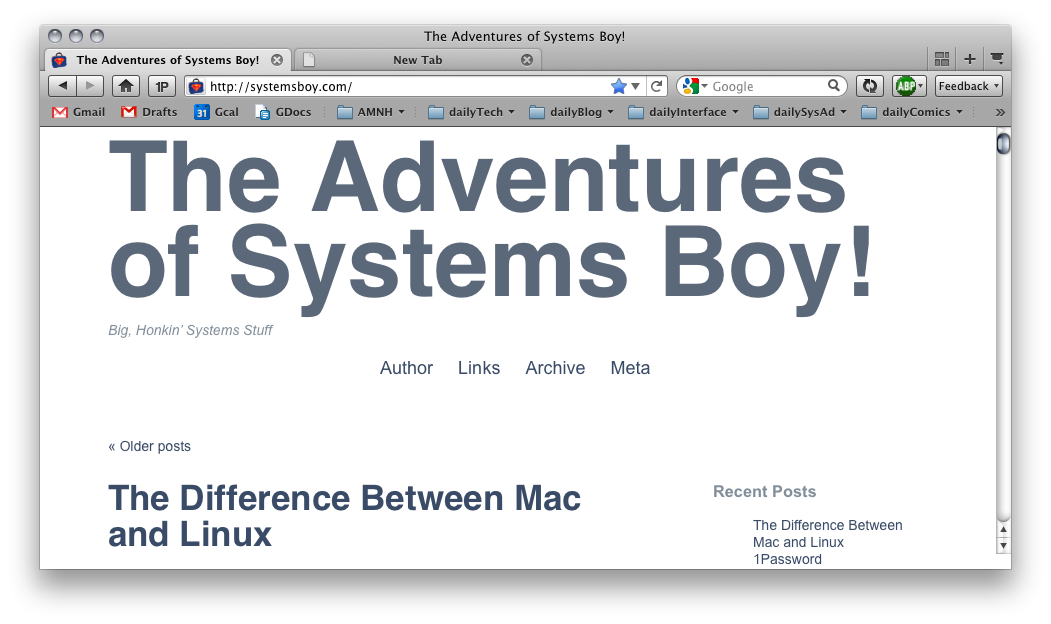
1Password also comes with plugins for just about any Mac browser on the planet. These plugins allow 1Password to log you in to any site in its database. This was never something I had intended to use, but since it was there I went ahead and tried it. Turns out it's terrific. It's very well implemented. With the click of a button you can log into any site 1Password's aware of. Not only do you not have to remember the password, you don't have to even type it. Or the username. It's a real time saver, and I ended up loving it.
1Password will also offer to remember any accounts you haven't already entered in its database. So if you're logging in to a site 1Password doesn't recognize, a pop-up will ask you to store the new account. Perhaps cooler, you can use 1Password to generate strong passwords and, since you always have them with you, you don't really have to remember them anymore. I'm not quite comfortable enough to use this method yet, but it would actually make many of my logins a great deal more secure, so it's really cool to know it's there if I ever want to use it.
Keep Your Keychain
One thing it took me a while to realize about 1Password is that it's not a substitute for Keychain. For many of the things you use Keychain for — like storing passwords for AFP shares on your network, for instance — Keychain is still the way to go. But if you need something above and beyond, if you need a way to keep your passwords with you everywhere and at all times, or a simple, secure, super fast way to log on to websites, 1Password is a real lifesaver.
I'm still testing it out, and I've only just gotten the iPhone app, which seems pretty good (minus the browser plugin, of course) but so far, like most folks with too many passwords, I'm loving 1Password.