A Few Modifications

I've made a few changes to the site's appearance. Hopefully these will help with readability, which was the intent.

To start, I've pretty much gone with a black and white color scheme. Body text is now a dark gray and links are black. The only place we see color, really, is in the rollovers. Hopefully this is easier on the eyes than the muted blue-gray I had before.

But perhaps more importantly, to my tired aging eyes at least: body text size has been increased to 16 pixels and the line height has been increased as well. This (for me anyway) greatly increases the readability of posts. Before I found myself hitting command+ all the time; now it feels just right.

As I've said before, I'm not a designer by any stretch of the imagination, so I'm totally open to comments and suggestions. But hopefully most folks will find the changes to be an improvement.

Final Cut Pro X Sneak Peek

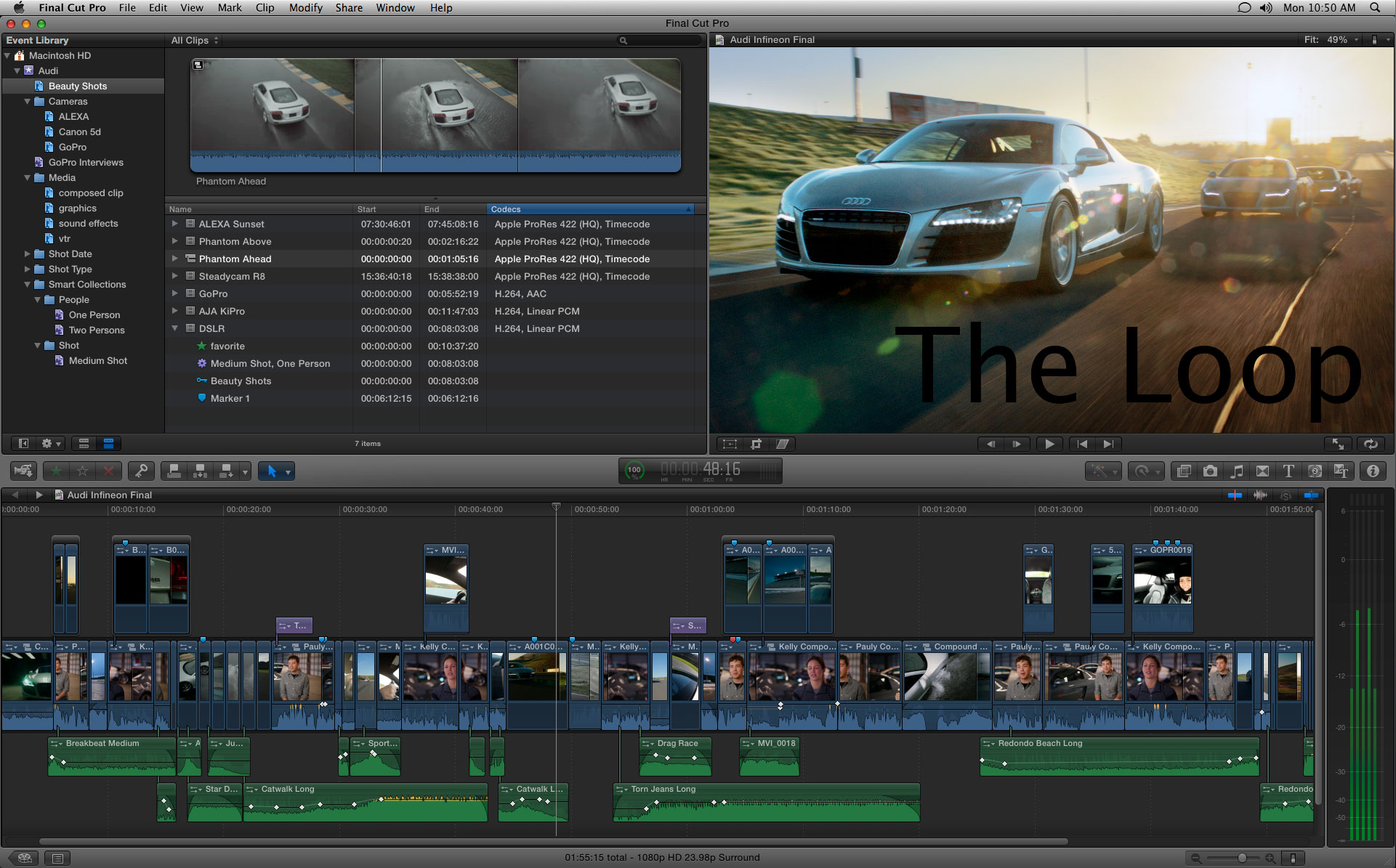
Apple recently gave a sneak peek to some very lucky folks at NAB of the upcoming release of Final Cut Pro, now dubbed Final Cut Pro X. The "X" seems appropriate as it looks like Final Cut has finally made it into the world of modern applications written for a mature, modern and cool-as-hell Operating System.

Which is to say that FCP will finally be able to do all those things like threading and taking advantage of multiple cores, using as much memory as you've got, background rendering and exporting, and simultaneous ingestion and editing.

Image Via The Loop

Essentially, Final Cut Pro X is a complete, ground-up rewrite of the app, as well as rethinking of what a non-linear digital video editing application can and should be. Much like they did with iMovie — and likely drawing from many of its lessons — Apple has sought once again to redefine how we approach video editing. In fact, FCPX even looks like a mashup of the elder FCP and iMovie. It also looks to me like they've got a winner.

In addition to finally leveraging core OS components, the new FCP both removes the annoyances of yesteryear — things like the inability to use the application when you're performing an export (God, that was frustrating!) — and adds forward-thinking improvements like the addition of metadata for faces, places and tags, as well as a far better ability to deal with today's complex CODECs and cameras. It's very cool and makes me wish I still did video. Frankly, despite the fact that these days I am not making nor teaching video, I may buy Final Cut Pro X anyway, just to play with it. Yeah, it looks that cool.

It's also fairly reasonably priced at $299 (no more Final Cut Express, apparently), and available from, of all places, the Mac App Store. While I'm not quite yet a fan of the MAS, I am kind of excited at the prospect of being able to get FCPX on a whim with nothing more than a credit card and an Internet connection.

At any rate, even though I'm no longer a video guy, I'm so very happy to see one of my all-time favorite applications, Final Cut Pro, finally, after years of neglect, get the upgrade it so richly deserves. The actual video guys must be so psyched! Lucky bastards!

Looking Forward to Lion

I admit it: I'm an OS nerd. I get very excited about new OS releases, particularly (okay, only) those of my OS of choice, Mac OS X.

Mac OS X 10.7 — or Lion as it's affectionately codenamed — is certainly no exception. In fact, Lion looks to be a very exciting release, both for its wealth of new features and for its refinements to Apple's already sparkling OS.

It's an exciting time to be an OS junkie, really. Snow Leopard was a wonderful release that brought stability and refinement to what can finally be called a mature Mac OS X. From here on out OS development seems to be less about making Mac OS X work quickly and succinctly — less about the guts of the OS —  and more about making it work well. That is, from here on out, Mac OS X developers are concentrating on making the Mac OS X experience a wonderful one. And that means even further refinement to an already polished OS, with maybe a dash of experimentation thrown in for good measure, thanks to convergence with Apple's mobile OS.

I haven't installed the beta, but I've read as much as I've been able to find. Here are some images and links, with just a dash of commentary from yours truly thrown in.

Mac OS X Server

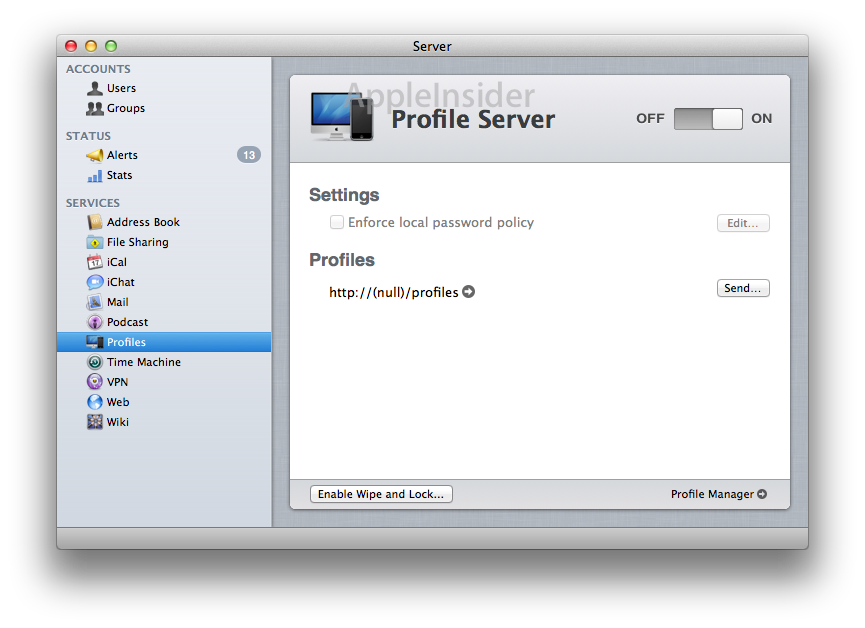
One of the shockers about this release is that Mac OS X Server will be included, for free, with the standard Lion DVD. It will be a separate install, but has been discontinued as a separate, paid release. Looks like Apple's professional server platform is dead, but I'm glad it will live on in some form, at least for the time being.

Images Via AppleInsider


Administrative Tools and Goodies

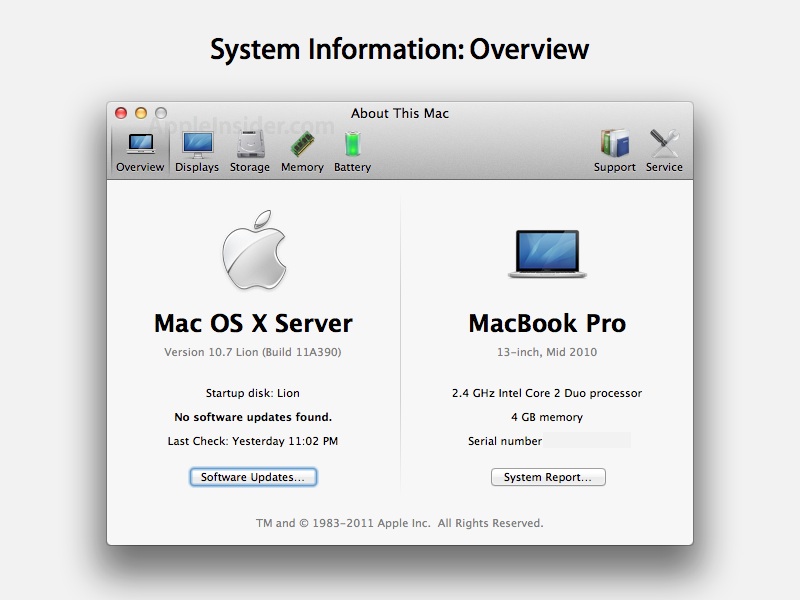
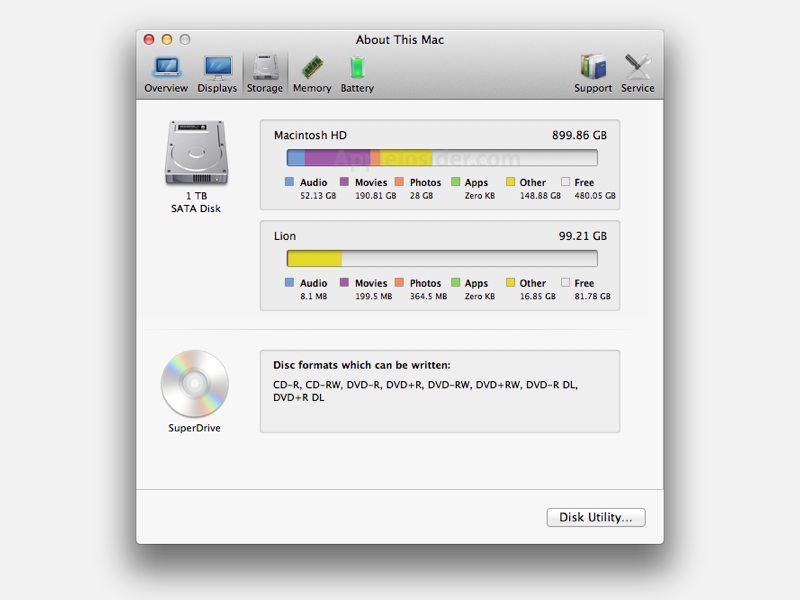
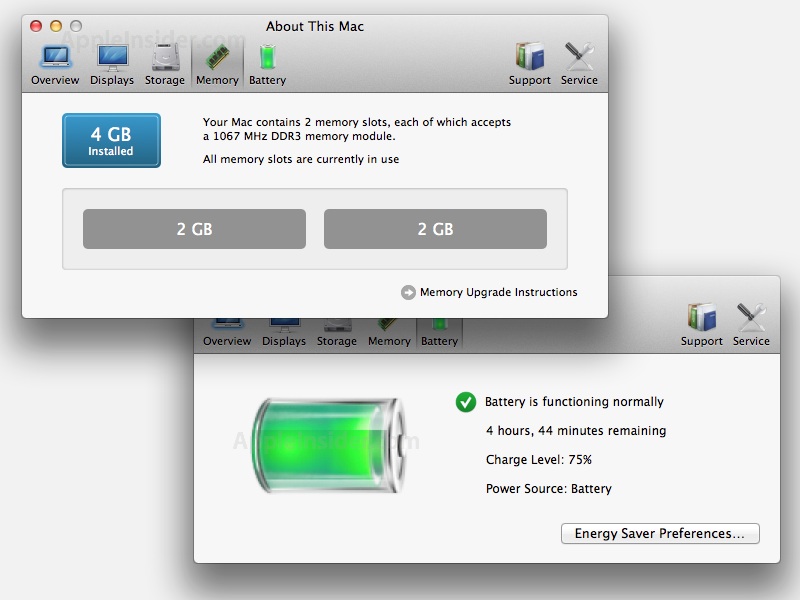
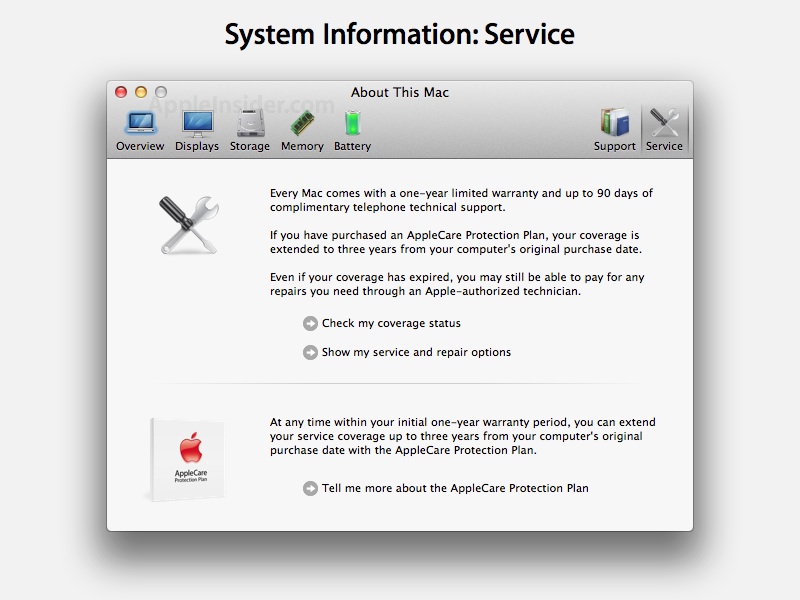
One of the great things about OS updates — particularly the latest Mac OS X updates — has been further expansion and refinement of any and all administrative tools. This is, needless to say, of particular interest to SysAdmins like us. Here are some updates that Lion brings to the table baked right into the About This Mac window.

Images Via AppleInsider

The Finder

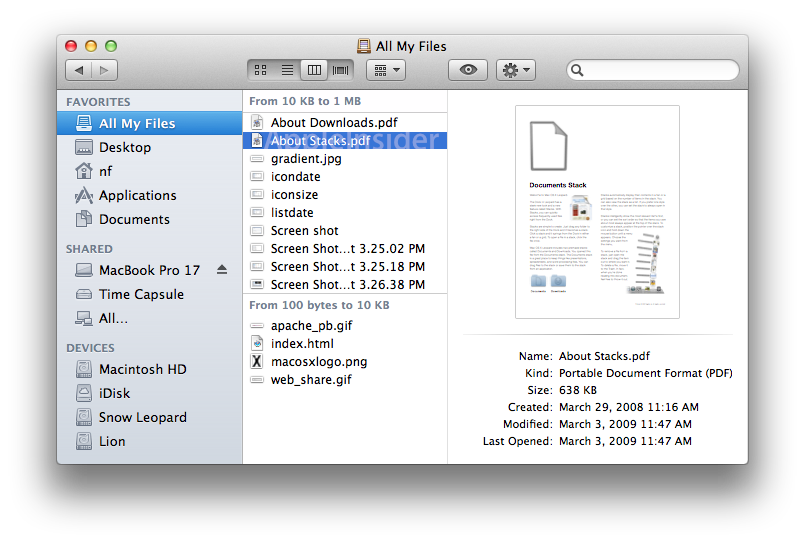
Of course I'm always, always, always happy to see Finder improvements and refinements, and it looks like there will be plenty in Lion.

We have some new and potentially very useful Finder views, though I must admit to not being a great fan of the iOS-like buttons in the toolbar. The sidebar is also toned down (a-la iTunes) and features some new and potentially useful items.

Image Via AppleInsider

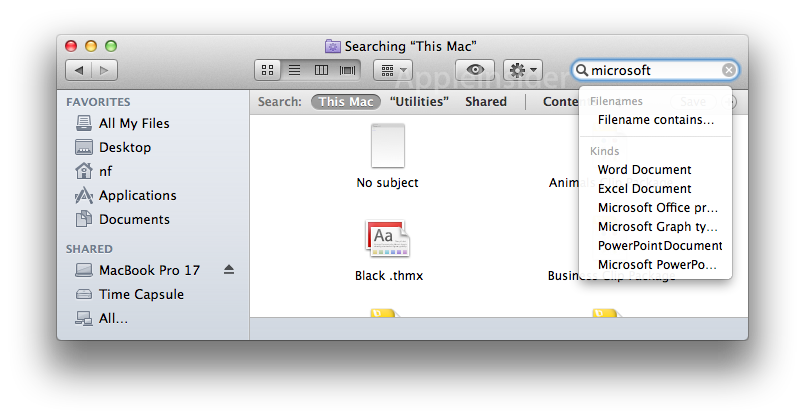
Spotlight in The Finder is now smarter and more useful.

Image Via AppleInsider

And my favorite Finder view, column view, even receives some love.

Image Via AppleInsider

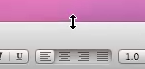
And finally, the big Finder news: windows can now be resized from any edge. Just like in Windows.

Image Via TheAppleBlog


Other Improvements

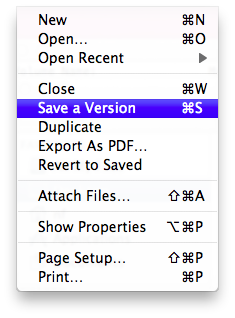
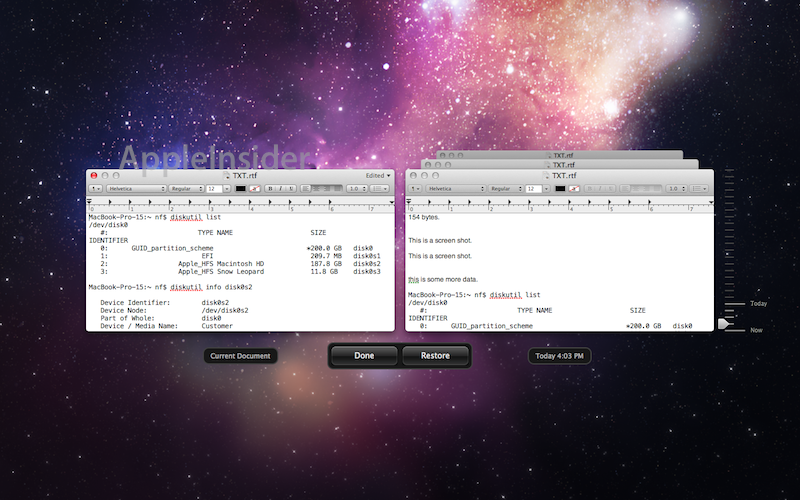
There are a bunch of additional refinements to the core OS. One of my favorites is support for automatically saving documents, or Auto Save as they're calling it.

Images Via AppleInsider

Auto Save is accessed just like Time Machine, which is just brilliant.


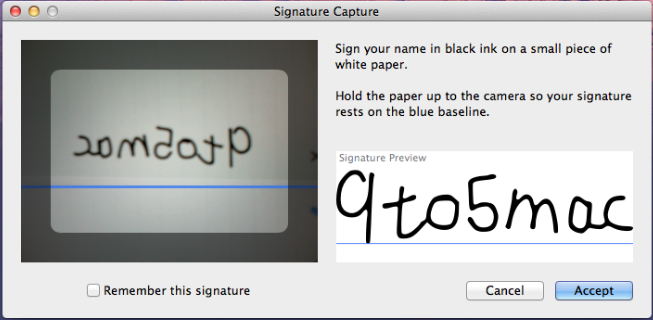
A signature capture utility also makes its way into Preview, allowing you to sign digital documents using that app and your built-in iSight camera.

Image Via 9to5Mac


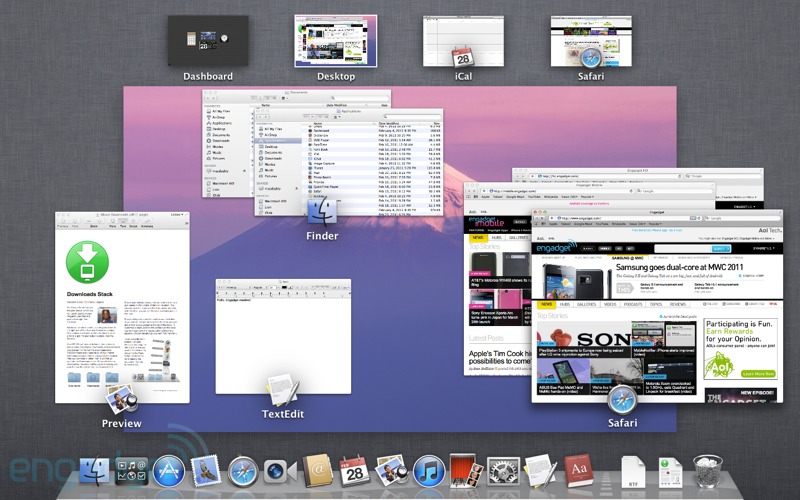
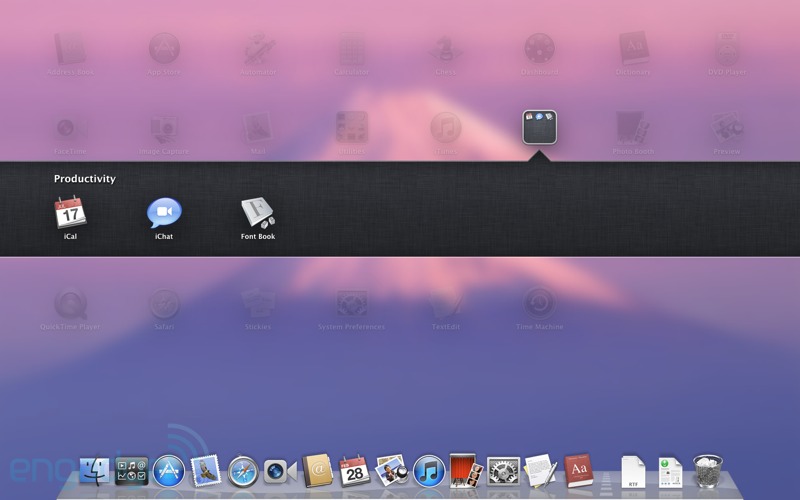
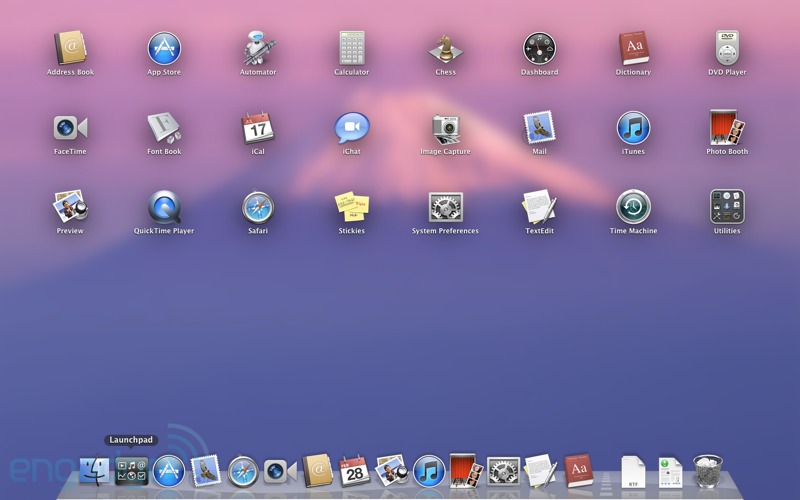
Dock and Exposé get refinements as well.

Images Via Engadget


Even Spotlight gets better, with larger icons and inline previews.

Image Via AppleInsider


All-in-all, from what I've sen so far, Lion is shaping up to be a very nice release. I'm sure there will be under-the-hood improvements that will add performance gains as well. I am, as always, really looking forward to using Apple's next OS release.

Third Time's a Charm

Another Xcode update, another bad App Store experience. This one was the best so far, but still not perfect.

After the last update I pretty much just gave up and started keeping the Install Xcode.app in the /Applications folder where it's expected, despite the 4.5 gigs it takes up. So when I went to update to Xcode 4.0.2 I expected everything to just work. I ran the Updater from the App Store, which took about 20 minutes as the entire Install Xcode.app, we now know, must be downloaded and installed from scratch (which, to be fair, was how it always worked in the old days as well).

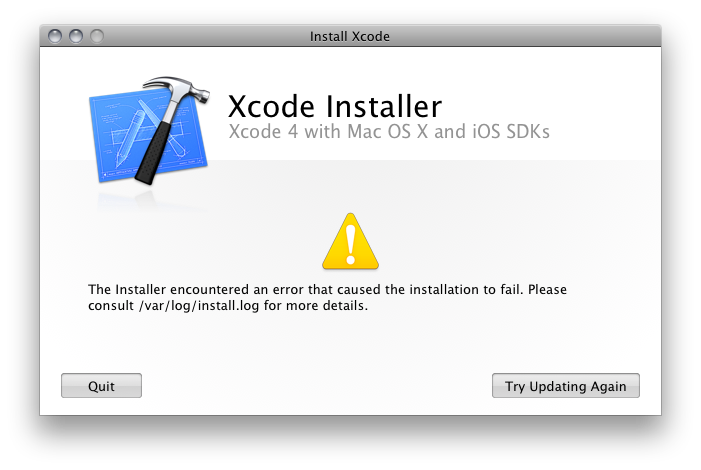
Once that completed I knew, from cold hard experience, that despite the App Store reporting that the update was complete, the Install Xcode.app still needed to run and update the actual Xcode components. I find it very sloppy that you are not instructed to do this. Or, hey, better yet, why doesn't Install Xcode.app just launch when the update in finished? That seems like the best way to go. Either way, some instruction here are really needed to make this work like an Apple product. Fortunately, I know the deal, so I ran Install Xcode.app, and this is what I got:

If you're following along at home you'll recognize this as the same message I got when I first bought and installed Xcode 4. Nice to see somethings never change. This is what the log said:

Apr 16 10:33:07 hassium installer[39689]: Free space on "SysApps": 9.96 GB (9962598400 bytes).

Apr 16 10:34:28 hassium installer[39689]: install:didFailWithError:Error Domain=PKInstallErrorDomain Code=110 UserInfo=0x10817b630 "An error occurred while extracting files from the package “OtherDevDocumentation.pkg”." Underlying Error=(Error Domain=NSPOSIXErrorDomain Code=2 UserInfo=0x106722570 "The operation couldn’t be completed. No such file or directory")


Apr 16 10:34:28 hassium installer[39689]: Install failed: The Installer encountered an error that caused the installation to fail. Contact the software manufacturer for assistance.

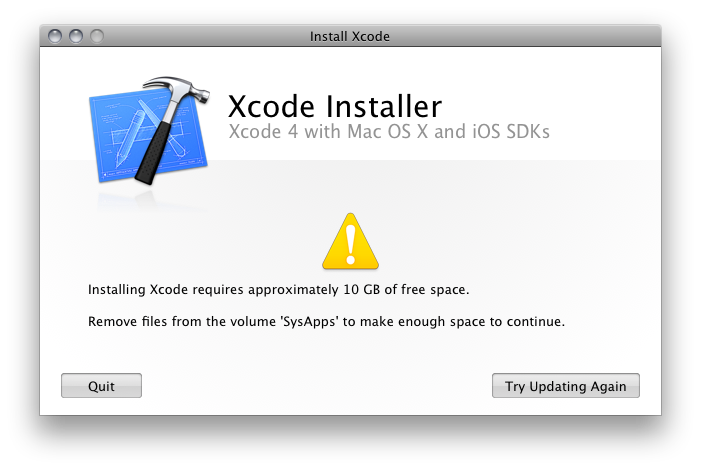
Not particularly helpful. So I decided to hit that "Try Updating Again" button, see what happens. This time, at least, I get some useful error info:

Okay, so this is just like before. We've run out of space and I need to clear some off. I still think this is the wrong place to bring this up, or at least not the ideal place. But still, I know what to do.

And sure enough, once I've cleared some space up (by deleting /var/vm/sleepimage, btw) the update works fine and dandy and Install Xcode.app automatically launches my updated Xcode (oh! sure, now you auto-launch!).

So it looks like, for me and Xcode anyway, third time's a charm.

Oh, by the way, if you're looking for the plist editor that used to be included with the Developer Tools, it no longer exists as a standalone application. Instead, it's built right into Xcode itself (makes sense to me). So if you want to edit .plist files, you just open them in Xcode now. Simple enough.

But Wait... It Gets Worse

So after purchasing and downloading Xcode via the App Store only to discover I didn't have enough disk space to install the app, I came up with an acceptable, if less than ideal, workaround. I'm not terribly happy with the state of things, but hey, at least I was able to get things back to a working state.

Today Apple released an update to Xcode. And here we go again.

Let the Good Times Roll

First off, there appears to be no way to update the software from the application page:

Nor does it appear in the Updates section of my Mac App Store:

To install the update I had to go to the Purchased section:

Ah! There it is, and it appears to see my current install. But this is what I get when I click the UPDATE button:

Nice. More useless error messages. See, I am signed into the account I used to purchase Xcode. So this makes no sense whatsoever.

Fortunately, I'm a SysAdmin, and this sort of thing is our forte. I figure App Store is probably confused because I moved the original installer app off my main hard drive due to space constraints that were causing the original install to fail. Putting the Install Xcode.app back in to /Applications should do the trick, I reason.

Sure enough, doing so allows me to run the update from App Store. Now I get this:

Well, that's pretty ironic! Seems like that's the message I should have gotten the first time I attempted to install Xcode 4.0. I'll call this progress though, as it's the first error message I've seen that might make any sense to a normal user. Still, though, there's no indication of how to fix the problem. Just how much disk space I'll need is never specified. Not before I began the process, nor during the process. This is simply terrible UI, folks. Simply terrible!

So I decided that probably the best way to clear up the needed space was to completely delete the current Xcode 4.0 install. I'm pretty sure that no matter what you do, the Install Xcode.app is going to overwrite everything anyway, so I may as well delete it.

Unfortunately, this leaves me with the original problem with the Update. I get this thing again:

So now I'm in a catch-22: If I keep everything I need for the Updater — the Install Xcode.app and the entire Developer folder — I don't have enough space to complete the update. But if I remove any of these items, the App Store isn't able to perform the Update because it doesn't seem to recognize the app as being fully installed (despite the fact that it sees it on the product page as installed) or as having been installed by me.

The first thing I tried was using a symlink pointing to the Install Xcode.app on another drive to clear some disk space. No dice. The actual Install Xcode.app needs to be in /Applications.

Next, I tried deleting just a portion of the Developer install, particularly the folder /Developer/Platforms/iPhoneOS.platform, which is just under 4GB. And now we're back to the "sign in to the account" message again. I also moved this folder and tried using a symlink to it as well, with the same result.

Next I tried removing the Install Xcode.app payload, a hidden folder that lives inside the app that's full of PKG bundles. Also no go.

It looks like the only way to update Xcode is to actually have Install Xcode.app and the Developer folder in their expected locations, and then, if you're short on disk space, to find several GBs of non-Xcode files — how many GBs I can only speculate, but I'll guess around 4 GBs (to give me a total of 10 GBs free) — to temporarily remove while I complete the update. Then, once the update is complete, I should be able to remove the Install Xcode.app (or move it to a backup disk) and put back the temporarily deleted files. Fun times!

Okay! So, after clearing up some space, the update still doesn't work! Argh! I am STILL getting the "updates for other accounts" message.

I'm at a complete loss at this point. And what do we do when we're at a complete loss, kids? That's right: Time to reboot.

Reboot to the Rescue

After rebooting and opening the App Store, and signing in to my account, here's what I see in the Updates screen:

App Store now sees my Xcode install and recognizes it as something it can update. This looks very promising. And this is what I see when I hit the UPDATE button:

Ahhh! Sweet blessed mercy! At last! It's working!

But wait… After the 20 minute "Update" process completes, App Store says my app is updated:

But Xcode begs to differ:

Turns out it's only the Install Xcode.app that's been updated:

So I run the Install Xcode.app, and this is what it tells me:

Un-fucking-believable.

Now What?

In theory, the best way for me to clear up disk space for an Xcode update is to delete the older version. I tried this before, however, and App Store got confused. But, ever the glutton for punishment, I simply must know if the Install Xcode.app will work under this scenario. It absolutely should. So I delete /Developer. Again. I rerun the updated Install Xcode.app and:

Seems to be working. It's about frickin' time.

The Deal

So here's the deal: Apple simply doesn't provide an accurate figure for how much disk space is required for installing Xcode. If you're wondering what the actual number is, I think I'm able to glean it from my experiments and am happy to provide this figure.

Also, there are a number of possible issues that can crop up if you happen to be low on disk space and are working around those constraints, so I'll provide some info on just what's going on under the hood with these updates.

Total Disk Space Required: 15 GBs

Itemized Disk Space Requirements:

  • Install Xcode.app: 4.5 GBs
  • Xcode and Related Developer Tools and Libraries: 10 GBs

What's Actually Happening During an Update:

  • When you update Xcode from the App Store, you're not actually updating Xcode. You're updating the Install Xcode.app.
  • You must have enough disk space at update time to accommodate this update, about 4.5 GBs.
  • After running the App Store update, you must run the Install Xcode.app to actually update Xcode.
  • The Install Xcode.app does not actually update existing components, it instead wants to completely overwrite your current install of /Developer, and so will need the full 10 GBs of disk space that install requires.
  • At this point, however, if you want to clear some disk space, it's safe to delete /Developer.

Additional Possible Issues:

  • In order to update Xcode, bare minimum, App Store obviously wants to see that Xcode is installed under the active account.
  • If App Store is complaining about your install or your user account, I highly recommend a reboot of your system before proceeding. This will likely cause App Store to fully recognize the install and account info, particularly if you've been mucking around in any way, shape or form.
  • The easiest way to manage all this is to keep the Developer Tools where they're expected — in /Developer — and to keep the Install Xcode.app where it's expected — in /Applications. If you have the disk space, this should make everything work more smoothly.
  • There are workarounds for this, but as you can see, they're not necessarily pretty.

All in all, I'd call this a major failure for the App Store. I'll say again, the App Store is meant to simplify the application installation process, and is meant primarily for the installation of simple, drag-and-drop type apps. By breaking its own protocol and using the App Store to install a complex suite of applications and libraries, Apple is both setting a terrible example for other developers, and creating one of the worst user experiences I've had in a very long time.